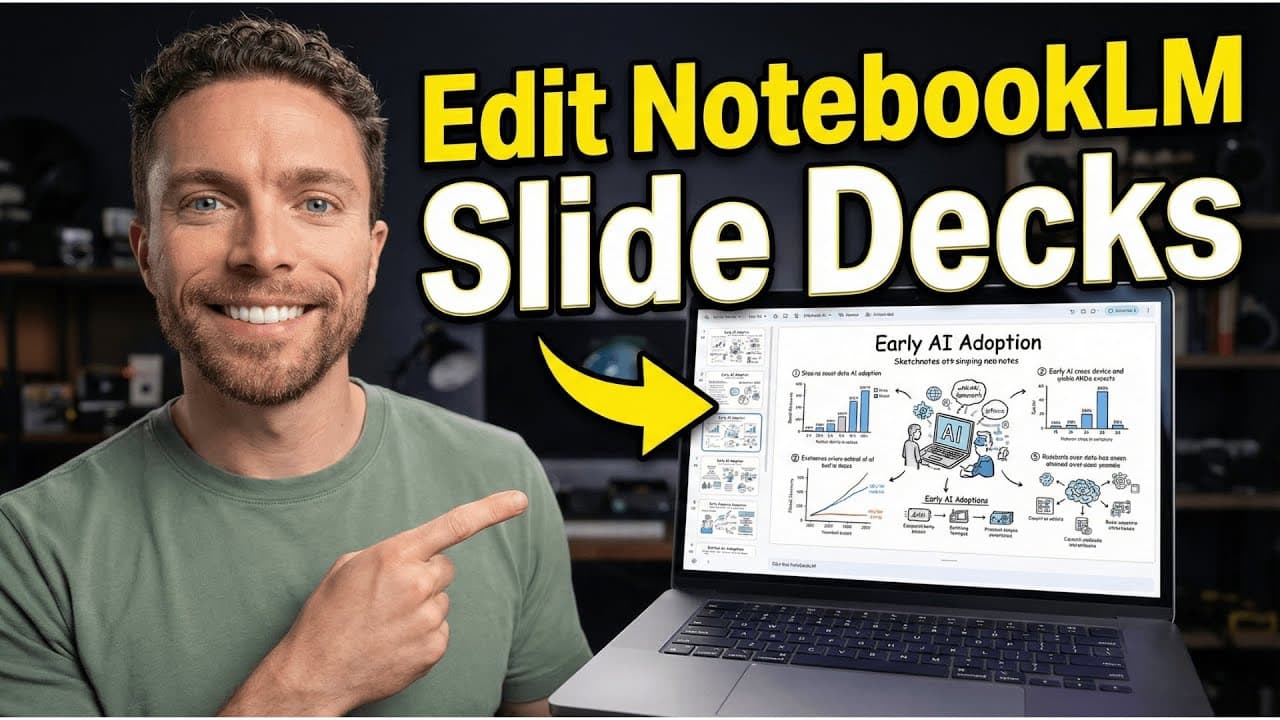
How to create stunning Notebook LM slide decks you can edit
TL;DR
The key is to vet sources before adding them to Notebook LM so generated decks are accurate and polished. Then use the pencil settings to choose detailed or presenter decks, adjust language and length, and describe your deck precisely. Finally, export as PDF, convert with Canva to PowerPoint, and edit in Google Slides using a text edit workaround to update slides accurately.
Transcript
Notebook LM is capable of producing some incredible looking presentations that are visually absolutely stunning, but most people who use this just get some pretty sad, mediocre results. Today, I'm going to show you how to get the most out of Notebook LM so that you can create slide decks exactly like this one. Ones that you can actually edit as wel... Read More
Key Insights
- Vetted sources inside Notebook LM lead to higher quality slide outputs.
- Two deck modes exist: detailed deck for learning and presenter slides for live presentations.
- Custom prompts yield more refined visual style than generic deck generation.
- The Studio interface includes a slide deck button and a pencil icon for personalized prompts.
- Length and language settings can be adjusted to fit the intended audience and depth of content.
- Exporting to PDF is the first step before further editing with Canva or Google Slides.
- Canva can convert PDFs to PowerPoint, enabling more flexible editing of slides.
- Google Slides editing can be achieved via a text extraction approach and image replacement to update content.
- More videos from this channel:
- More from this channel: Paul J Lipsky
Install to Summarize YouTube Videos and Get Transcripts
Explore YouTube Video Summarizer or Get YouTube Transcript Extractor
Questions & Answers
Q: How do you ensure Notebook LM slide decks are accurate and visually appealing?
To ensure accuracy and appeal, prioritize adding only vetted sources to the notebook before generating slides. This keeps the deck grounded in trusted material and prevents pulling in irrelevant or low quality information. Then use the pencil prompt to customize the deck to the desired detail level and visual style, ensuring it aligns with the topic and audience.
Q: What is the difference between detailed deck and presenter slides in Notebook LM?
Detailed deck is designed for self learning with full text and comprehensive detail, while presenter slides are designed for live presentations with less text and more talking points. Choosing the detailed option helps build a thorough foundation, whereas presenter slides streamline content to support on stage speaking without overwhelming the slides.
Q: Why should I not rely on the default slide deck button in Notebook LM?
The default slide deck button generates a generic deck and may introduce inaccuracies or style mismatches. Using the pencil icon to access settings allows you to specify your deck details, length, and language and to describe the deck you want, resulting in a closer match to your goals.
Q: How can I edit a Notebook LM deck after downloading it as a PDF?
After downloading the deck as a PDF, use Canva to convert it to PowerPoint. Upload the PowerPoint to Google Slides, then use AI assisted editing to modify text and visuals. This workflow provides a practical way to refine the slides when direct editing within Notebook LM is not available.
Q: What is the role of prompts in improving Notebook LM slide decks?
Prompts guide Notebook LM to generate content in a specific style and structure. A refined prompt, such as detailing the deck title, audience, and visual style, helps the model produce more tailored slides. Refining prompts with resources like Gemini can further improve results.
Q: How can you incorporate anime style illustrations into a Notebook LM deck?
Describe the desired visual style in the prompt, for example requesting an anime style with illustrative elements. The prompt influences the generated slides so that visuals align with the specified aesthetic, giving the deck a cohesive look and feel that matches the topic and tone.
Q: What steps are involved in transferring a Notebook LM deck to Google Slides for editing?
Export the deck as a PDF from Notebook LM, convert the PDF to PowerPoint with Canva, then import the PowerPoint into Google Slides. In Slides, you can replace or adjust elements using the built in tools and, if needed, use AI text editing to update headlines and content.
Q: Is there a workaround for editing slides if Notebook LM lacks direct edit support?
Yes, a workaround is to export the deck as a PDF, convert it to PowerPoint in Canva, then edit in Google Slides. This method lets you modify text and visuals and push updates to the finished deck, ensuring you can tailor it after generation.
Summary & Key Takeaways
-
Notebook LM decks improve when you curate vetted sources and tailor the prompt to your needs, resulting in more accurate and appealing slides.
-
Using the custom pencil prompt and the detailed deck option yields a more complete, presentation ready result compared to clicking the default slide deck button.
-
A practical editing workflow involves exporting to PDF, converting to PowerPoint with Canva, then importing into Google Slides and using AI tools to update text and visuals.
Read in Other Languages (beta)
Share This Summary 📚
Summarize YouTube Videos and Get Video Transcripts with 1-Click
Try YouTube Summary with ChatGPT & Claude or YouTube Transcript Generator
Explore More Summaries from Paul J Lipsky 📚




Summarize YouTube Videos and Get Video Transcripts with 1-Click
Try YouTube Summary with ChatGPT & Claude or YouTube Transcript Generator