How to Build Apps and Study Tools in Gemini Canvas
TL;DR
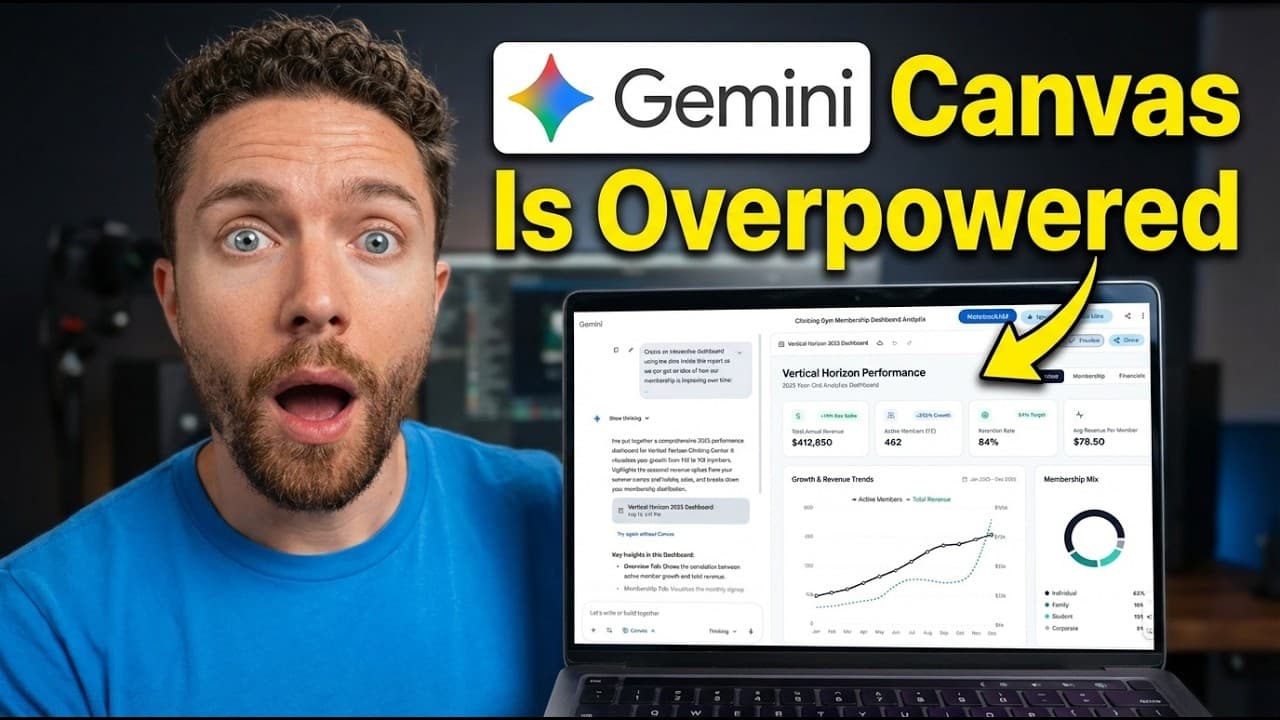
Gemini Canvas turns prompts into editable documents, functional mini apps, dashboards, flash cards, quizzes, infographics, and audio overviews. Unlike a standard Gemini chat response, Canvas provides an interactive side panel where you can directly revise content, request new app features, track information, and export, print, copy, download, or share the resulting work.
Transcript
So Gemini has this secret interactive workspace called Canvas that completely changes the way that you use Gemini. Instead of just getting a text response from it, you can actually build things with it. Mini apps, working prototypes, playable games, stuff that you can actually click around in and use. A lot of people already know about Canvas, but ... Read More
Key Insights
- Gemini Canvas is an interactive workspace that produces editable and usable outputs instead of limiting users to text responses inside a chat thread. It can create documents, mini apps, prototypes, games, dashboards, and learning materials that users can click, revise, and share.
- Standard Gemini chat responses are less convenient for document editing because placeholders and wording cannot be changed directly within the response. Revisions require another prompt, and comparing a new version with an earlier response can require scrolling through the conversation.
- Canvas documents are directly editable in a separate side panel, allowing users to replace names, dates, placeholders, and other text without prompting Gemini again. Once finished, the document can be printed, shared, exported to Docs, or copied independently of the surrounding conversation.
- Thinking mode is recommended by the presenter for paid-plan users because it is described as producing better results. In the demonstrations, Canvas and Thinking are activated together before Gemini generates an editable email and a comprehensive report about rock-climbing terminology.
- Canvas can build a functional tracking app from a natural-language request without requiring the user to know how to code. The climbing app records sessions, climb types, drills, perceived effort, and notes, then presents totals, progress, and historical information in an interactive dashboard.
- Canvas apps can be refined through follow-up instructions after their initial creation. The demonstrated climbing tracker was updated by asking Gemini to add a weekly progress chart that fills as more sessions are completed, showing how users can iteratively expand an app's functionality.
- Canvas can transform a written study report into interactive flash cards and quizzes. Flash cards reveal definitions and let learners record whether answers were correct, while quizzes evaluate selected answers and explain mistakes before advancing to the next question.
- Canvas can repurpose the same source material into an infographic or an audio overview. The infographic visually organizes climbing terminology, while the audio overview converts the research into a podcast-style conversation that can be downloaded, shared, and played during activities such as walking or exercising.
- More videos from this channel:
- More from this channel: Paul J Lipsky
Install to Summarize YouTube Videos and Get Transcripts
Explore YouTube Video Summarizer or Get YouTube Transcript Extractor
Questions & Answers
Q: What is Gemini Canvas used for?
Gemini Canvas is used to create and refine interactive outputs inside Gemini. The examples include an editable resignation email, a functional rock-climbing tracker, flash cards, quizzes, an infographic, and a podcast-style audio overview. Its side-panel workspace lets users edit content directly, interact with generated tools, request changes, and share or export completed work.
Q: How is Gemini Canvas different from a regular Gemini chat?
Regular Gemini is presented as a space for chatting, while Canvas is presented as a space for creating. A normal response remains inside the conversation and cannot be edited directly, so changes require another prompt. Canvas places the result in an interactive side panel where users can edit content, use generated controls, and copy or export the work separately.
Q: How can Gemini Canvas help write and edit an email?
A user can activate Canvas, submit an email-writing prompt, and receive the draft in a separate editable panel. Names, dates, placeholders, and wording can be changed directly instead of through repeated follow-up prompts. After editing, the email can be printed, shared, exported to Docs, or copied without also copying unrelated material from the Gemini conversation.
Q: Can Gemini Canvas build an app without coding knowledge?
Gemini Canvas can build a functional mini app from a natural-language description, as demonstrated with a rock-climbing progress tracker. The presenter states that he does not know how to code, yet Gemini creates the app for him. The resulting tool records sessions, drills, effort, and notes while also displaying totals, progress, and history.
Q: How can you update an app created in Gemini Canvas?
An app created in Canvas can be updated by describing the desired change in a follow-up prompt. In the climbing tracker example, the presenter asks Gemini to add a graph showing progress toward climbing at least 7 days a week. Gemini then modifies the dashboard and adds a weekly goal progress chart that fills as sessions accumulate.
Q: How can Gemini Canvas create flash cards from a report?
After Gemini produces a report in Canvas, the user can open the Create menu and choose flash cards. The climbing report becomes a set of cards that asks about terms such as beta, crux, and flash, then reveals their definitions. Learners can mark whether they answered correctly, allowing them to track their performance while reviewing the material.
Q: How do quizzes work in Gemini Canvas?
Canvas can convert an existing document or report into an interactive quiz through the Create menu. The generated quiz presents a question, allows the learner to select an answer, and indicates whether the response is correct or incorrect. When an answer is wrong, the quiz provides an explanation before the learner proceeds to the next question.
Q: What learning formats can Gemini Canvas generate?
Gemini Canvas can transform a written report into flash cards, a quiz, an infographic, and an audio overview. Flash cards support definition practice, quizzes provide correctness checks and explanations, and infographics visually organize terminology. Audio overviews turn the information into a podcast-style conversation that users can download, share, and listen to while walking or exercising.
Summary & Key Takeaways
-
Gemini Canvas is presented as an interactive workspace for creating rather than merely chatting. An email generated in Canvas appears in a separate side panel, where placeholders and wording can be edited directly. The finished document can then be printed, shared, exported to Docs, or copied without unrelated chat content.
-
Canvas can generate functional mini apps from natural-language requests, even for someone who does not know how to code. The demonstrated climbing tracker records climb types, training drills, perceived effort, and notes. It also displays totals, progress, and history, while follow-up prompts can add features such as a weekly goal chart.
-
A Canvas report can become several interactive learning resources through its Create menu. The climbing terminology report was converted into flash cards, a quiz with answer feedback, an infographic, and an audio overview presented like a podcast. These formats support practice, review, visual reference, and learning while exercising or walking dogs.
Read in Other Languages (beta)
Share This Summary 📚
Summarize YouTube Videos and Get Video Transcripts with 1-Click
Try YouTube Summary with ChatGPT & Claude or YouTube Transcript Generator
Explore More Summaries from Paul J Lipsky 📚
Summarize YouTube Videos and Get Video Transcripts with 1-Click
Try YouTube Summary with ChatGPT & Claude or YouTube Transcript Generator