How to Build a Claude Cowork Automation System
TL;DR
Build a reusable automation system by giving each Claude Cowork project its own folder, files, instructions, and personality, then connect the external apps it needs. Install relevant plugins and skills, create a backed-up parent folder, run the setup command, answer the personalization questions, and use Sonnet when you want a balance between capability and usage consumption.
Transcript
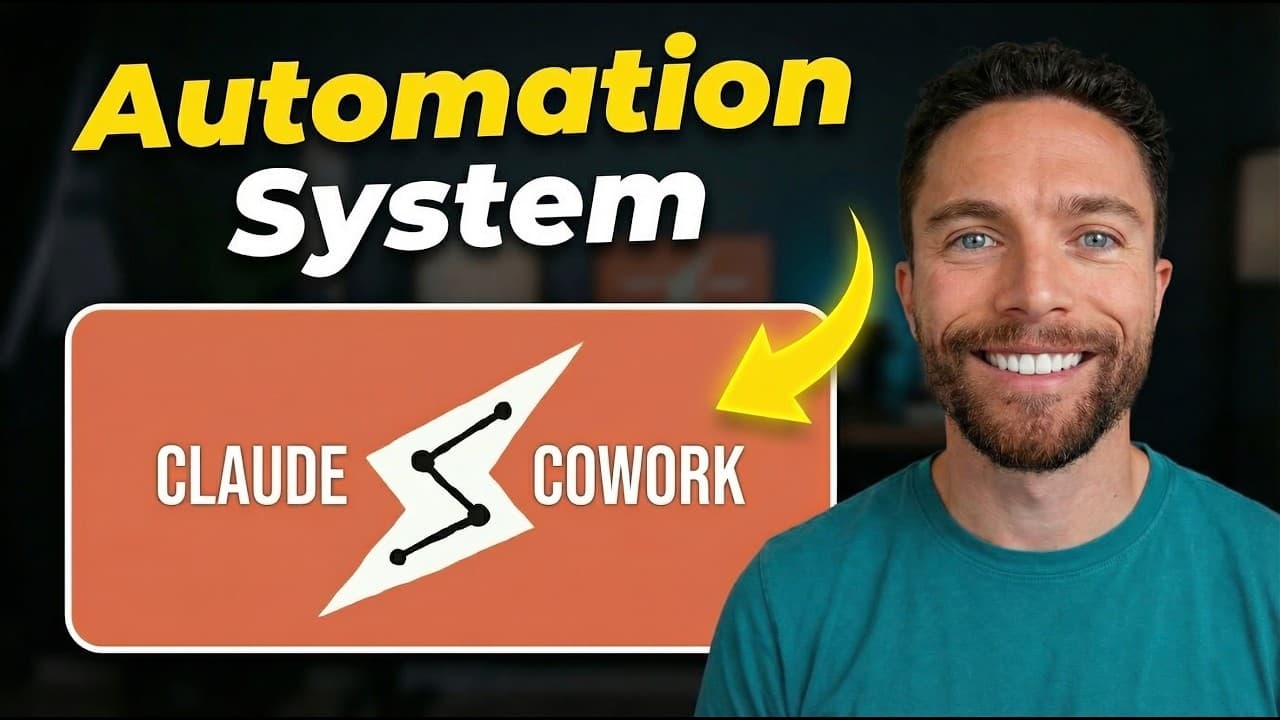
Over the past couple of weeks, I've been trying to push Claude Coowwork to its limits, seeing just how much of my life I can automate with this one app. And I finally have down a automation system using Co-work that anyone can easily replicate. I call it Co-work OS. Just to show you some examples, right now I have Claude Co-work automatically triag... Read More
Key Insights
- The folder hierarchy is the foundation of Cowork OS because each subfolder functions as a separate project area with its own files, instructions, and personality. This structure gives Claude Cowork relevant context and reduces the number of questions it must ask before performing assigned work.
- Claude Cowork works with folders and files stored on the user's computer. Instead of simply selecting an existing folder, the creator recommends designing a dedicated parent folder and project hierarchy upfront so Cowork can access the right resources and follow project-specific directions consistently.
- Connectors allow Claude to communicate with third-party applications and retrieve current information from services the user already uses. The creator recommends connecting relevant tools, such as Gmail, Notion, Google Calendar, or Canva, because broader access can support more capable and useful workflows.
- Skills are reusable sets of plain-text instructions that tell Claude exactly how to perform recurring tasks. Once a skill such as content research has been added, the user can request that activity without repeatedly explaining the desired process, standards, and workflow.
- Plugins are bundles of related skills and connectors designed for a particular type of work. The Productivity plugin includes commands, suggested connectors, and skills for memory management and task management, while optional connectors can be installed only when they match the user's existing tools.
- The Cowork OS setup plugin automates creation of the folder system through a command-driven onboarding process. After uploading the plugin and opening the intended parent folder, the user types /begin, chooses a model, and answers questions that personalize the assistant and workspace.
- Sonnet is the creator's usual model choice because it offers a balance between efficiency and usage consumption. Opus is described as the most capable option, but it consumes usage faster, while Haiku is also presented as one of the three available model choices.
- A backed-up parent folder can make the system easier to preserve and access across computers. The creator places the Cowork OS folder in iCloud Drive, then authorizes Cowork to work inside it so the application can generate and manage the project structure.
- More videos from this channel:
- More from this channel: Paul J Lipsky
Install to Summarize YouTube Videos and Get Transcripts
Explore YouTube Video Summarizer or Get YouTube Transcript Extractor
Questions & Answers
Q: How do you structure folders for Claude Cowork automation?
Create one parent folder for the entire automation system, then place separate subfolders inside it for different project areas. Give each project folder its own relevant files, custom instructions, and personality. When Claude Cowork works inside a particular folder, it receives focused context, understands what kind of work it should perform, and can proceed without asking as many clarifying questions.
Q: What are connectors in Claude Cowork?
Connectors let Claude communicate with third-party applications and data sources that the user already relies on. They allow it to retrieve real-time information instead of guessing. The creator suggests reviewing the available connectors and adding relevant services, with examples including Gmail, Notion, Google Calendar, and Canva. Each connected application also displays the permissions granted to Claude.
Q: What are skills in Claude Cowork?
Skills are reusable instructions that Claude follows whenever it performs the same type of task. A skill can be written as plain English text describing the preferred process in detail. For example, a content research skill tells Claude how research should be conducted. After the skill is available, the user can request content research without restating the complete procedure every time.
Q: What is the difference between skills and plugins in Claude Cowork?
A skill is an individual set of instructions for completing a repeatable task, while a plugin bundles multiple related capabilities. A plugin can contain commands, suggested connectors, and several skills designed for a common purpose. The Productivity plugin, for example, includes initialization commands and skills for memory management and task management, plus optional connector recommendations for supported productivity tools.
Q: How do you start setting up Cowork OS?
Install the Claude desktop application because the transcript says Cowork is unavailable on smartphones and the web. Add the Productivity plugin, upload the creator's Cowork OS plugin, and create a new parent folder in a safe, accessible location. Open that folder in Cowork, approve access, type /begin, select the displayed command, choose a model, and begin the guided questions.
Q: Which Claude model should you use for Cowork OS?
The setup presents three models: Haiku, Sonnet, and Opus. The creator generally selects Sonnet because it provides a useful balance between efficiency and avoiding rapid credit consumption. Opus is described as the most capable model, but it uses the available allowance faster. The transcript names Haiku as the third choice but does not provide a detailed comparison of its behavior.
Q: How does Cowork OS personalize the assistant?
The /begin setup command asks a sequence of onboarding questions. Users can name their coworker, choose personality traits, provide their own name, describe their daily responsibilities, and identify work that consumes the most time. In the example, the creator chooses an adaptive, friendly, and encouraging assistant, then explains that email and producing YouTube videos about AI are major responsibilities.
Q: What tasks can the Cowork OS system automate?
The creator reports using Cowork OS to triage an email inbox each morning, draft email replies, research trending topics for possible YouTube videos, track workouts and food, and operate a task-management system. These workflows rely on structured project folders, reusable instructions, and appropriate external connections. The description also says the system is intended to handle email, research, tasks, and additional work automatically.
Summary & Key Takeaways
-
Cowork OS organizes automation around a parent folder containing separate project folders. Each project can hold its own files, custom instructions, and personality, allowing Claude Cowork to understand its role and complete tasks with fewer follow-up questions. The creator uses this structure for email, research, personal tracking, and task management.
-
Claude Cowork's customization area contains connectors, skills, and plugins. Connectors provide access to third-party applications and real-time data. Skills are reusable plain-text instructions for recurring work. Plugins bundle related skills and recommended connectors, reducing the effort required to assemble workflows such as productivity or customer-support systems.
-
The setup begins in the Claude desktop app by installing the Productivity plugin and the creator's Cowork OS plugin. Users create a parent folder, preferably in an accessible backed-up location, authorize Cowork to use it, run the /begin command, select a model, and answer questions about preferences, responsibilities, and time-consuming work.
Read in Other Languages (beta)
Share This Summary 📚
Summarize YouTube Videos and Get Video Transcripts with 1-Click
Try YouTube Summary with ChatGPT & Claude or YouTube Transcript Generator
Explore More Summaries from Paul J Lipsky 📚

Summarize YouTube Videos and Get Video Transcripts with 1-Click
Try YouTube Summary with ChatGPT & Claude or YouTube Transcript Generator