How to Set Up Gemini Spark for Daily Tasks
TL;DR
Turn on memory and Google Workspace connections in Gemini's Personal Intelligence settings, then give Spark a task that can span Gmail, Calendar, Drive, and search. Save successful workflows as skills and schedule recurring tasks, while reviewing confirmation requests before Spark changes calendar events or takes other actions.
Transcript
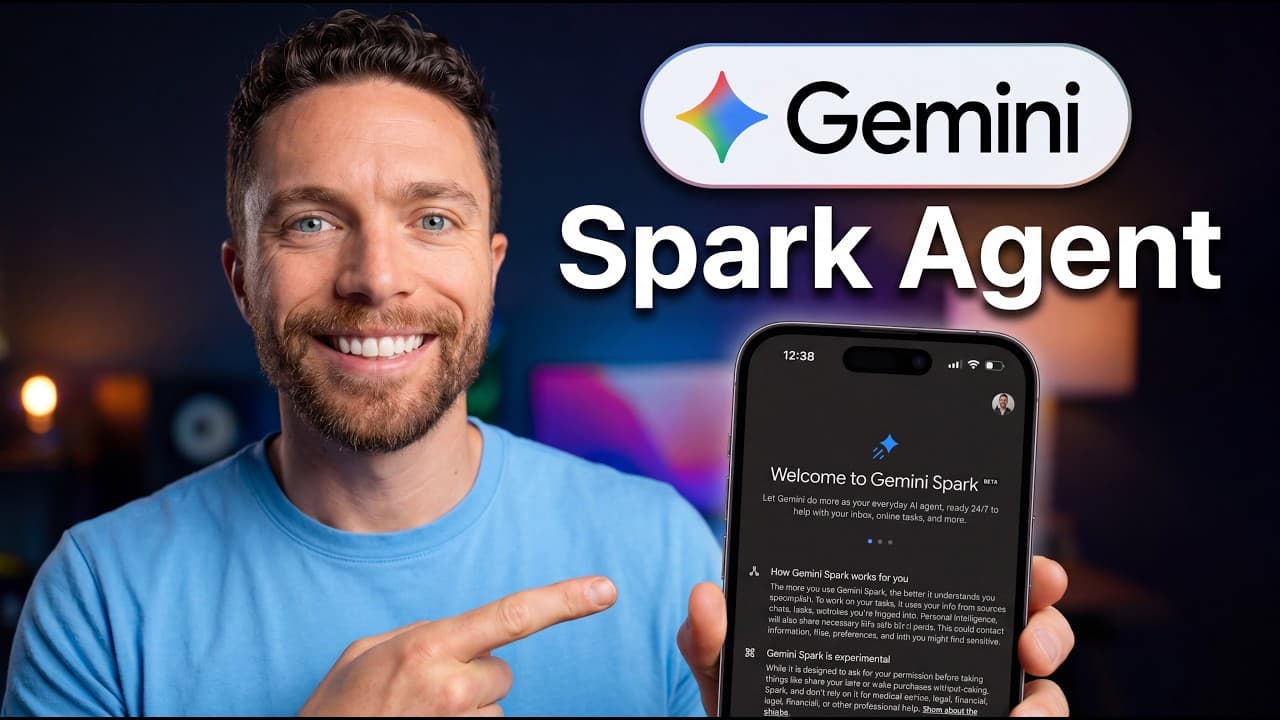
Gemini Spark is the easy AI agent you've been waiting for. A personalized agent that just works, running 247, managing your emails, organizing your calendar, and completing your busy work. And all of that without the complicated setup that usually comes with AI agents. In fact, in this video, I'll show you step by step how simple it is to set up Ge... Read More
Key Insights
- Gemini Spark is an AI agent rather than a standard chatbot because it can proactively complete multi-step tasks across connected applications instead of waiting only to answer individual prompts.
- Spark setup is completed through Gemini's Personal Intelligence settings by turning on memory and enabling connected applications such as Google Workspace, giving the agent useful personal context and access to work tools.
- Memory is a source of personalized context because it lets Gemini use information from previous chats, including preferences and travel circumstances, when Spark plans or completes a new task.
- Spark keeps users involved before taking action by presenting confirmation requests for changes such as deleting a canceled calendar event or adding a newly agreed meeting time.
- Inbox management can combine several operations in one task, including finding recent emails, prioritizing messages, drafting replies, researching answers, identifying ignorable messages, and coordinating related calendar changes.
- Skills are saved workflows that let Spark repeat a successful process without requiring the user to rewrite the full prompt or explain the same preferences and instructions each time.
- Schedules automate recurring Spark workflows through time-based or event-based triggers, allowing a saved inbox-management process to run every day or when particular events occur.
- Spark can consolidate scattered information from Gmail, Drive documents, Calendar, websites, and Personal Intelligence into a unified plan, as demonstrated by the creation of a one-day San Diego itinerary.
- More videos from this channel:
- More from this channel: Paul J Lipsky
Install to Summarize YouTube Videos and Get Transcripts
Explore YouTube Video Summarizer or Get YouTube Transcript Extractor
Questions & Answers
Q: How do you set up Gemini Spark?
Open Spark from inside Gemini, select the gear icon, and enter the Personal Intelligence settings. Make sure memory is turned on so Gemini can use relevant information from previous chats. Then open Connected Apps and enable Google Workspace. According to the demonstration, those settings complete the required setup, and Spark is ready to receive tasks through its central prompt bar.
Q: What is the difference between Gemini Spark and regular Gemini chat?
Regular Gemini chats wait for the user to enter prompts and primarily respond within a conversation. Spark organizes work as tasks and can proactively perform multiple steps across connected applications. For example, a single request can make it inspect Gmail, review Calendar, conduct a search, draft responses, and propose calendar changes, which is why it functions as an AI agent rather than only a conversational chatbot.
Q: How can Gemini Spark manage an email inbox?
A user can ask Spark to inspect emails from a defined period, decide which messages deserve a response, identify messages that can be ignored, and draft necessary replies. Spark can also research information needed for those drafts and connect email developments to Calendar. In the example, it added a meeting, removed a canceled event, summarized an automated message, and prepared responses for review.
Q: Does Gemini Spark ask permission before changing your calendar?
Spark presents confirmation requests before taking demonstrated actions that modify the user's information. When an email indicated that a scheduled call had been canceled, Spark asked for approval to delete the calendar event. It also requested confirmation before adding a meeting based on an agreed time in an email exchange, keeping the user involved before either calendar change was completed.
Q: How do you create a reusable skill in Gemini Spark?
Complete a task successfully, then ask Gemini to turn that task into a skill that runs whenever you use a chosen instruction. Spark saves the workflow and displays its instructions. Skills can also be created manually or uploaded as text files containing instructions. To reuse a saved skill, create a task, type a forward slash, and select the desired skill from the displayed list.
Q: How do schedules work in Gemini Spark?
Schedules let Spark run workflows automatically based on triggers. A trigger can be time-based, such as running an inbox-management workflow every day at 5:00 a.m., or event-based, such as responding when an email arrives. A completed task can be scheduled by asking Spark to run it at the desired time, after which the schedule appears in the schedules section.
Q: How can Gemini Spark build a travel itinerary?
Spark can gather travel information from multiple connected sources and combine it into one plan. In the example, it reviewed a Google Drive document containing ideas, found Safari Park tickets in Gmail, noticed a noon meeting on Calendar, used a supplied website, and applied personal preferences from earlier Gemini chats. It then produced a consolidated one-day itinerary that accounted for activities, food, driving, and the scheduled call.
Q: Who can access Gemini Spark in the described rollout?
The description states that Gemini Spark is rolling out and is currently available only to Google AI Ultra subscribers. The presenter received early access through the Google Early Access Program and stated that the video was not sponsored. Because availability is described as part of an ongoing rollout, the feature appears inside Gemini only when it has become available to the user's account.
Summary & Key Takeaways
-
Gemini Spark is an AI agent inside Gemini that proactively completes multi-step tasks across connected applications. Initial setup involves opening Personal Intelligence settings, enabling memory, and turning on Google Workspace connections. Memory helps Spark use relevant details from previous Gemini chats, while connected apps provide access to tools and information needed for assigned work.
-
An inbox-management task can ask Spark to find recent messages, prioritize them, identify required responses, draft replies, research relevant information, and update the calendar. Spark displays its working steps and requests confirmation before taking actions. Its final report distinguishes messages requiring attention, automated emails that can be ignored, drafted responses, and completed calendar changes.
-
Successful tasks can become reusable skills, which function as saved workflows containing repeatable instructions. Users can create them manually, upload instruction files, or ask Gemini to convert a completed task into a skill. Schedules can then run those workflows at specified times or in response to events such as receiving an email.
Read in Other Languages (beta)
Share This Summary 📚
Summarize YouTube Videos and Get Video Transcripts with 1-Click
Try YouTube Summary with ChatGPT & Claude or YouTube Transcript Generator
Explore More Summaries from Paul J Lipsky 📚



Summarize YouTube Videos and Get Video Transcripts with 1-Click
Try YouTube Summary with ChatGPT & Claude or YouTube Transcript Generator