How to Use Claude Cowork Across Web and Mobile
TL;DR
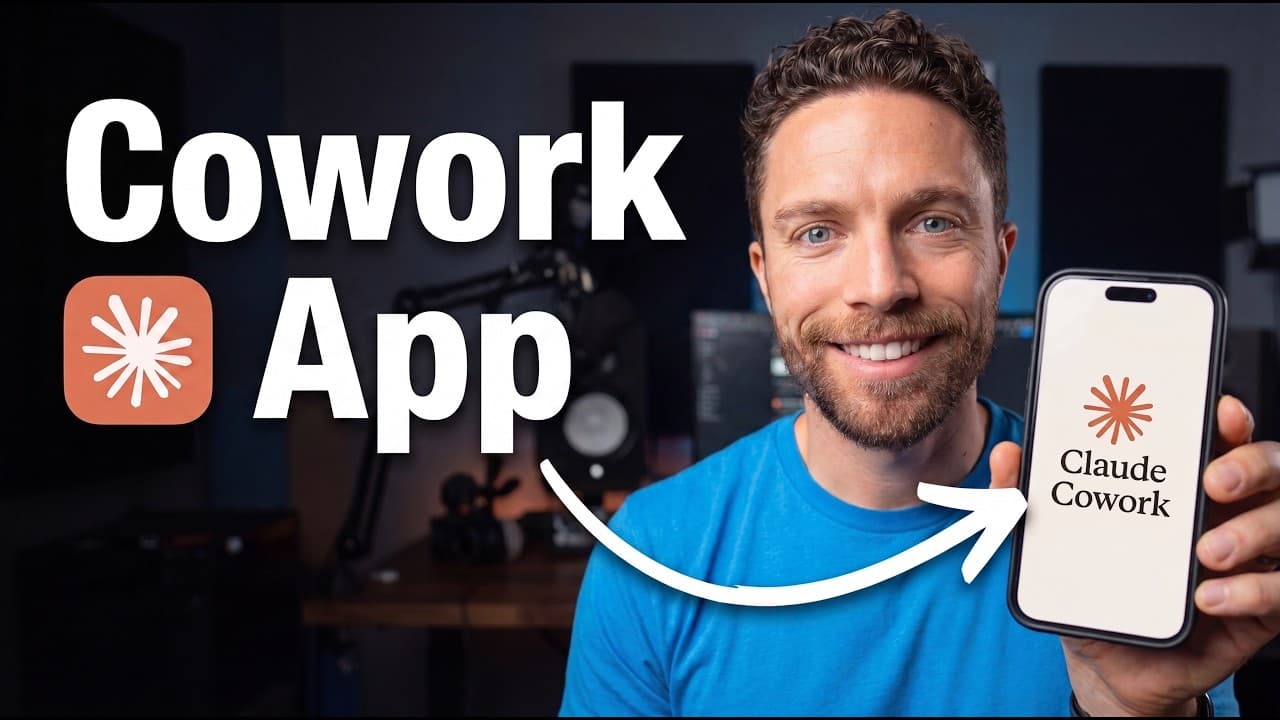
Start a Cowork task in the updated desktop app with manual approval selected if it needs access to local computer files from the web or phone later. The computer must remain on and the desktop app must stay open. Tasks started on the web or phone are cloud-based and sync across devices, but they cannot access local files on the computer.
Transcript
We just got one of the biggest updates to Claude Co-work ever. Claude Co-work is now available on the web and on your phone. Anthropic even says that you don't even need to have the desktop app open in order for Co-work to work. But I found that that's not entirely true. After all, one of the things we love about the Claude Co-work desktop app is t... Read More
Key Insights
- Regular Claude chat synchronizes across every device. A conversation started in the web app, desktop app, or phone app becomes available through the other interfaces, making ordinary chat behavior simpler and more consistent than the task-specific synchronization rules used by Cowork.
- Cowork tasks can be either cloud-based or local. Cloud-based tasks appear in the web, desktop, and phone apps, while local tasks remain available only on the computer where they were created. The icon displayed in a task indicates which execution mode is active.
- Cowork synchronization requires current app versions and renewed authentication. Users should update both the desktop and phone apps, then sign out and sign back in across their devices. The services may also automatically request this reauthentication after the update.
- Manual approval enables a desktop Cowork task to run through the cloud. Selecting manual approval before starting a task produces a cloud icon and allows the task to appear on the web and phone. Selecting skip all approvals keeps the task local instead.
- Remote local-file access begins with a desktop-created task. A Cowork task started on the computer can be linked to a selected local folder, synchronized through the cloud, and continued later through the web or phone while retaining its connection to that folder.
- Tasks started on the web or phone cannot access local computer files. They remain cloud-based and appear in the desktop app, but opening them there does not establish a connection to local files, even when the desktop app is running and connected.
- The desktop computer must remain on for remote local-file work. The Claude desktop app must also stay open so that a synchronized task created on the desktop can continue interacting with its selected folder when the user connects through a phone or web browser.
- Cowork offers more structured remote use than Dispatch. Cowork separates work into individual tasks and displays cloud-based tasks in the phone app. It also lets users choose a model and use dictation, capabilities the speaker says are unavailable through Dispatch.
- More videos from this channel:
- More from this channel: Paul J Lipsky
Install to Summarize YouTube Videos and Get Transcripts
Explore YouTube Video Summarizer or Get YouTube Transcript Extractor
Questions & Answers
Q: How do I sync Claude Cowork tasks across devices?
Update the Claude desktop and phone apps, then sign out and sign back in everywhere to reauthenticate. When starting the task in the desktop Cowork app, select manual approval rather than skip all approvals. A cloud icon should appear, indicating that the task is cloud-based and can be opened through the web app, desktop app, and phone.
Q: How can Claude Cowork access local files from my phone?
Start the Cowork task in the desktop app, select manual approval, and choose the local folder that Claude should use. After the cloud-based task appears on your phone, you can continue it remotely. Your computer must remain on and the Claude desktop app must remain open for the task to retain access to files in that folder.
Q: Why can a Cowork task not access files on my computer?
A task cannot access local computer files if it was originally created through the web app or phone app. Although that task is cloud-based and will appear on the desktop, opening it there does not add local-file access. To use computer files remotely, create a new task in the desktop app and select the folder there.
Q: What is the difference between cloud and local Cowork tasks?
A cloud-based Cowork task synchronizes across the web, desktop, and phone interfaces. A local task runs only on the computer and does not appear on other devices. In the interface, a cloud icon marks a cloud task, while a computer icon marks a device-based task. The approval setting determines the mode for desktop-created tasks.
Q: Why should I select manual approval in Claude Cowork?
Manual approval allows a task created in the desktop app to run through the cloud and synchronize with the web and phone apps. If skip all approvals is selected, the task runs locally and remains limited to the desktop app. The resulting cloud or computer icon provides a visible confirmation of the selected execution mode.
Q: Does the Claude desktop app need to stay open for remote access?
Yes, the computer must remain on and the Claude desktop app must stay open when a synchronized Cowork task needs remote access to local files. The web or phone interface can continue the task, but the desktop connection provides access to the selected folder. Purely cloud-based work that does not require local files does not have this requirement.
Q: Where should I start a Cowork task that uses only cloud resources?
A Cowork task that does not need local computer files can begin in the web app, phone app, or desktop app. It will be cloud-based and accessible across the available interfaces. The task's starting location becomes important only when local-file access is required, because that capability must be established through a desktop-created task.
Q: How is Claude Cowork different from Dispatch on mobile?
Cowork organizes remote work into separate tasks, while Dispatch uses one continuous conversation. The phone app displays cloud-based Cowork tasks, including desktop-created tasks that retain access to local files. Cowork also provides model selection and a dictation button. The speaker considers this task separation and added control better than the earlier Dispatch workflow.
Summary & Key Takeaways
-
Regular Claude chats synchronize across the web, desktop app, and phone regardless of where they begin. Cowork uses tasks instead of chats, and its behavior depends on how each task is created. Some desktop tasks sync through the cloud, while tasks configured to run locally remain accessible only through the desktop app.
-
To prepare Cowork for cross-device use, update the desktop and phone apps, sign out everywhere, and sign back in to reauthenticate. When creating a desktop task, choose manual approval. A cloud icon identifies a cloud-based task that can appear on other devices, while a computer icon identifies a local task.
-
Remote local-file access requires the task to originate in the desktop app with manual approval enabled. The computer must remain on, and the Claude desktop app must remain open. Tasks created directly through the web or phone can synchronize across devices, but they cannot later gain access to files stored locally on the computer.
Read in Other Languages (beta)
Share This Summary 📚
Summarize YouTube Videos and Get Video Transcripts with 1-Click
Try YouTube Summary with ChatGPT & Claude or YouTube Transcript Generator
Explore More Summaries from Paul J Lipsky 📚




Summarize YouTube Videos and Get Video Transcripts with 1-Click
Try YouTube Summary with ChatGPT & Claude or YouTube Transcript Generator