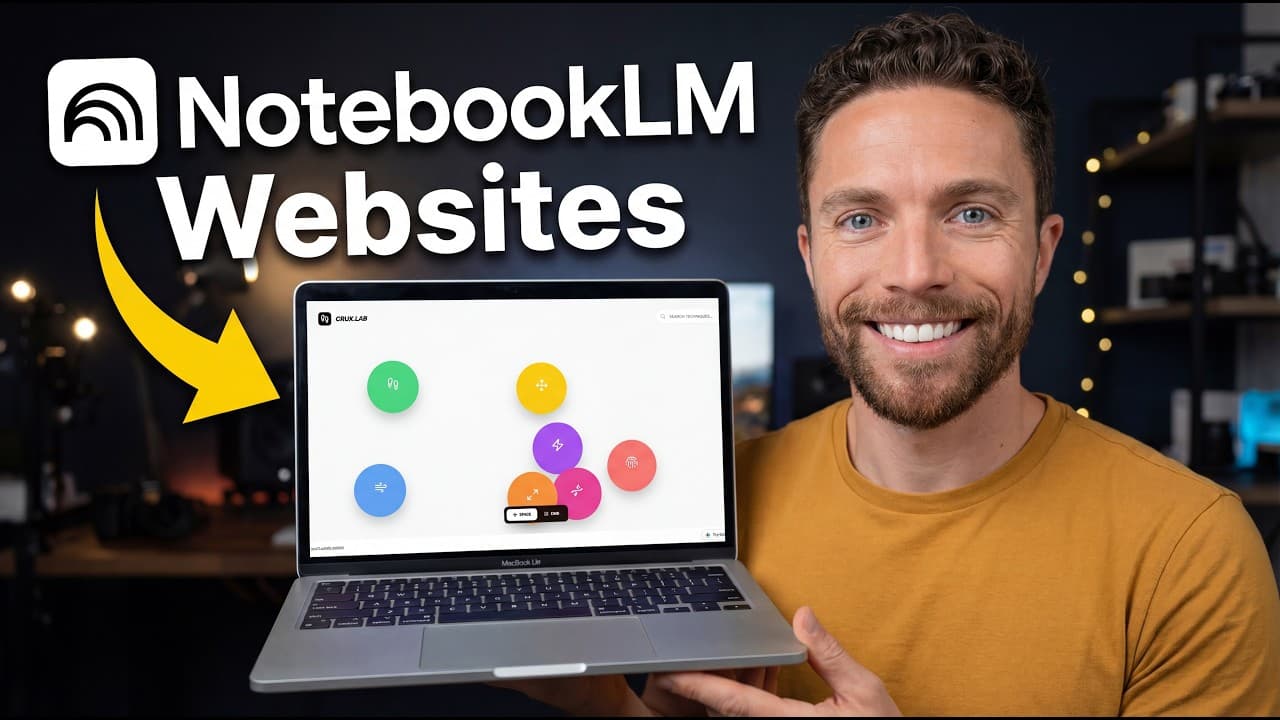
How to turn NotebookLM notebooks into interactive websites
TL;DR
You can convert any NotebookLM notebook into a sharable interactive website without coding. Start by organizing sources in a notebook, then use Google Gemini with canvas to generate a website, choosing the best model (Pro preferred). Customize with prompts, visuals, quizzes, and sharing options for a polished result.
Transcript
Did you know that you can turn any notebook in Notebook LM into a beautiful interactive website just like this one? This is great for portfolios, research hubs, client-f facing reports, honestly anything where you want to take information you've already organized in a notebook and instantly turn it into a beautiful sharable website. No coding, no w... Read More
Key Insights
- NotebookLM sources should be centralized in a notebook to ensure accuracy and cohesion in the generated site.
- Gemini canvas is the unlocking setting that enables website creation from a NotebookLM notebook.
- The model choice affects output quality, with Pro generally delivering superior results compared to Thinking or Fast.
- Prompt specificity influences site focus and scope, with broader prompts yielding more creative but larger sites.
- Including a clear goal in prompts helps Gemini align the website with the intended outcome and audience.
- Adding visuals such as product images and dark mode can significantly improve the site’s aesthetics and usability.
- Prompts can be refined through back and forth interaction to iteratively improve the website design.
- Extra materials like screenshots and screen recordings can inspire design and help mirror desired layouts in the generated site.
- More videos from this channel:
- More from this channel: Paul J Lipsky
Install to Summarize YouTube Videos and Get Transcripts
Explore YouTube Video Summarizer or Get YouTube Transcript Extractor
Questions & Answers
Q: How to prepare the notebook for website creation
To prepare the notebook, gather all sources that will be used for the website in one place and organize them carefully. This central hub ensures accuracy and relevance when the site is generated. Include essential items such as company overview, brand guide, missions, values, and product pricing. A well organized notebook reduces errors and helps the AI output stay on track.
Q: What is the role of Google Gemini and canvas
Google Gemini acts as the content generator for the website and canvas is the enabling tool that unlocks website creation within Gemini. You attach the NotebookLM notebook to a Gemini chat, enable canvas in tools, and then prompt the model to build an interactive site. This combination is what makes it possible to create a website from notes without coding.
Q: Which model is best for quality, and why
The Pro model delivers the best results and should be used when available. It generally produces nicer visuals, more complete interactions, and richer layouts compared to Thinking or Fast modes. Availability may depend on your plan, but choosing Pro tends to give the highest quality website output.
Q: How do prompts influence the final website
Prompts guide the scope and focus of the generated site. A broad prompt creates a flexible, comprehensive site, while a more specific prompt narrows the content to particular aspects such as how to use a product or which AI models to include. The right balance yields a usable, informative site with emphasis on the intended goals.
Q: Can prompts include a goal, and why is that useful
Yes, including a goal in the prompt helps the AI understand the intended outcome and target audience, which improves alignment with what you want to achieve. Stating the goal guides the generation toward relevant features like pricing, FAQs, and a quiz, ensuring the final site serves the desired purpose.
Q: What kind of elements can be added to the site
You can add interactive elements such as a product pricing section, an FAQ, a quiz to determine fit, and navigation that links to different parts of the page. Visuals like product images, dark mode, and clickable demos enrich the user experience, making the site more engaging and functional.
Q: How can images and media influence the output
Images and media act as inspiration for design and layout. Uploading product photos or screenshots allows Gemini to mirror the style and feel of preferred pages. Screen recordings can further guide the AI on interactions and transitions, resulting in a more faithful and polished final site.
Q: What are practical tips for refining the generated site
Start with a strong prompt and review the generated output for any mismatches or missing details. Use back and forth to request changes, such as replacing hero images or tweaking color schemes. Finally, use the share feature to publish a link and gather feedback for further refinements.
Summary & Key Takeaways
-
This video demonstrates turning a NotebookLM notebook into a fully functioning interactive website using Gemini canvas. It emphasizes preparing a centralized notebook with all sources and choosing the right model for high quality output. The process includes prompts, prompts refinement, and adding features like a quiz and product pricing.
-
The presenter shows variations by tweaking prompts and outputs, including using screenshots and screen recordings to influence design. It also covers post creation steps such as editing, adding product imagery, dark mode, and sharing the final website link.
-
Final tips include applying a specific goal in prompts, uploading assets like product images, and using back and forth to achieve the desired look. The video ends with encouragement to experiment and share prompts for better results.
Read in Other Languages (beta)
Share This Summary 📚
Summarize YouTube Videos and Get Video Transcripts with 1-Click
Try YouTube Summary with ChatGPT & Claude or YouTube Transcript Generator
Explore More Summaries from Paul J Lipsky 📚

Summarize YouTube Videos and Get Video Transcripts with 1-Click
Try YouTube Summary with ChatGPT & Claude or YouTube Transcript Generator