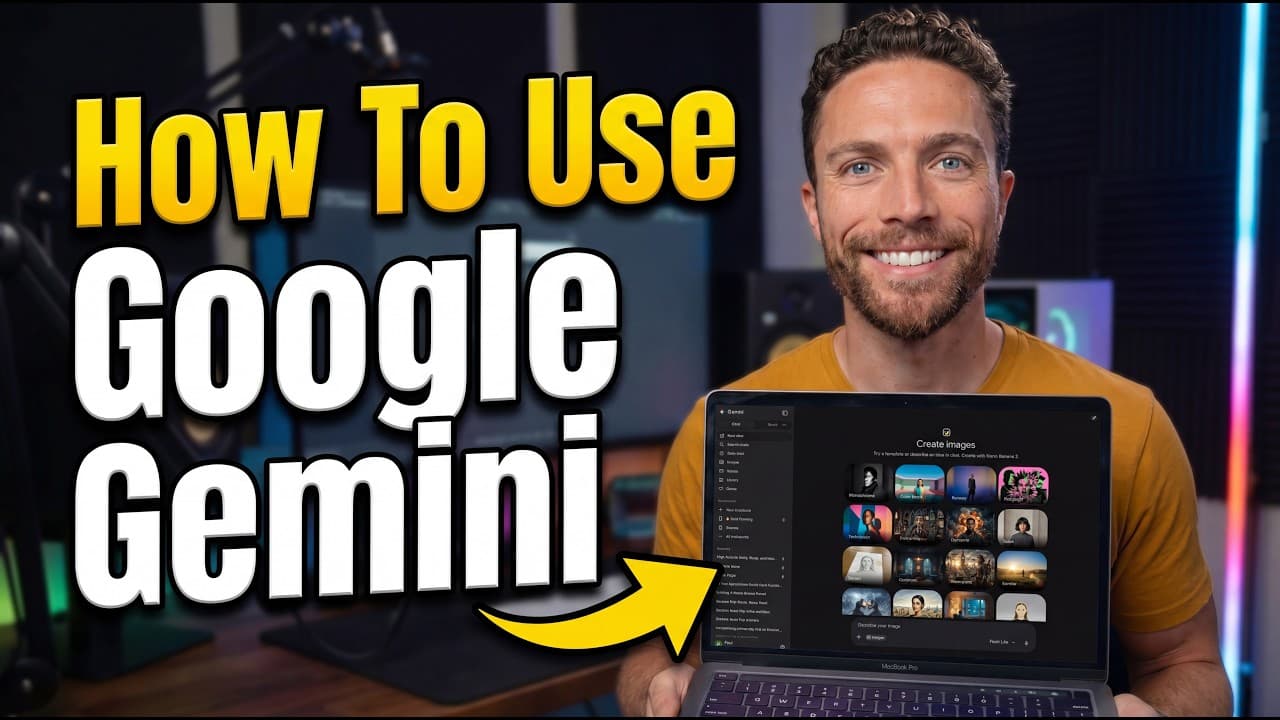
How to use Google Gemini 2026 basics guide today
TL;DR
Gemini is accessed via gemini.google.com and linked to your Google account. You choose a model among flashlight, flash, and pro, and adjust thinking level from standard to extended. Organize chats with notebooks, add sources, and enable personal intelligence to remember past chats and connect apps. Features include image and video generation and a canvas for collaborative writing, with usage limits to monitor.
Transcript
Google Gemini has a dizzying array of new features, tools, and settings, and it can be hard to know what's actually important. So, instead of explaining every single thing you can do with Gemini, in this video, I just want to go over the important basics, the stuff that you need to know to get up and running with Gemini and using some of its best f... Read More
Key Insights
- Gemini is accessed through gemini.google.com and requires a signed-in Google account to work. The interface offers three models, flashlight, flash, and pro, with a recommended default of flash for balanced performance and cost. Users can switch thinking level between standard and extended, with standard suitable for most tasks.
- Notebooks are a core organizational feature. You create a notebook to group related chats, add existing chats to notebooks, and easily locate relevant conversations later. Notebooks can store sources such as files, Drive documents, and web links to enrich prompts.
- Sources can be attached to notebooks, including websites, which helps Gemini pull relevant information during chats. This creates a more integrated knowledge base that improves accuracy and speed for future prompts.
- Personal intelligence has two parts: memory and connected apps. Memory lets Gemini recall past chats to tailor new responses, while connected apps allow Gemini to reference emails, calendars, Drive, Docs, Keep, YouTube history, and Google Photos when available.
- Visual and collaborative features include image generation, video creation, and a canvas tool for side-by-side editing or writing, enabling more dynamic content creation beyond text alone.
- Usage limits determine how deeply you can use Gemini in a session. The current usage vs weekly limit governs ability to perform advanced tasks; once limits are hit, switching to flashlight mode preserves some functionality.
- The tutorial emphasizes practical, beginner-friendly basics over every feature, focusing on getting started quickly with efficient workflows and simple prompts.
- The video promises deeper dives into Canvas, Gemini Spark, and Notebooks in follow-up content, linking viewers to more specialized tutorials and expanding from basic usage to advanced capabilities.
- More videos from this channel:
- More from this channel: Paul J Lipsky
Install to Summarize YouTube Videos and Get Transcripts
Explore YouTube Video Summarizer or Get YouTube Transcript Extractor
Questions & Answers
Q: How do I access Gemini on the web and sign in
To access Gemini on the web, go to gemini.google.com and sign in with your Google account. This sign-in method ties your Gemini experience to other Google services like Gmail, Calendar, and Drive, so you can start prompts from within a connected ecosystem and access your recent chats from the left side of the interface.
Q: What are the three Gemini models and which should I choose
Gemini currently offers three models: flashlight, flash, and pro. The recommended default is flash for a balance between intelligence and cost, while flashlight is weaker and pro is usually the strongest. Choosing a model depends on need for accuracy, speed, and budget during prompts.
Q: How should I use notebooks in Gemini
Notebooks are used to organize chats by topic. Create a new notebook, name it, and move relevant chats into it so you can easily find them later. You can add chats to a notebook and access them from the notebook list, which helps keep related prompts together.
Q: What is personal intelligence in Gemini
Personal intelligence in Gemini has two main parts: memory and connected apps. Memory lets Gemini learn from past chats to tailor future responses, while connected apps like emails, calendars, and Drive enable the assistant to reference your data when responding to prompts, improving relevance.
Q: How do I attach sources to a notebook
You can attach sources to a notebook by adding websites or files from your drive. These sources become part of the notebook so that Gemini can reference them in future interactions, helping to ground answers in reliable context and your own materials.
Q: What can I do with images and videos in Gemini
Gemini supports image and video generation. You can describe the image or video you want, and Gemini will create it based on your description, enabling quick visuals to accompany prompts or explanations.
Q: What is the canvas feature used for
Canvas creates a side panel where Gemini can generate content like stories or apps while you edit in real time. This makes it easier to write, design, or prototype in a collaborative workspace without losing the main chat context.
Q: What are usage limits and how do they affect workflow
Usage limits show your current consumption and weekly cap. If either bar fills, you cannot fully use Gemini until it resets, at which point you can continue with reduced capabilities or switch to flashlight mode to preserve some functionality.
Summary & Key Takeaways
-
Gemini setup starts with web access and account linking, then model selection and thinking level adjustment. A notebook system organizes chats and allows source attachments for better context. Personal intelligence ties in memory and connected apps to tailor responses and accelerate workflows.
-
Notebooks support categorization and source linking, enabling a growing knowledge base that Gemini can reference in future prompts. The system also showcases automatic visual responses and maps when applicable.
-
Usage limits impact how deeply you can use Gemini, nudging users to switch to lighter modes when limits are reached, and encouraging exploration of features like images, videos, and canvas within allowed quotas.
Read in Other Languages (beta)
Share This Summary 📚
Summarize YouTube Videos and Get Video Transcripts with 1-Click
Try YouTube Summary with ChatGPT & Claude or YouTube Transcript Generator
Explore More Summaries from Paul J Lipsky 📚



Summarize YouTube Videos and Get Video Transcripts with 1-Click
Try YouTube Summary with ChatGPT & Claude or YouTube Transcript Generator