How to Use ChatGPT for Real Work Without Coding
TL;DR
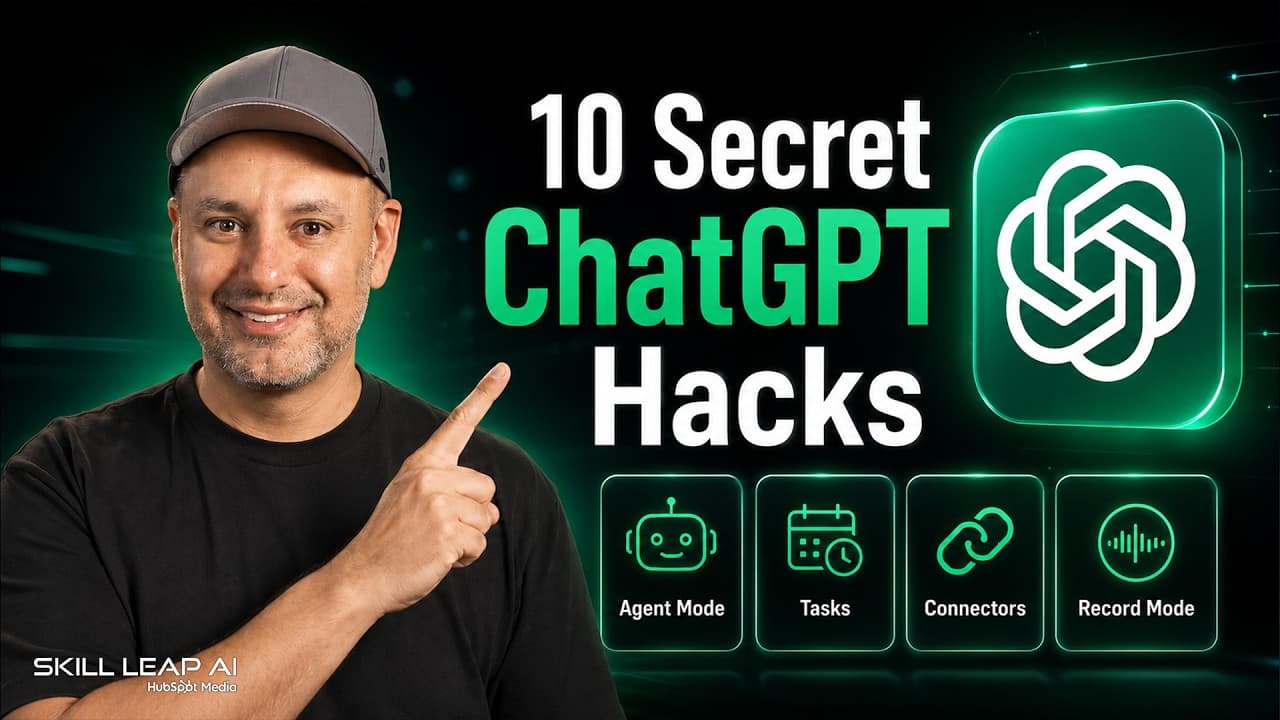
Use reusable Skills, connected apps, project sources, meeting recordings, and spreadsheet dashboards to make ChatGPT handle practical work with less repeated setup. Skills preserve brand guidelines, connectors locate information across services, projects organize live sources and instructions, recordings become proposals and assigned tasks, and uploaded spreadsheets can be cleaned and transformed into downloadable or interactive dashboards.
Transcript
I gave Chachi PT a real task and he went and did the work for me. He opened a browser, he filled in all the forms for me. He did the whole thing. I also taught it a skill to know exactly what my brand is and now it creates onbrand images for me every single time. I gave it a Messian confusing spreadsheet and in a minute it gave me an interactive da... Read More
Key Insights
- ChatGPT Skills are reusable packages that preserve instructions for repeatable tasks. A Skill can remember brand colors, fonts, logos, and design preferences, allowing later image requests to follow the same brand guidelines without requiring the user to provide all that context again.
- A Skill can be created through a conversation with ChatGPT, written directly in the Skill editor, or uploaded from another source. After a satisfactory conversational result is reached, the user can ask ChatGPT to package the process as a Skill and install it in the account.
- Connectors allow ChatGPT to work with information stored in services such as Google Drive, Dropbox, Gmail, Google Calendar, Slack, and Notion. Once access is connected, ChatGPT can search for relevant files without requiring the user to remember the exact service or storage location.
- Meeting recording in the ChatGPT Mac app can capture spoken content, transcribe it live, and place a cleaned summary into a chat. A follow-up request can transform that material into a client proposal and separate internal tasks grouped by each responsible owner.
- ChatGPT memory contains information learned about the user and can be reviewed through the personalization settings. The memory summary provides an overview, while saved memories can be individually deleted, supplemented with new information, or updated through a direct conversation with ChatGPT.
- ChatGPT Projects can use live Google Drive folders or Slack links as dedicated sources. New information added to a connected source remains available within that project, reducing the need to upload replacement files whenever the underlying material changes.
- Project-only memory keeps a ChatGPT Project self-contained and reduces interference from unrelated account context. Project instructions can also define a role, identify project files as the source of truth, and require ChatGPT to ask before making unsupported assumptions.
- ChatGPT can clean a messy spreadsheet and convert it into a visual analysis showing requested measures such as top and worst performers. The result can be delivered as a downloadable Excel dashboard or as an interactive dashboard inside ChatGPT with filters for exploring the data.
- More videos from this channel:
- More from this channel: Skill Leap AI
Install to Summarize YouTube Videos and Get Transcripts
Explore YouTube Video Summarizer or Get YouTube Transcript Extractor
Questions & Answers
Q: How do ChatGPT Skills support repeatable work?
ChatGPT Skills preserve the instructions and resources needed for a recurring task, so users do not have to repeat the full setup in every conversation. For example, a Skill can store brand colors, fonts, a logo, and design preferences. Once installed, the Skill can be loaded into a chat and used to create new images that consistently follow those saved brand guidelines.
Q: How can I create and install a ChatGPT Skill?
A ChatGPT Skill can be created through a back-and-forth conversation, written directly with the Skill editor, or uploaded from another source. In the conversational method, the user refines the result and then asks ChatGPT to convert it into a Skill. ChatGPT creates a downloadable and shareable Skill package, which can then be installed in the account and opened in a chat.
Q: How do ChatGPT connectors find files across apps?
Connectors give ChatGPT access to services that the user has authorized, including Google Drive, Dropbox, Gmail, Google Calendar, Slack, and Notion. After these apps are connected in settings, a user can request a document without knowing its exact location. ChatGPT can search the available connected services, identify the relevant file, and use follow-up instructions to present its information in another format.
Q: How can ChatGPT turn a meeting recording into actionable work?
The ChatGPT Mac app includes a recording option that captures spoken discussion, transcribes it live, and produces a cleaned summary when recording stops. The resulting text can then be given a follow-up instruction, such as turning the discussion into a client proposal. ChatGPT can also extract internal tasks, group them by owner, and outline the steps assigned to each person.
Q: How can I review and change what ChatGPT remembers about me?
ChatGPT memory can be reviewed from the personalization area in settings. The memory summary displays a brief overview of what ChatGPT has learned about the user. The user can update that profile through conversation, inspect saved memories, delete individual items, or ask ChatGPT to remember new information. These controls help keep the stored profile accurate and useful for future responses.
Q: How do live sources work inside ChatGPT Projects?
A ChatGPT Project can connect directly to a Google Drive folder or a Slack source through the project's source settings. This creates a live connection dedicated to that workspace, so newly added source information can remain available without repeated uploads. The project can also include instructions defining ChatGPT's role and directing it to treat connected files as the source of truth.
Q: When should I use project-only memory in ChatGPT?
Project-only memory is useful when a workspace needs to remain self-contained and should not draw on unrelated information elsewhere in the ChatGPT account. It can reduce confusion between different clients or workstreams. Combined with project instructions, it lets the user define a specific role, establish project files as authoritative, and require ChatGPT to ask questions when needed information is unavailable.
Q: How can ChatGPT turn a messy spreadsheet into a dashboard?
A user can upload a spreadsheet and ask ChatGPT to clean the data before creating a visual dashboard. The prompt can specify what the analysis should include, such as top performers, worst performers, and an easy-to-read layout. ChatGPT can create a downloadable Excel dashboard, then produce an interactive version inside the chat with filters that make the underlying data easier to explore.
Summary & Key Takeaways
-
ChatGPT Skills can preserve repeatable instructions, such as brand colors, fonts, logos, and design preferences. A Skill can be developed through conversation, created manually in the Skill editor, or uploaded as a package. Once installed, it can be loaded in later chats to produce work that follows the saved guidelines.
-
Connectors let ChatGPT search services such as Google Drive, Dropbox, Gmail, Google Calendar, Slack, and Notion. Projects can also link directly to a Google Drive folder or Slack source, creating a focused workspace with live information, dedicated instructions, and an optional project-only memory that prevents unrelated context from interfering.
-
The ChatGPT Mac app can record and transcribe meetings, after which the transcript can be converted into a client proposal and an internal task list grouped by owner. ChatGPT can also clean messy spreadsheet data, create a downloadable Excel dashboard, and produce an interactive dashboard with filters for easier analysis.
Read in Other Languages (beta)
Share This Summary 📚
Summarize YouTube Videos and Get Video Transcripts with 1-Click
Try YouTube Summary with ChatGPT & Claude or YouTube Transcript Generator
Explore More Summaries from Skill Leap AI 📚
Summarize YouTube Videos and Get Video Transcripts with 1-Click
Try YouTube Summary with ChatGPT & Claude or YouTube Transcript Generator