How to Run DeepSeek R1 Locally and Privately
TL;DR
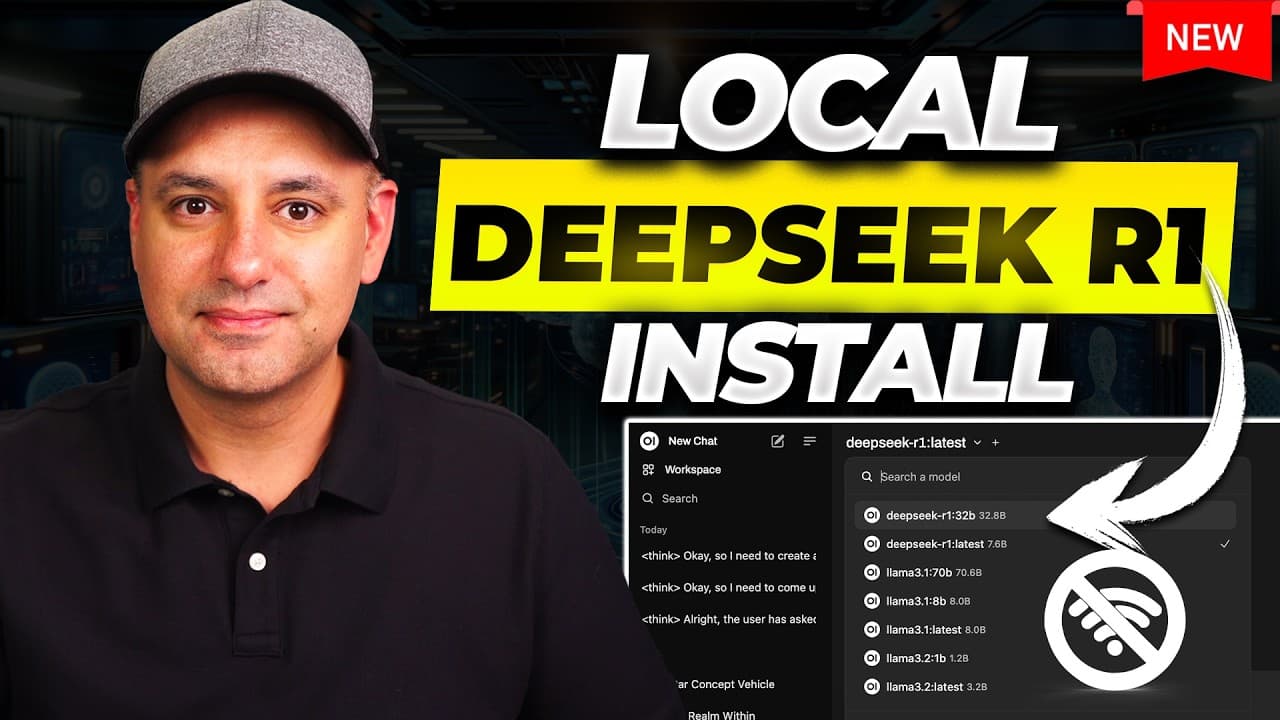
Install Ollama, download a DeepSeek R1 model through Terminal, and optionally add Docker plus Open WebUI for a browser-based interface. The 7B model requires a 4.7 GB download and is the recommended starting point for balancing speed with hardware demands. After installation, the model runs locally and can continue working when the computer is disconnected from Wi-Fi.
Transcript
I've installed the new deep seek R1 reasoning model the large language model that Rivals open ai's 01 model which right now I'm paying $200 a month for this is completely local running on my computer and it's private I could literally turn off the Wi-Fi right now so in this video I want to show you exactly how to install it step by step and I'll ma... Read More
Key Insights
- Ollama is the local model runner used to download and operate DeepSeek R1 on a Mac or Windows computer. The installation includes a command-line component, and the walkthrough states that Windows users need Windows 10 or later.
- DeepSeek R1 is available in multiple parameter sizes, ranging from 1.5 billion parameters to 671 billion parameters. The smallest version is about 1 GB, while the largest is about 400 GB and is described as impractical for consumer-grade computers.
- The 7B DeepSeek R1 model is the recommended starting point because it balances model capability, download size, and speed. Its download is 4.7 GB, while larger models can be better but require stronger graphics hardware and may respond more slowly.
- Terminal can run DeepSeek R1 without an additional graphical interface. After the model finishes downloading, users can enter prompts directly, observe text enclosed in thinking brackets, and then read the model’s final answer beneath that reasoning section.
- Docker is required in this setup to run the Open WebUI container. After installation, Docker only needs to remain open, and no Docker account is required because the demonstrated process skips account creation before launching the container.
- Open WebUI provides a browser-based interface that resembles familiar AI chat applications. Its installation command is copied from the Open WebUI documentation into Terminal, after which the resulting container and its browser port become visible within Docker.
- Open WebUI can switch among multiple locally installed models through its model menu. Users can select DeepSeek R1 for reasoning tasks, choose Llama 3.3 as a broader default model, and add a secondary model when more than one has been installed.
- Local operation allows DeepSeek R1 to continue working after Wi-Fi is turned off, once the required software and model files are installed. Initial downloads, installation steps, and Open WebUI account setup are completed before using the system offline.
Install to Summarize YouTube Videos and Get Transcripts
Explore YouTube Video Summarizer or Get YouTube Transcript Extractor
Questions & Answers
Q: How do you install DeepSeek R1 locally with Ollama?
Download Ollama from its website, select the correct operating system, unzip and install it, and approve installation of its command-line component. Next, visit the Ollama model library, open the DeepSeek R1 page, and copy the displayed run command. Paste that command into Terminal and press Enter. The default command downloads and starts the 7B DeepSeek R1 model.
Q: Which DeepSeek R1 model size should you install first?
The walkthrough recommends starting with the default 7B model and checking how quickly it runs on your computer. This version requires a 4.7 GB download. Larger models may provide better results, but they also run more slowly depending on the computer and require stronger graphics hardware. Starting with one model makes it easier to evaluate performance before downloading additional versions.
Q: What DeepSeek R1 model sizes are available through Ollama?
The available versions begin with a 1.5 billion parameter model, which is about 1 GB and is described as fast and small but not very good. The range extends through larger options, including a 70B model, up to a 671 billion parameter model requiring about 400 GB. The walkthrough says that the largest option cannot be handled by a consumer-grade computer.
Q: Can DeepSeek R1 run without Open WebUI?
DeepSeek R1 can run directly inside Terminal after Ollama downloads the selected model. Users can type questions there and receive responses without installing a separate graphical interface. In the demonstration, the model shows its reasoning within thinking brackets and places the final response afterward. Open WebUI is optional, but it makes the experience look and behave more like a browser-based AI chatbot.
Q: How do you add a browser interface to local DeepSeek R1?
Install Docker, open it, skip account creation if desired, and leave the application running. Then visit the Open WebUI documentation and copy the command provided for computers that already have Ollama installed. Paste it into a fresh Terminal window. Docker creates an Open WebUI container with a browser port, and opening that interface provides access to the locally installed models.
Q: Does local DeepSeek R1 work without an internet connection?
DeepSeek R1 can operate without Wi-Fi after Ollama, the chosen model, Docker, and Open WebUI have been downloaded and configured. The model runs on the computer instead of relying on the DeepSeek website. The walkthrough also completes an Open WebUI sign-up before describing offline use, so the required installation and initial account steps should be finished while the computer is connected.
Q: How do you switch between DeepSeek R1 and Llama 3.3?
Install both models through Ollama, then open the model dropdown at the top of Open WebUI. Select DeepSeek R1 when reasoning is needed or choose Llama 3.3 for broader, non-reasoning use. The interface also allows one model to be set as the default and another to be selected as a secondary model, making it possible to move between installed options.
Q: What do the thinking brackets in DeepSeek R1 mean?
The thinking brackets contain the model’s displayed reasoning process rather than its final response. In the demonstration, DeepSeek R1 opens a thinking bracket, works through the prompt, closes the bracket, and then provides the answer below it. This behavior is visible both in Terminal and Open WebUI, helping users distinguish the intermediate reasoning text from the response intended as the final result.
Summary & Key Takeaways
-
The installation begins by downloading Ollama for Mac or Windows, with Windows 10 or later required according to the walkthrough. After installing its command-line component, open Terminal and run the DeepSeek R1 command copied from Ollama’s model library. The default command downloads the 7B version, which is 4.7 GB.
-
DeepSeek R1 is offered in several sizes, from a 1.5 billion parameter version of about 1 GB to a 671 billion parameter version of about 400 GB. Larger versions may perform better but run more slowly and demand stronger hardware. The walkthrough recommends beginning with the 7B model and evaluating its speed.
-
Terminal is sufficient for interacting with the locally installed model, but Docker and Open WebUI create a more convenient browser interface. Docker must remain open while its Open WebUI container runs. Within Open WebUI, users can select DeepSeek R1, set a default model, switch among installed models, and inspect reasoning before the final response.
Read in Other Languages (beta)
Share This Summary 📚
Summarize YouTube Videos and Get Video Transcripts with 1-Click
Try YouTube Summary with ChatGPT & Claude or YouTube Transcript Generator
Explore More Summaries from Skill Leap AI 📚



Summarize YouTube Videos and Get Video Transcripts with 1-Click
Try YouTube Summary with ChatGPT & Claude or YouTube Transcript Generator