How to Use Google NotebookLM for Research
TL;DR
Create a notebook, add relevant PDFs, notes, websites, Drive files, or videos, then ask natural-language questions to analyze the selected sources. NotebookLM can provide cited answers, save findings as notes, organize sources, and generate mind maps, reports, flashcards, video or audio overviews. Verify important outputs before using them for work or research.
Transcript
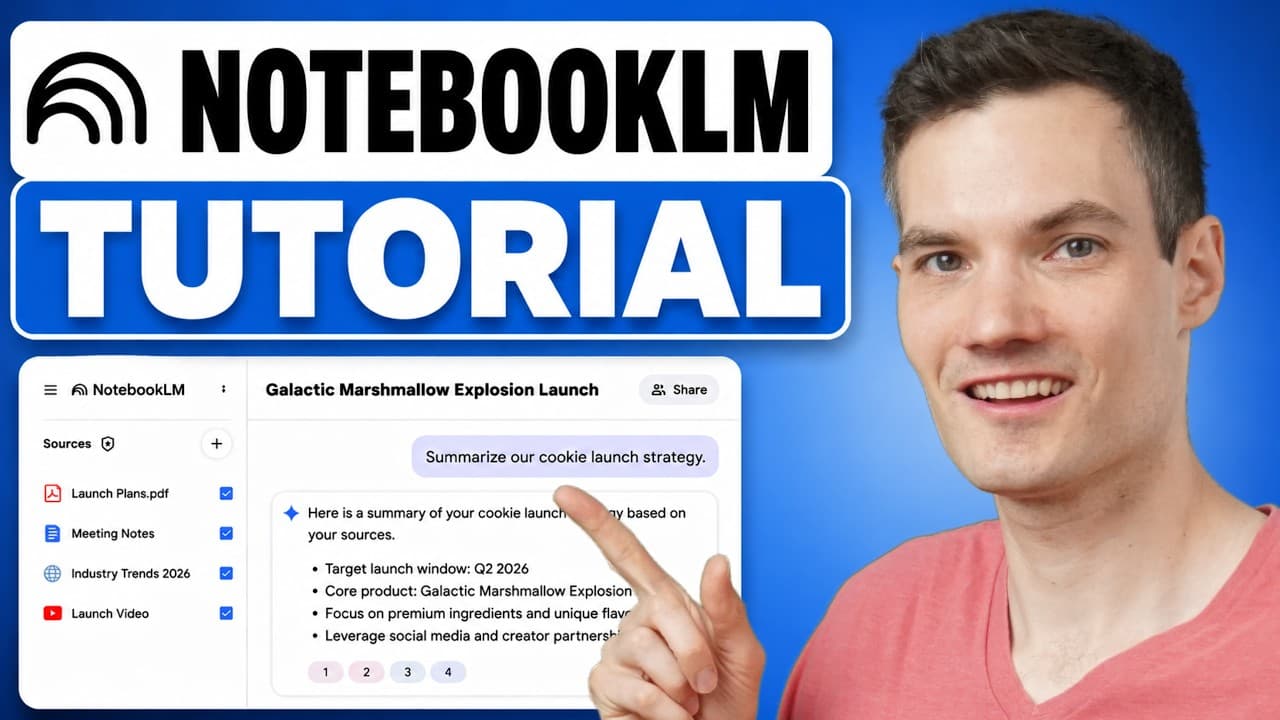
In this video, I'll show you how to use Google's NotebookLM step by step. NotebookLM helps you turn PDFs, notes, websites, and videos into an AI powered research assistant. It can summarize your content, answer questions, generate mind maps, and even create AI generated podcasts based on your sources. I'm Kevin and I'll show you everything... Read More
Key Insights
- A notebook is a dedicated workspace for a particular project or topic, such as meeting notes, research, studying, or a product launch. Giving each notebook a clear purpose helps keep its sources, notes, questions, and generated content organized around one body of work.
- NotebookLM accepts multiple source types, including PDF documents, Google Drive files, websites, YouTube videos, and user-created notes. It can also search the web for additional material, let the user preview results, and import only the sources that appear relevant.
- Source selection controls what NotebookLM analyzes and generates. Users can select all sources, deselect them, or choose only specific materials before asking questions or creating Studio artifacts, allowing each output to focus on the most relevant subset of the notebook.
- NotebookLM chat works by answering natural-language questions across selected sources. It can summarize a strategy, identify risks mentioned in multiple materials, and combine relevant details without requiring the user to search through every document, website, note, or video individually.
- Citations connect generated answers to their supporting evidence. Clicking a citation opens the relevant source and highlights the specific content used, making it easier to trace claims, inspect their context, and verify whether an answer accurately represents the supplied material.
- Notes preserve useful research findings inside the notebook. A generated chat response can be saved as a note, users can write custom notes for information such as customer feedback, and a custom note can be converted into a source for subsequent questions and generated content.
- Studio creates several forms of source-based content, including mind maps, audio overviews, video overviews, reports, and flashcards. Mind maps visually connect ideas and allow topic exploration, while audio overviews create an AI-generated podcast discussion using the sources selected by the user.
- Notebook sharing supports collaboration through access controls. Users can invite specific people, assign reviewer or editor permissions, remove access, and keep the notebook restricted to explicitly added participants. People with access can work with the same sources, notes, and generated content.
- More videos from this channel:
- More from this channel: Kevin Stratvert
Install to Summarize YouTube Videos and Get Transcripts
Explore YouTube Video Summarizer or Get YouTube Transcript Extractor
Questions & Answers
Q: How do you create a new notebook in Google NotebookLM?
Sign in to the NotebookLM website with a Google account, then click Create new in the top-right corner. This opens an empty notebook that serves as a workspace for a specific topic or project. Give it a descriptive name, then begin adding the documents, websites, notes, or videos that NotebookLM should use when answering questions and generating content.
Q: What sources can you add to a NotebookLM notebook?
NotebookLM can use PDFs, Google Drive files, websites, YouTube videos, and notes as sources. The tutorial demonstrates dragging in a PDF, inserting meeting notes from Drive, adding a website and a YouTube video, and converting a custom note into a source. It also shows a web search workflow where results can be previewed, selected, and imported.
Q: How do you search the web for sources in NotebookLM?
Use the source panel's web search option and enter a topic, such as the tutorial's search for dessert trends 2026. After NotebookLM returns possible sources, open the full results list and preview individual items. Uncheck results that are not relevant, keep the useful sources selected, and click Import to add those materials to the notebook.
Q: How does NotebookLM answer questions about your sources?
Enter a natural-language question in the central chat panel, and NotebookLM analyzes the notebook's sources to produce a combined response. The tutorial asks it to summarize a product launch strategy and identify the biggest risks mentioned across multiple sources. This process helps users collect information from several materials without manually searching through each source separately.
Q: How do citations work in NotebookLM responses?
NotebookLM includes numbered citations with its source-based answers. Clicking one of those citation numbers opens the corresponding source in the source panel and highlights the specific passage used to support the response. This gives users a direct way to inspect the original material, understand the context, and verify important claims before relying on them.
Q: How can you save research findings as notes in NotebookLM?
A useful chat response can be saved by selecting the Save as note option at the bottom of the response. The saved material then appears as a note in the notebook's right-hand area. Users can also create a custom note, give it a name, enter their own information, and convert that note into a source for later analysis.
Q: How do you create mind maps and audio overviews in NotebookLM?
First select only the sources that should inform the output, then choose the desired artifact in Studio. A mind map creates a visual representation of connected ideas that can be moved, zoomed, and explored by topic. For an audio overview, optional settings include format, language, length, and additional focus areas before generating an AI podcast discussion.
Q: How do you share a NotebookLM notebook with other people?
Click Share in the top-right corner, add the specific people who should have access, and choose their permissions. The tutorial shows reviewer and editor roles, as well as the option to remove access. The notebook can remain restricted so only explicitly invited people can open it and work with its shared sources, notes, and generated content.
Summary & Key Takeaways
-
NotebookLM turns a collection of source materials into an AI-powered research workspace. After signing in with a Google account, create and name a notebook for a particular project or topic. You can then add PDFs, Google Drive files, websites, YouTube videos, notes, and selected results found through its web search feature.
-
The chat panel answers natural-language questions by analyzing the notebook's sources together. Responses include numbered citations that open the relevant source and highlight the supporting content. Useful answers can be saved as notes, while custom notes can capture additional information and later be converted into sources for further analysis.
-
The Studio generates artifacts from selected sources, including mind maps, audio overviews, video overviews, reports, and flashcards. Audio overviews offer settings for format, language, length, and focus. Finished notebooks can be shared with specific people using reviewer or editor permissions, although important AI-generated information should still be verified.
Read in Other Languages (beta)
Share This Summary 📚
Summarize YouTube Videos and Get Video Transcripts with 1-Click
Try YouTube Summary with ChatGPT & Claude or YouTube Transcript Generator
Explore More Summaries from Kevin Stratvert 📚



Summarize YouTube Videos and Get Video Transcripts with 1-Click
Try YouTube Summary with ChatGPT & Claude or YouTube Transcript Generator