How to Wirelessly Transfer Files Between iPhone and PC
TL;DR
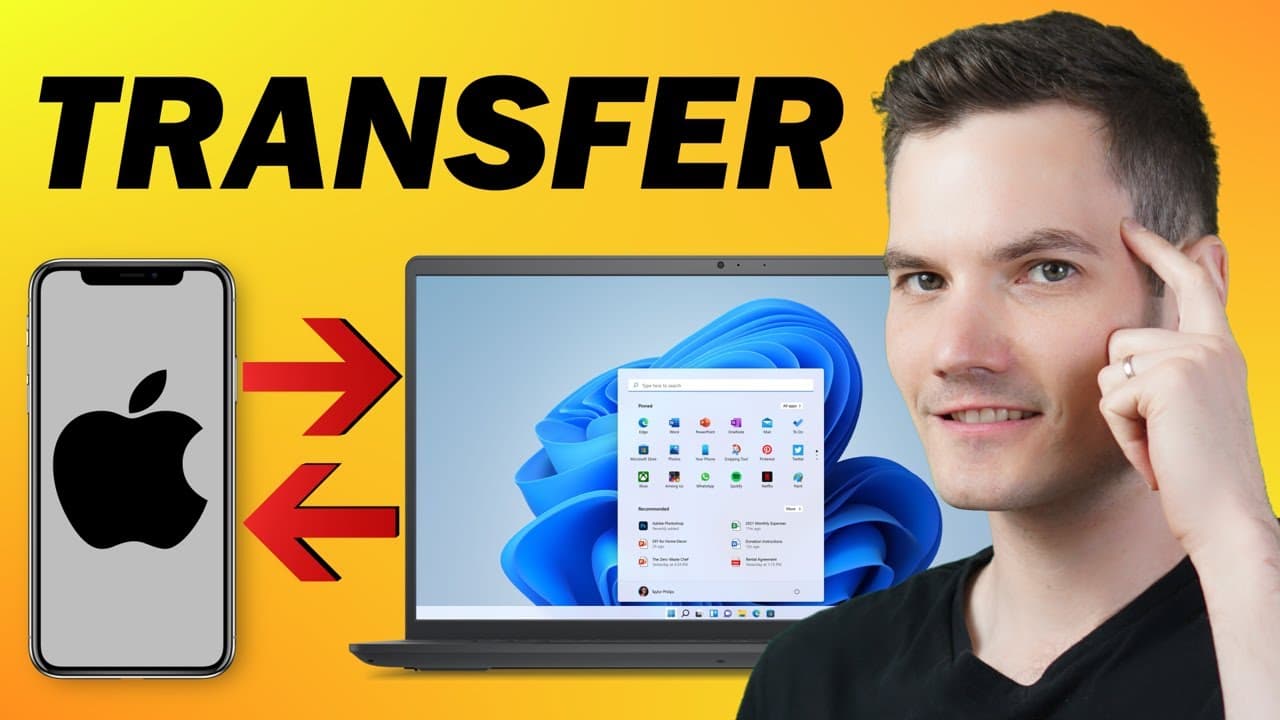
To wirelessly transfer files between your iPhone and Windows PC, create a shared folder on your PC, set the necessary permissions, and find your PC's IP address. Use the Files app on your iPhone to connect to the PC and transfer files in both directions, from iPhone to PC and PC to iPhone.
Transcript
Hi everyone, Kevin here. Today I want to show you how you can transfer files like photos, videos, music, documents from your iPhone to your PC and also from your PC to your iPhone. This is all wireless. You don't have to install any apps but your iPhone and your PC need to be on the same Wi-Fi network. Let's check this out. To transfer file... Read More
Key Insights
- 📱 Setting up a local user account on a Windows PC allows for wireless file transfer between an iPhone and PC on the same Wi-Fi network.
- 💻 Creating a shared folder on the PC and setting up permissions allows the iPhone to access and transfer files.
- 🔗 Finding the IP address of the PC on the local network is necessary to connect the iPhone to the computer for file transfer.
- 📲 The Files app on the iPhone can be used to connect to the PC and transfer files in both directions.
- 📸 Photos can be selected on the iPhone and saved to the PC's shared folder for wireless transfer.
- 🎥 Files, such as videos, from the PC can be dragged and dropped into the shared folder and accessed on the iPhone for streaming or saving.
- 💾 Saving files on the iPhone from the shared folder allows for offline access and viewing.
- ✅ Subscribing to the channel provides access to more helpful tutorials and videos like this one.
Install to Summarize YouTube Videos and Get Transcripts
Explore YouTube Video Summarizer or Get YouTube Transcript Extractor
Questions & Answers
Q: How can I transfer files between my iPhone and PC without using any apps?
To transfer files wirelessly between your iPhone and PC without using any apps, you can create a local user account on your PC, set up a shared folder with appropriate permissions, obtain the PC's IP address, and connect your iPhone using the Files app.
Q: What are the steps to create a local user account on a Windows PC?
To create a local user account on a Windows PC, you need to open command prompt as an administrator, type in the command "net user" followed by the desired username and password, and add the account using the "/add" option.
Q: How do I set up a shared folder for file transfers?
To set up a shared folder for file transfers, you can right-click on any desired location on your PC, select "New" followed by "Folder," give the folder a name, right-click on the folder, go to properties, enable sharing, add the new user account with read and write permissions, and apply the changes.
Q: What is required to establish a connection between the iPhone and the PC for file transfers?
To establish a connection between the iPhone and the PC for file transfers, you need to know the IP address of your PC on the local network, enter the IP address in the Files app on your iPhone under the "connect to server" option, and provide the registered user account credentials created on the PC.
Q: Can I transfer files from my iPhone to the PC and vice versa?
Yes, you can transfer files both from your iPhone to the PC and from the PC to your iPhone using the shared folder and the Files app. Simply select the files you want to transfer, choose the option to save to files on your iPhone, and select the appropriate folder or navigate to the shared folder on your PC.
Summary & Key Takeaways
-
The tutorial demonstrates how to transfer files wirelessly between an iPhone and PC using a shared folder and the Files app.
-
It guides users through creating a local user account, setting up a shared folder, obtaining the computer's IP address, and connecting the iPhone to the PC.
-
The tutorial also covers transferring files from iPhone to PC and from PC to iPhone.
Read in Other Languages (beta)
Share This Summary 📚
Summarize YouTube Videos and Get Video Transcripts with 1-Click
Try YouTube Summary with ChatGPT & Claude or YouTube Transcript Generator
Explore More Summaries from Kevin Stratvert 📚






Summarize YouTube Videos and Get Video Transcripts with 1-Click
Try YouTube Summary with ChatGPT & Claude or YouTube Transcript Generator