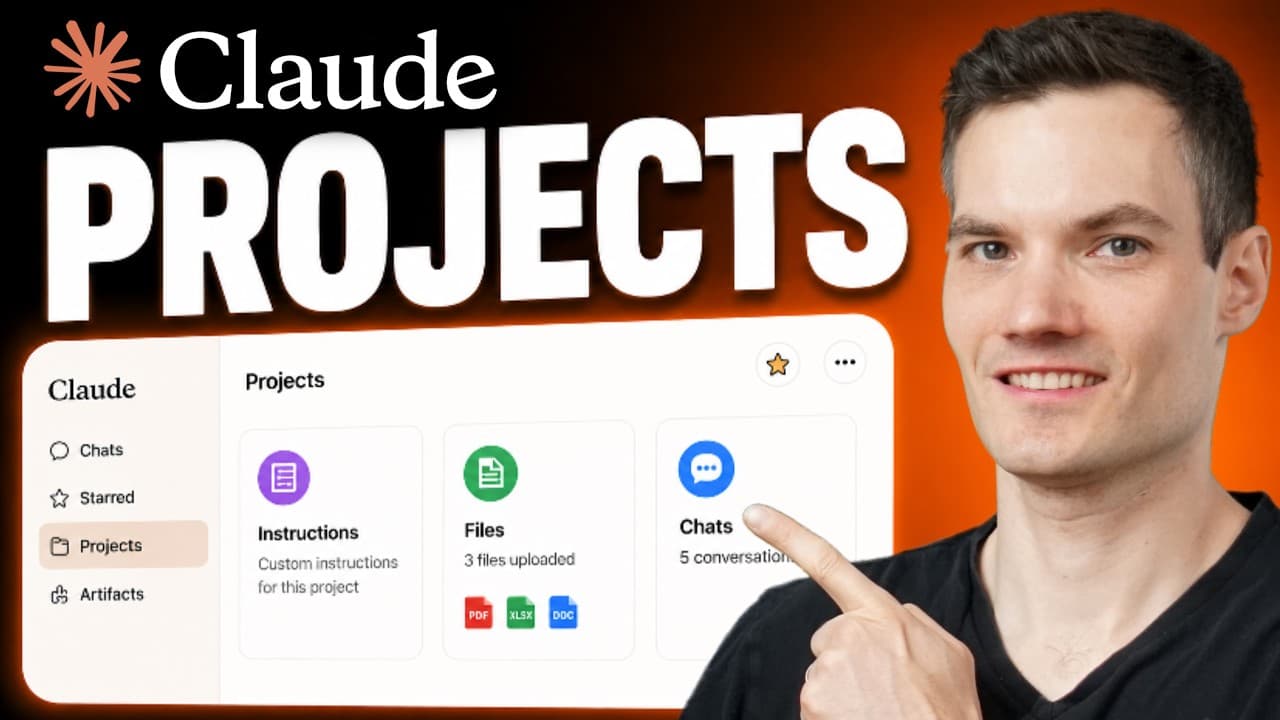
How to Organize Work with Claude Projects
TL;DR
Claude Projects keeps related chats, files, and reusable instructions in one workspace, giving Claude consistent context across project conversations. Create separate projects for different kinds of work, upload shared reference material, define response guidance, and move relevant chats into the appropriate project. Archive completed projects to reduce clutter while keeping them accessible.
Transcript
In this video, I’ll show you how to use Claude Projects step by step. Claude Projects lets you create a custom AI workspace where you can upload files, add instructions, and keep related chats together. If you use AI chat a lot, you probably end up with lots of different conversations, some related and some not. Projects helps you organiz... Read More
Key Insights
- Claude Projects is a custom AI workspace that keeps related conversations, uploaded files, and persistent instructions together. This structure gives Claude relevant context across project chats and reduces the need to repeatedly supply the same information or guidance when beginning a new conversation.
- Separate projects are useful for keeping different types of work organized and contextually focused. Creating distinct workspaces for marketing, research, coding, schoolwork, or other activities prevents unrelated conversations and materials from becoming mixed together within the same project.
- Project details are editable after creation, including the project name and description. A frequently used or high-priority project can also be starred, which places it in the starred section of the sidebar for faster access from Claude's main interface.
- Project instructions are reusable directions that influence Claude's responses across every conversation within a project. They can establish tone, formatting, branding, or workflow guidance, so users do not have to repeat those preferences whenever they create another project chat.
- Project files are shared reference materials that Claude can use throughout future chats in the same workspace. Files can be uploaded from a device or added through drag and drop, while text content and GitHub repositories can also serve as project resources.
- Claude Projects supports many reference formats, including documents, spreadsheets, images, and PDFs. Once uploaded, these materials can inform tasks such as identifying themes in survey responses, using pricing information, or following brand notes without requiring another upload for every new chat.
- Chat-level uploads are limited to the individual conversation where they were added. They do not automatically become part of the broader project knowledge, so information intended for repeated use across project chats should instead be uploaded through the project's files section.
- Project chats can be reorganized without deleting the underlying conversations. Users can remove a chat from its current project, transfer it to another project, or add an existing Claude conversation to a project through the sidebar's conversation menu.
- More videos from this channel:
- More from this channel: Kevin Stratvert
Install to Summarize YouTube Videos and Get Transcripts
Explore YouTube Video Summarizer or Get YouTube Transcript Extractor
Questions & Answers
Q: How do you create a new project in Claude?
Open Claude's main chat screen and select the Projects icon on the left to reach the projects home screen. Choose New Project in the upper-right corner, enter a name, and optionally add a description explaining the workspace's purpose. Select Create Project to open the new workspace, where related files, instructions, and conversations can be maintained together.
Q: How should Claude Projects be organized for different tasks?
Create a separate project for each distinct type of work, such as marketing, research, coding, or schoolwork. Keeping unrelated activities in different workspaces helps preserve the appropriate context and makes files and conversations easier to locate. Avoid placing unrelated chats in one project because doing so can distract Claude from the information and purpose relevant to the current work.
Q: How do project instructions work in Claude Projects?
Project instructions tell Claude how to respond across all conversations within a particular workspace. Add them by selecting the plus icon next to Instructions, entering the desired guidance, and saving it. Instructions can define tone, formatting, branding, or workflow expectations. After saving them, Claude applies that guidance to new project chats without requiring the user to repeat it each time.
Q: How do you add files to a Claude Project?
Open the project and select the plus icon beside the Files section. From there, upload files from the device, add text content, or reference a GitHub repository for a coding or programming project. Files can also be dragged and dropped directly into the workspace. Uploaded project files then become available as context for future conversations inside that project.
Q: What file types can Claude Projects use as context?
Claude Projects can accept many kinds of reference material, including documents, spreadsheets, images, and PDFs. The workspace can also contain added text content or a referenced GitHub repository. Once the materials finish uploading, Claude can review their contents in project conversations, such as summarizing customer survey feedback or consulting pricing and branding information supplied in separate files.
Q: What is the difference between project files and chat files in Claude?
Files added through the project's Files section can be referenced across future chats within that workspace. A file uploaded directly inside an individual conversation is available only within that specific chat and does not automatically join the project's shared knowledge. Materials needed repeatedly should therefore be added at the project level instead of being attached separately to each conversation.
Q: How can existing chats be moved into or between Claude Projects?
To add an existing conversation, open Claude's sidebar, select the three-dot menu for that chat, and choose the option to add it to a project. For a conversation already inside a project, its three-dot menu provides options to remove it from the workspace or change it to a different project. These controls allow related conversations to be reorganized as work develops.
Q: How do you archive and reopen a Claude Project?
When active work on a project is finished, open its three-dot menu and select Archive. Archiving reduces clutter in the main projects view while preserving the workspace for later access. To find it again, open the Archive area from the projects screen. The archived project remains available there if its conversations, files, or instructions are needed in the future.
Summary & Key Takeaways
-
Claude Projects creates a dedicated workspace for related conversations, reference files, and reusable instructions. To begin, open Projects from the main chat screen, select New Project, enter a descriptive name, optionally explain its purpose, and create it. Separate projects for marketing, research, coding, schoolwork, or other distinct activities help maintain organization.
-
Project instructions guide Claude across every chat within the workspace. They can specify tone, formatting, branding, or workflow requirements, eliminating the need to repeat the same guidance in each conversation. The tutorial demonstrates this feature by requiring a cookie emoji at the beginning of every response and confirming that Claude follows the saved instruction.
-
Project files provide shared context across conversations and can include documents, spreadsheets, images, PDFs, text content, or a referenced GitHub repository. Chats can be added, removed, or transferred between projects, while completed projects can be archived. Files uploaded only inside an individual chat remain limited to that conversation rather than joining project knowledge.
Read in Other Languages (beta)
Share This Summary 📚
Summarize YouTube Videos and Get Video Transcripts with 1-Click
Try YouTube Summary with ChatGPT & Claude or YouTube Transcript Generator
Explore More Summaries from Kevin Stratvert 📚





Summarize YouTube Videos and Get Video Transcripts with 1-Click
Try YouTube Summary with ChatGPT & Claude or YouTube Transcript Generator