How to Use NotebookLM for Research and Content
TL;DR
Start by letting NotebookLM find relevant sources through fast research, review them manually, and then run deep research for broader coverage. Improve speed and precision by selecting individual sources, saving useful responses as notes, converting refined notes into sources, and using Studio tools such as infographics and mind maps to make complex material easier to understand and share.
Transcript
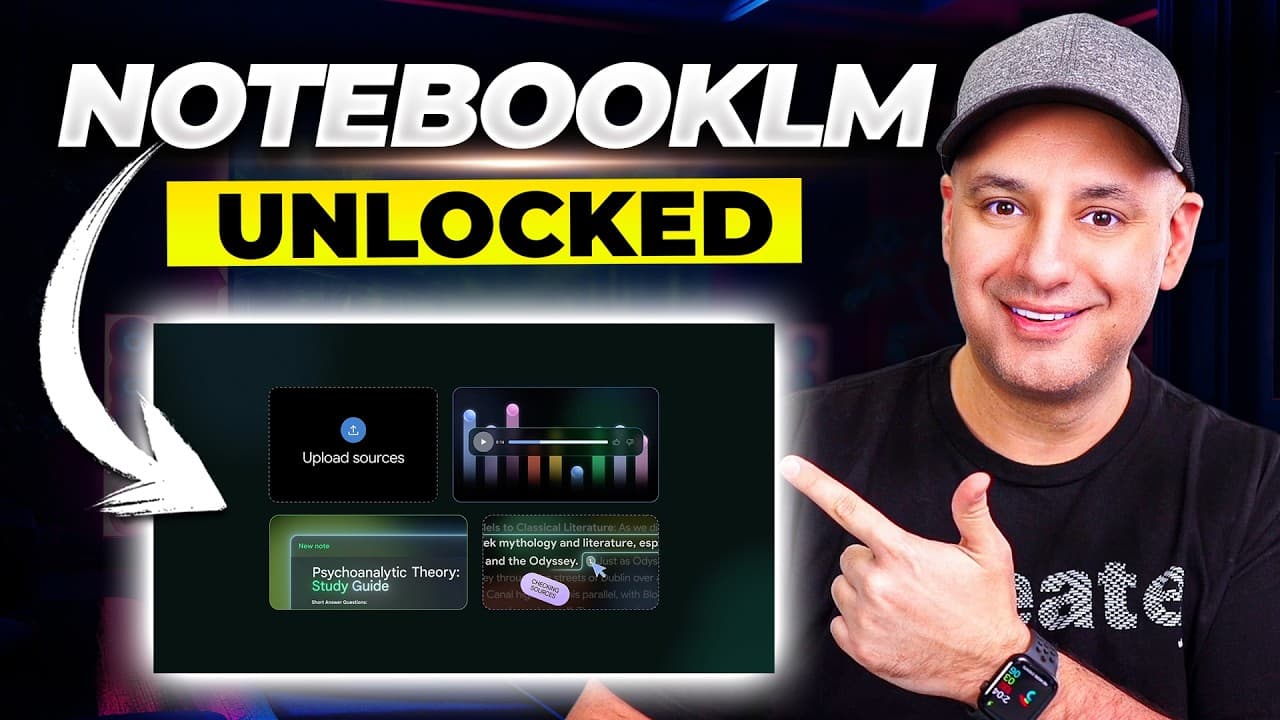
Notebook LM is easily one of the most useful AI tools available right now, but most people are only using a very small part of what it could actually do. So, in this video, I wanted to show you 10 of the best Notebook LM tips and tricks that I found using it almost for 3 years now. And I'm going to start with a brand new update they just rolled out... Read More
Key Insights
- NotebookLM notebooks can be created within Gemini, reducing the need to open the separate NotebookLM website before beginning a sourced conversation. Users can name a notebook, add materials, and treat it as a dedicated project containing websites, Google Drive content, uploaded files, and other sources.
- Fast research is a source-discovery tool that quickly finds potential web materials for a notebook. It usually returns about 10 sources, and users can inspect each result, open the original material, remove irrelevant entries, and import only the sources that support their research goal.
- Deep research is an in-depth research option that can take up to 10 minutes and return more sources than fast research. A practical workflow is to use fast research first, review its results, run deep research on the same topic, and add personal files last.
- NotebookLM source limits depend on the account plan described in the transcript. The paid plan supports up to 300 sources in each notebook, while the free plan supports 50 sources, allowing users to choose a research scope appropriate to their available account.
- Individual-source selection is a way to produce faster and more specific answers in notebooks containing many documents. Users can deselect every source, choose one item, and ask for a summary or analysis without requiring NotebookLM to search across a collection of 50 or 100 sources.
- Saved responses can become reusable notes and sources within the same notebook. Converting a strong answer into a source allows later chats to reference that refined material directly, provide additional angles, and focus on a concise result instead of repeatedly processing the original collection.
- Manual notes are editable text documents that can combine selected chat excerpts, original writing, links, and retained formatting. They can remain working notes or be converted into sources, which can then support new conversations and Studio outputs such as graphics.
- NotebookLM Studio can create infographics, charts, visuals, and mind maps from selected sources or an entire notebook. Users can choose infographic styles, orientation, and detail levels, while mind maps provide a visual overview of complicated topics and show how information connects.
- More videos from this channel:
- More from this channel: Skill Leap AI
Install to Summarize YouTube Videos and Get Transcripts
Explore YouTube Video Summarizer or Get YouTube Transcript Extractor
Questions & Answers
Q: How do you create a NotebookLM notebook inside Gemini?
Open Gemini and use the notebooks section shown on the left side. From there, create and name a new notebook, then add sources such as uploaded files, Google Drive content, or a website. The notebook functions as a dedicated project inside Gemini, so you can interact with its sources without first creating it on the separate NotebookLM website.
Q: How can NotebookLM find research sources for you?
Create a notebook, choose the source-discovery option, and select either fast research or deep research. Fast research quickly finds potential sources, typically about 10, that you can inspect before importing. Open individual results, remove irrelevant materials, and keep only useful sources. Deep research can then produce a more extensive report and identify additional material.
Q: What is the best order for building a NotebookLM research collection?
Begin with fast research to assemble an initial set of potential sources, then inspect each result and remove anything irrelevant. Next, run deep research on the same subject, which can take up to 10 minutes and return broader material. Finally, add useful content from your own websites, Google Drive, or local files to complete the notebook.
Q: How many sources can a NotebookLM notebook contain?
The limits described are 50 sources for each notebook on the free plan and up to 300 sources on the paid plan. The presenter also states that the pro version costs $20 per month. These capacities make it possible to build large research collections, although selecting fewer relevant sources can produce faster and more focused answers.
Q: How do you ask NotebookLM questions about only one source?
Deselect all sources in the notebook, select the single document you want to examine, and then enter a request such as asking for a summary. NotebookLM will interact only with that selected item rather than the full notebook. This approach is especially useful when a notebook contains 50 or 100 sources and broad retrieval takes too long.
Q: How can saved answers become sources in NotebookLM?
When a chat produces a useful response, save it as a note. NotebookLM places that response in the notes area, where it can be converted into a source. Once converted, later conversations can reference the refined answer directly. You can also select only that new source for focused analysis, which may improve speed and introduce a useful consolidated angle.
Q: How can you build a custom source from multiple NotebookLM answers?
Use the add note option to open a plain text document, then copy useful sections from different chat responses into it. You can also type original material, retain formatting, and add links. Keep updating the note as your research develops. When it is ready, convert it into a source for further chats or Studio-generated outputs.
Q: How do infographics and mind maps work in NotebookLM Studio?
Select one source, several sources, or the entire notebook before choosing a Studio output. For an infographic, select a style such as professional, editorial, or instructional, choose its orientation and detail level, add a text description, and generate it for downloading or sharing. For a confusing topic, a mind map visually organizes the material and shows connections among ideas.
Summary & Key Takeaways
-
NotebookLM notebooks can be created directly inside Gemini, where users can add websites, Google Drive content, uploaded files, and other materials as sources. Existing notebooks can also be attached to Gemini chats, allowing questions to be answered from an entire organized collection instead of requiring repeated uploads or switching between separate workflows.
-
Research can begin with fast research, which typically identifies about 10 potential sources for review. Users can remove irrelevant results before importing useful ones, then run deep research on the same topic for a more extensive report. Personal websites and files can be added afterward to complete the notebook's source collection.
-
NotebookLM supports focused analysis, reusable notes, infographics, charts, visuals, mind maps, audio overviews, and video overviews. Users can select one source or an entire notebook before generating outputs. Strong chat responses and manually assembled notes can become new sources, creating cleaner material for further questioning, visualization, content planning, or sharing.
Read in Other Languages (beta)
Share This Summary 📚
Summarize YouTube Videos and Get Video Transcripts with 1-Click
Try YouTube Summary with ChatGPT & Claude or YouTube Transcript Generator
Explore More Summaries from Skill Leap AI 📚



Summarize YouTube Videos and Get Video Transcripts with 1-Click
Try YouTube Summary with ChatGPT & Claude or YouTube Transcript Generator