How to create and edit images with Nano Banana AI?
TL;DR
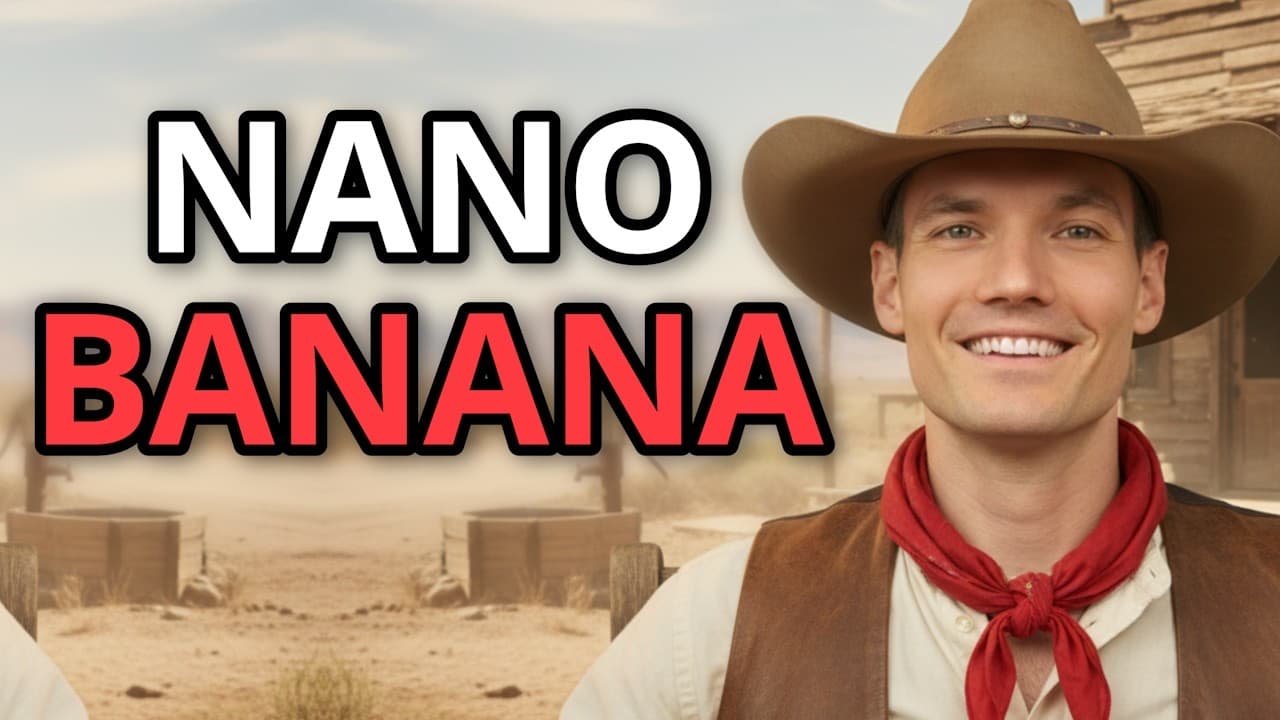
Nano Banana AI lets you generate images from prompts, edit and refine those images, and upload your own photos for consistent results. You can blend images, rename elements in scenes, and even turn stills into short videos with Veo 3, all inside Google's Gemini platform and at no cost to try.
Transcript
Here's a picture of me. Now, here I am in front of my own private jet, sailing down a chocolate river, as a jungle explorer, as a police officer, and even standing in front of my own cookie store. Pretty wild, right? Hi everyone, Kevin here. In this video, I'll show you step-by-step how to use Google's Nano Banana AI to create your own images. ... Read More
Key Insights
- Nano Banana is embedded in Google Gemini and works as an image tool inside the Gemini suite.
- Images can be created from text prompts as a simple storefront example and then refined by re-prompting for changes like a different store name or lighting.
- Consistency is a key feature, with the face or subject remaining recognizable across edits and multiple outputs.
- You can upload your own photo and generate a 1/7 scale collectible figurine that resembles the subject.
- Multiple photos can be uploaded and merged to place the subject into outfits or new environments while retaining look and feel.
- Edits can be iterated by adding new prompts such as brightness or new settings without losing the original composition.
- The tool supports blending text prompts with photo inputs to produce cohesive, consistent imagery.
- Veo 3 allows turning static images into videos, extending the use from stills to motion content.
- More videos from this channel:
- More from this channel: Kevin Stratvert
Install to Summarize YouTube Videos and Get Transcripts
Explore YouTube Video Summarizer or Get YouTube Transcript Extractor
Questions & Answers
Q: How to start using Nano Banana in Google Gemini?
To start using Nano Banana you first access Google Gemini, then go to the Tools menu and select Create Images, which is shown with a banana icon. You can upload a photo or use text prompts to generate an image, and you can sign in with your Google account to access the feature. This workflow enables rapid image creation without external apps.
Q: What is Nano Banana used for besides generating images?
Nano Banana is used to edit and refine images after generation, including changing text on signs, adjusting brightness, and fine tuning lighting. It also supports uploading personal photos to maintain consistency across edits, and it can blend multiple images to create new outfits or settings while preserving facial likeness and other details.
Q: How does Nano Banana preserve identity across edits?
The tool emphasizes consistency by preserving recognizable facial features and overall appearance when you generate edits or apply changes across different images. This enables multiple iterations, such as updating store signage or lighting, without losing the subject’s core identity in each resulting image.
Q: Can Nano Banana work with real photos and graphic edits together?
Yes, you can upload real photos and then use prompts to transform them, such as turning a person into a collectible figurine or placing them in different outfits and environments. The system supports maintaining realism and shadows while applying changes, ensuring cohesive visuals in blended outputs.
Q: What is Veo 3 and how does it relate to Nano Banana?
Veo 3 is Google's AI video model that can turn a still image into a video. In the Nano Banana workflow, you can pass an image into Veo 3 to animate it, enabling a connection from still image editing and generation to motion content, expanding possibilities for social media and visuals.
Q: Are there any limits or costs mentioned for using Nano Banana?
The video notes that Nano Banana is built into Gemini and that it is completely free to try. It discusses a paid option for Veo 3, but Nano Banana itself is described as a free tool within the Gemini ecosystem, allowing users to explore image generation and editing without a paid plan.
Q: What is the best way to iterate on an image for higher quality results?
The best approach is to start with a simple prompt, then iteratively update the prompt with refinements such as changing the store name, adjusting lighting, and tweaking environmental settings. You can re-submit prompts repeatedly to converge on the desired image, repeating steps as needed until the image matches your vision.
Q: How can you save or download the final images from Nano Banana?
When you are happy with an image, hover over the image and use the download option in the top right corner to save the full-size photo. This makes it easy to store the final results locally for sharing or further editing in other applications.
Summary & Key Takeaways
-
The video demonstrates generating images from text prompts and shows how to refine results by editing prompts to adjust brightness, text, and composition while keeping consistency across edits.
-
It covers uploading personal photos to create personalized images and how to blend multiple inputs to place a person in different outfits and settings.
-
The video also introduces turning images into video with Veo 3 and highlights overall workflow from prompt to downloadable final image.
Read in Other Languages (beta)
Share This Summary 📚
Summarize YouTube Videos and Get Video Transcripts with 1-Click
Try YouTube Summary with ChatGPT & Claude or YouTube Transcript Generator
Explore More Summaries from Kevin Stratvert 📚




Summarize YouTube Videos and Get Video Transcripts with 1-Click
Try YouTube Summary with ChatGPT & Claude or YouTube Transcript Generator