How to Install and Run VirtualBox for Beginners
TL;DR
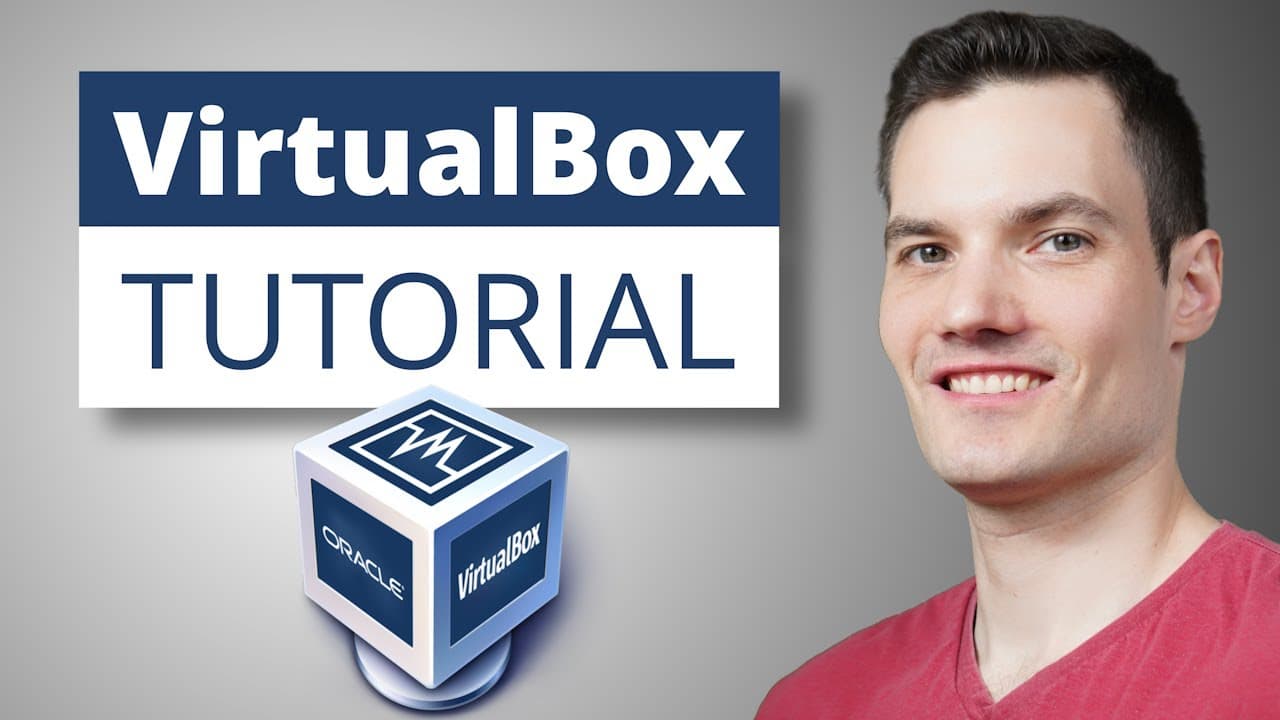
VirtualBox lets you create virtual machines on your PC by enabling virtualization, installing the software, and loading an ISO. You configure RAM, CPUs, and disk, then run the OS in a guest environment with features like snapshots, shared folders, and full screen.
Transcript
Hi, everyone. Kevin here. Today we're going to look at how you can both install and also run Oracle's VirtualBox. VirtualBox is free and open-source software that allows you to set up your very own virtual machine. A virtual machine is kind of like a pretend computer or a guest that runs on your real computer or the host. So why would you want ... Read More
Key Insights
- Virtualization must be enabled in the host BIOS before VirtualBox can run, as shown in the video where the presenter checks the CPU tab in Task Manager and enables the feature in BIOS settings.
- VirtualBox installation uses the default feature set by default, with dependencies and a warning about temporary network disconnection, which the installer handles automatically to finish the setup.
- An ISO image is required to load an operating system into the virtual machine, and the example uses Ubuntu Desktop to illustrate the process of mounting the ISO and starting the VM.
- During VM creation, you must provide a name, location, OS type, and version; this is followed by user credentials and optional guest additions for performance improvements.
- RAM and CPU allocations for the VM are capped to avoid starving the host machine, with the video recommending starting points like 4 GB RAM and 4 CPUs for a balanced setup.
- Dynamic storage is advised for the VM disk to grow as needed, with an option to preallocate full size for performance, though this consumes host disk space up front.
- The VirtualBox View menu allows for auto resize and full screen mode, enabling better screen utilization and a smoother user experience in the guest OS.
- Features like snapshots, shared folders, USB device access, and clipboard sharing enable flexible interaction between host and guest, as well as easy backup and file transfer between environments.
- More videos from this channel:
- More from this channel: Kevin Stratvert
Install to Summarize YouTube Videos and Get Transcripts
Explore YouTube Video Summarizer or Get YouTube Transcript Extractor
Questions & Answers
Q: How to enable virtualization on a Windows PC as shown in the video
To enable virtualization you first open Task Manager and check the Performance section under CPU to confirm whether virtualization is enabled. If it is disabled, you restart the computer and enter the BIOS. In BIOS you navigate to the Advanced tab and enable the virtualization option, then save and exit to apply the change. After reboot, VirtualBox can run with hardware-assisted virtualization, improving VM performance and compatibility.
Q: What are the first steps to install VirtualBox after enabling virtualization
The first steps are to visit the VirtualBox download page and choose the Windows hosts option if you are on Windows. The installer will download, then run through a setup wizard. You accept the defaults or customize features, acknowledge the warning about temporary network disconnection, and confirm any missing dependencies. Finally, you complete the installation and optionally start the VM immediately.
Q: How do you download an ISO for the guest operating system
To download an ISO for the guest OS you visit the OS provider’s download page, select the desired edition such as Ubuntu Desktop, and start the download. The video uses Ubuntu as the example, mentioning system requirements and guiding you to the appropriate download link. Once downloaded, you can mount the ISO in VirtualBox to begin the installation inside the virtual machine.
Q: What is the process to create a new virtual machine in VirtualBox
Creating a new virtual machine starts with clicking the New button in VirtualBox Manager. You name the VM, choose where to store it, and ensure the type and version match the guest OS, then select Next. You enter user credentials for the VM, enable guest additions for better performance, and proceed to allocate hardware resources, such as RAM and CPUs, while keeping host performance in mind.
Q: How should you configure RAM and CPUs for a VM according to the video
RAM and CPU allocations should balance host performance with VM needs. The video suggests starting with around four gigabytes of RAM and four CPUs for the Ubuntu VM example, noting that allocating too much will slow down the host. You can adjust these values later if needed, ensuring the host remains responsive while the VM runs.
Q: What is the purpose of guest additions in VirtualBox
Guest additions are a set of drivers and utilities designed to improve performance and usability of the guest OS. They provide better graphics support, smoother mouse integration, and enhanced shared clipboard and drag and drop functionality between host and guest. Enabling guest additions is generally recommended during VM setup to improve overall experience.
Q: How can you view and manage VM resources during operation
You can monitor VM resource usage by using the Session Information and Machine menus. Session Information shows CPU and RAM usage and other metrics, while the Machine menu provides options to pause, reset, or shut down the VM. These tools help manage performance, save state with snapshots, and control resource allocation on the fly.
Q: What options help you adjust display and input settings in VirtualBox
Display and input settings are accessible through the View menu where you can auto resize the guest display or enter full screen mode. The Host key combined with F toggles full screen, and you can modify the host key in Keyboard Settings. Additionally, you can manage connected USB devices and shared folders for seamless file transfer between host and guest.
Summary & Key Takeaways
-
VirtualBox enables you to run a guest operating system inside your host computer, effectively creating a separate computer instance. The video guides enabling virtualization in the BIOS, downloading VirtualBox, and performing the initial setup to create a virtual machine instance. It emphasizes practical steps and important usability features like guest additions and full screen mode.
-
The tutorial walks through choosing an ISO, specifically Ubuntu in the example, and demonstrates how to allocate memory, processors, and dynamically sized storage for the virtual machine. It also covers managing the VM with the machine and view menus, and how to scale the display for better usability.
-
A complete workflow is shown: enable virtualization, install VirtualBox, download an ISO, create a VM, configure hardware, boot the OS, and use features such as snapshots, USB device sharing, and clipboard sharing for seamless interaction between host and guest.
Read in Other Languages (beta)
Share This Summary 📚
Summarize YouTube Videos and Get Video Transcripts with 1-Click
Try YouTube Summary with ChatGPT & Claude or YouTube Transcript Generator
Explore More Summaries from Kevin Stratvert 📚



Summarize YouTube Videos and Get Video Transcripts with 1-Click
Try YouTube Summary with ChatGPT & Claude or YouTube Transcript Generator