How to Create and Customize a Quiz in Google Forms
TL;DR
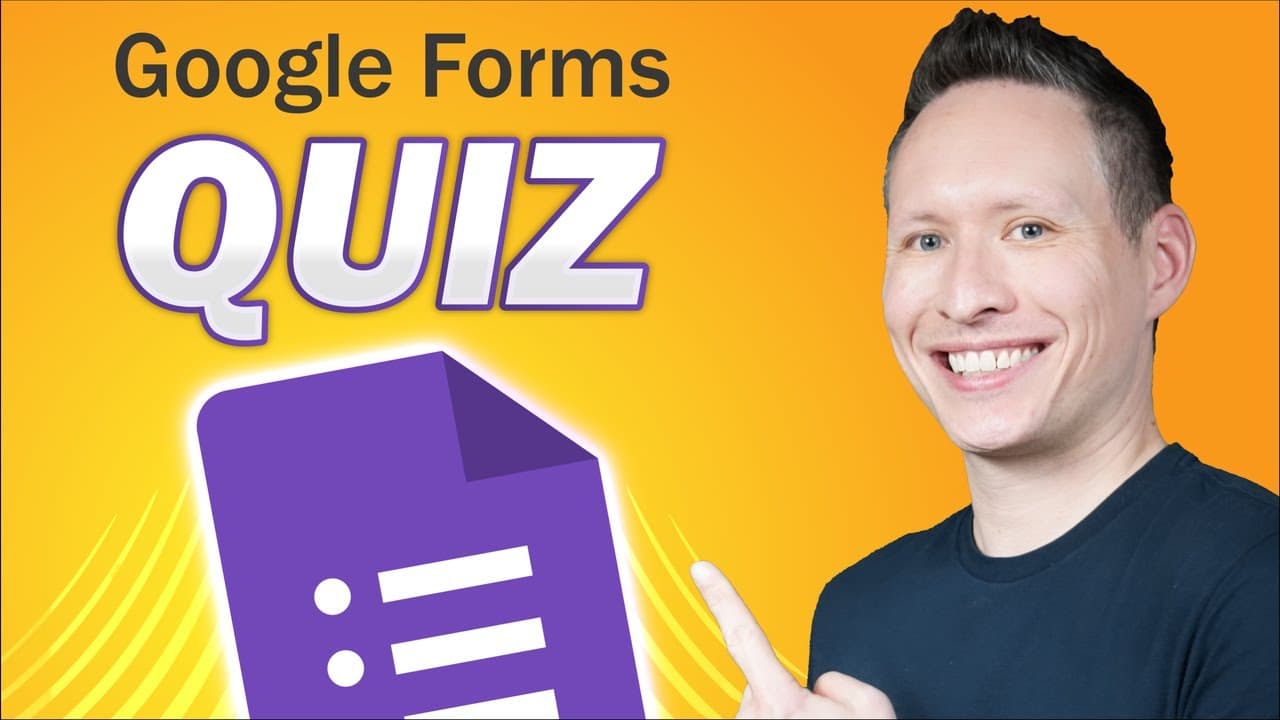
To create a quiz in Google Forms, enable quiz mode in settings, add questions in various formats, and assign correct answers while configuring feedback. Customize the quiz’s appearance with themes and images, then share it via link or email. Analyze responses through detailed summaries and individual performance metrics after distribution.
Transcript
Read and summarize the transcript of this video on Glasp Reader (beta).
Key Insights
- Google Forms allows users to create quizzes by enabling quiz mode in the settings, providing a structured approach to question creation and grading.
- Users can start a new Google Forms quiz through Google Drive, forms.google.com, or forms.new, offering flexibility in accessing the tool.
- Quiz settings include immediate grade release, response restrictions, progress bars, and confirmation messages, enhancing the quiz-taking experience.
- Question types in Google Forms include multiple choice, short answer, and paragraph, allowing for diverse question formats to suit different needs.
- Feedback can be provided for both correct and incorrect answers, offering educational value and engagement for quiz takers.
- Customization options such as themes, images, and style adjustments can enhance the visual appeal of a quiz, making it more engaging.
- Response analysis features include high-level summaries, individual responses, and question analytics, providing insights into quiz performance.
- Sharing options include email, links, and social media, making it easy to distribute quizzes and gather responses efficiently.
Install to Summarize YouTube Videos and Get Transcripts
Explore YouTube Video Summarizer or Get YouTube Transcript Extractor
Questions & Answers
Q: How do you start a new quiz in Google Forms?
To start a new quiz in Google Forms, you can access it through Google Drive by selecting the Forms icon in the new menu, visit forms.google.com for a blank form, or use forms.new to instantly create a new form. Each method provides a different way to access the tool for creating quizzes.
Q: What are the key settings to configure when creating a quiz?
Key settings in Google Forms quizzes include enabling quiz mode, setting immediate grade release for quiz takers, limiting responses to one per person, enabling a progress bar for longer quizzes, and including a confirmation message post-submission. These settings enhance the user experience and ensure the quiz is conducted smoothly.
Q: What types of questions can you add to a Google Forms quiz?
Google Forms allows for various question types, including multiple choice, short answer, and paragraph questions. These options provide flexibility in designing quizzes to accommodate different types of content and testing needs, allowing quiz creators to tailor the quiz to their specific requirements.
Q: How can you provide feedback for quiz answers?
Feedback for quiz answers can be added in Google Forms by using the answer key feature. For each question, you can specify feedback for both correct and incorrect answers. This feature allows you to provide educational value and engage quiz takers by offering additional information or encouragement based on their responses.
Q: What customization options are available for Google Forms quizzes?
Customization options in Google Forms quizzes include changing the theme, adding images or videos to questions, and adjusting the style of the quiz. These options allow creators to enhance the visual appeal and engagement of the quiz, making it more attractive and interesting for participants.
Q: How can you analyze quiz responses in Google Forms?
Quiz responses in Google Forms can be analyzed through the responses tab, which offers a high-level summary of results, individual response views, and question analytics. Additionally, responses can be exported to a Google spreadsheet for further analysis or data manipulation, providing comprehensive insights into quiz performance.
Q: What are the options for sharing a Google Forms quiz?
Google Forms quizzes can be shared via email, using a link, or through social media platforms like Facebook and Twitter. Links can be shortened for convenience, and quizzes can also be embedded on websites, offering multiple ways to distribute the quiz and reach a wider audience.
Q: How can you preview a Google Forms quiz before sending it out?
To preview a Google Forms quiz, click the preview icon, shaped like an eye, to see how the quiz will appear to participants. This feature allows you to review the layout, design, and functionality of the quiz before sharing it, ensuring everything is set up correctly and looks professional.
Summary & Key Takeaways
-
This tutorial explains how to create a quiz using Google Forms, covering everything from enabling quiz mode to analyzing responses. It provides detailed instructions on adding questions, setting correct answers, and customizing the quiz's appearance.
-
Key features highlighted include immediate grade release, response limitations, and progress bars to improve the quiz experience. Users learn how to provide feedback and use various question types like multiple choice and short answer.
-
The tutorial also explores response analysis, allowing users to view performance summaries and individual answers. Sharing options, such as email and social media, are discussed for efficient quiz distribution.
Read in Other Languages (beta)
Share This Summary 📚
Summarize YouTube Videos and Get Video Transcripts with 1-Click
Try YouTube Summary with ChatGPT & Claude or YouTube Transcript Generator
Explore More Summaries from Kevin Stratvert 📚





Summarize YouTube Videos and Get Video Transcripts with 1-Click
Try YouTube Summary with ChatGPT & Claude or YouTube Transcript Generator