How to Create an Interactive Excel Dashboard
TL;DR
Build an interactive Excel dashboard by converting source data into a table, creating PivotTables and PivotCharts, and adding slicers and a timeline for filtering. Connect the controls to every chart so the views update together, then refresh the dashboard when new records arrive. No VBA or add-ins are required.
Transcript
Hi everyone, Kevin here. Today I want to show you how you can create an interactive dashboard in Microsoft Excel. With a dashboard, you can showcase the most important information to your organization, and best of all, it's actually really easy to set up. You don't have to know any VBA and you don't have to install any add-ins. All you need... Read More
Key Insights
- An Excel dashboard can be built with the base version of Microsoft Excel, without VBA or add-ins. PivotTables, PivotCharts, slicers, and a timeline provide the core tools for summarizing data, presenting key measures, and letting viewers interact with the results.
- A structured Excel table is the foundation for the dashboard. Clicking inside the source data and choosing Insert > Table, or pressing Control + T, converts the range while preserving headers and creates a suitable source for PivotTables.
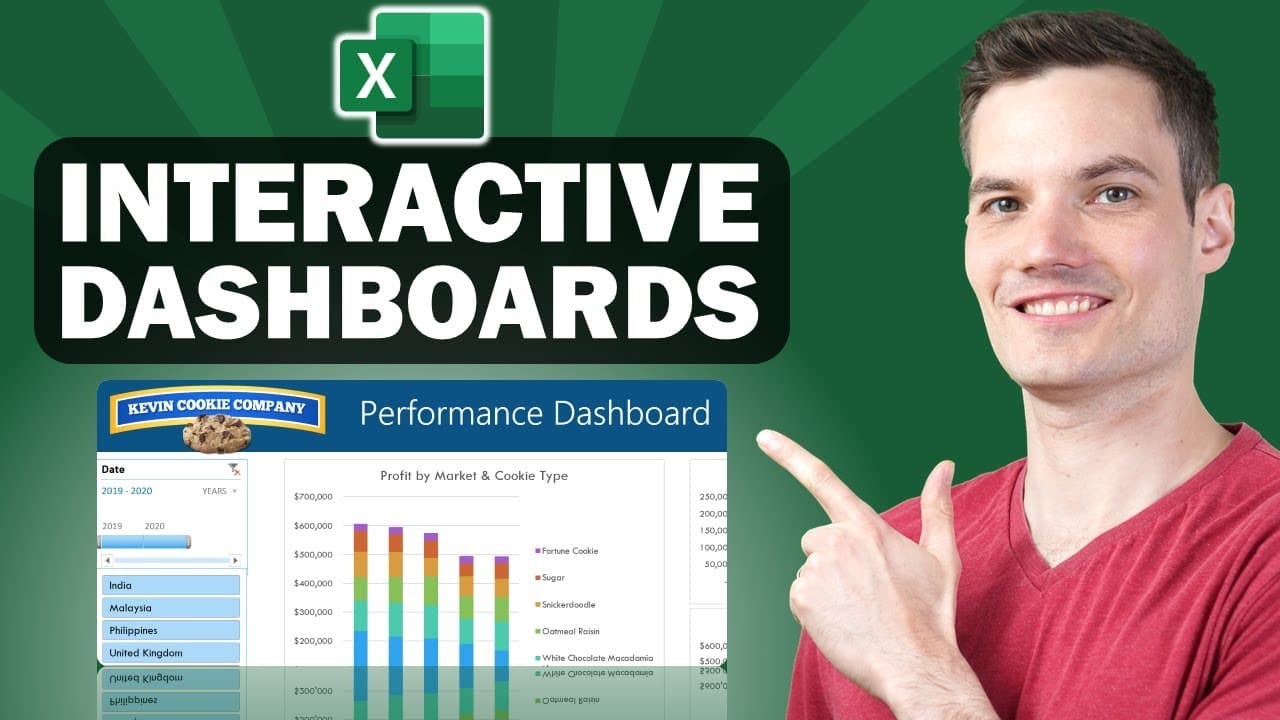
- Multiple dashboard charts require multiple PivotTables in this workflow. The example creates three PivotTable worksheets, with each table supporting a separate view: profit by country and cookie, units sold each month, and profit by month.
- Profit by market and cookie type is displayed with a stacked column PivotChart. Countries and products are sorted from largest to smallest by total profit, which places the most profitable markets first and makes the relative contributions easier to examine.
- Line charts are used for monthly unit sales and monthly profit because both measures are tracked over time. Values are formatted appropriately, including comma formatting for units and currency formatting for profit, with unnecessary decimal places removed.
- PivotChart field buttons can be hidden to reduce visual clutter. Chart titles are added to identify each measure, while legends or other elements can be removed when they do not improve understanding of the displayed data.
- Dashboard objects can be positioned precisely by holding the Alt key while moving a selected chart. The charts can also be resized and aligned so the separate performance views form a consistent dashboard layout.
- Slicers and a timeline make the dashboard interactive when they are connected to all PivotCharts. The dashboard can then filter several views together, refresh when new data is added, adopt a customized theme, and be shared with other people in the organization.
- More videos from this channel:
- More from this channel: Kevin Stratvert
Install to Summarize YouTube Videos and Get Transcripts
Explore YouTube Video Summarizer or Get YouTube Transcript Extractor
Questions & Answers
Q: How do you create an interactive dashboard in Excel?
Start with source data arranged in a tabular structure and convert it into an Excel table. Create separate PivotTables for the measures you want to present, then insert appropriate PivotCharts and copy them onto a dashboard worksheet. Add slicers and a timeline, connect those controls to every PivotChart, and organize the charts into a clear layout that can be refreshed when new data arrives.
Q: Do you need VBA or add-ins to build an Excel dashboard?
No. The dashboard shown can be created with the base version of Microsoft Excel, without writing VBA or installing add-ins. The workflow relies on built-in features, including Excel tables, PivotTables, PivotCharts, slicers, timelines, chart formatting, themes, and refresh controls. These tools are sufficient to create interactive views that summarize organizational information and update as the underlying data changes.
Q: Why should source data be converted into an Excel table?
Converting the source range into an Excel table prepares the tabular data for use as the dashboard's PivotTable source. Click anywhere in the data, choose Insert > Table or press Control + T, verify that Excel identified the intended range, and confirm that the table has headers. The resulting named table can then be selected when creating the PivotTables used by the dashboard.
Q: How do you show profit by market and product in Excel?
Create a PivotTable from the source table, place country in the Rows area, product in the Columns area, and profit in the Values area. Format the values as currency and remove unnecessary decimal places. Sort the country totals and product totals from largest to smallest, then insert a stacked column PivotChart and give it a descriptive title such as profit by market and cookie type.
Q: Which Excel chart works for monthly sales and profit?
Line charts work well for the monthly unit sales and monthly profit views demonstrated because both measures are presented over time. For unit sales, place the date in the PivotTable rows and units sold in values. For profit, place months in rows and profit in values. Format each measure appropriately, insert a line PivotChart, and title the chart according to the displayed metric.
Q: How do you make PivotCharts look cleaner on a dashboard?
Give each PivotChart a clear title that states what the chart measures, then remove elements that do not help the viewer. The example hides all field buttons by right-clicking a field item and selecting the option to hide the chart's field buttons. It also removes an unnecessary legend from the monthly units chart. Charts can then be resized, aligned, and positioned neatly on the dashboard worksheet.
Q: How do slicers and timelines make an Excel dashboard interactive?
Slicers and a timeline provide controls that viewers can use to filter the dashboard. After adding them, connect the controls to all of the PivotCharts rather than leaving each control associated with only one view. This shared connection allows filtering selections to affect the dashboard's charts together, helping users examine the same performance measures for the selected categories or periods.
Q: How do you update and share an Excel dashboard?
Add the new records to the dashboard's source data and refresh the dashboard so its PivotTables and PivotCharts reflect the latest information. Before sharing, adjust the worksheet view so it looks less like a standard Excel sheet, apply or customize a theme to match the organization's color scheme, and arrange the visual elements consistently. The finished workbook can then be shared for others to consume its insights.
Summary & Key Takeaways
-
The process begins with sales data arranged in a tabular structure. Convert the range into an Excel table with Insert > Table or Control + T, confirm that headers are present, and use the resulting table as the source for multiple PivotTables placed on separate worksheets.
-
Each dashboard view is created by assigning fields to PivotTable rows, columns, and values, then formatting and sorting the results. The example uses a stacked column chart for profit by market and cookie type, plus line charts for monthly unit sales and monthly profit.
-
The completed PivotCharts are copied to a dashboard worksheet, aligned and resized, then enhanced with a timeline and slicers. Connecting those controls to all PivotCharts enables coordinated filtering. New source data can be incorporated by refreshing the dashboard, while themes and display adjustments improve its presentation before sharing.
Read in Other Languages (beta)
Share This Summary 📚
Summarize YouTube Videos and Get Video Transcripts with 1-Click
Try YouTube Summary with ChatGPT & Claude or YouTube Transcript Generator
Explore More Summaries from Kevin Stratvert 📚






Summarize YouTube Videos and Get Video Transcripts with 1-Click
Try YouTube Summary with ChatGPT & Claude or YouTube Transcript Generator