How to Build and Share Reusable Claude Skills
TL;DR
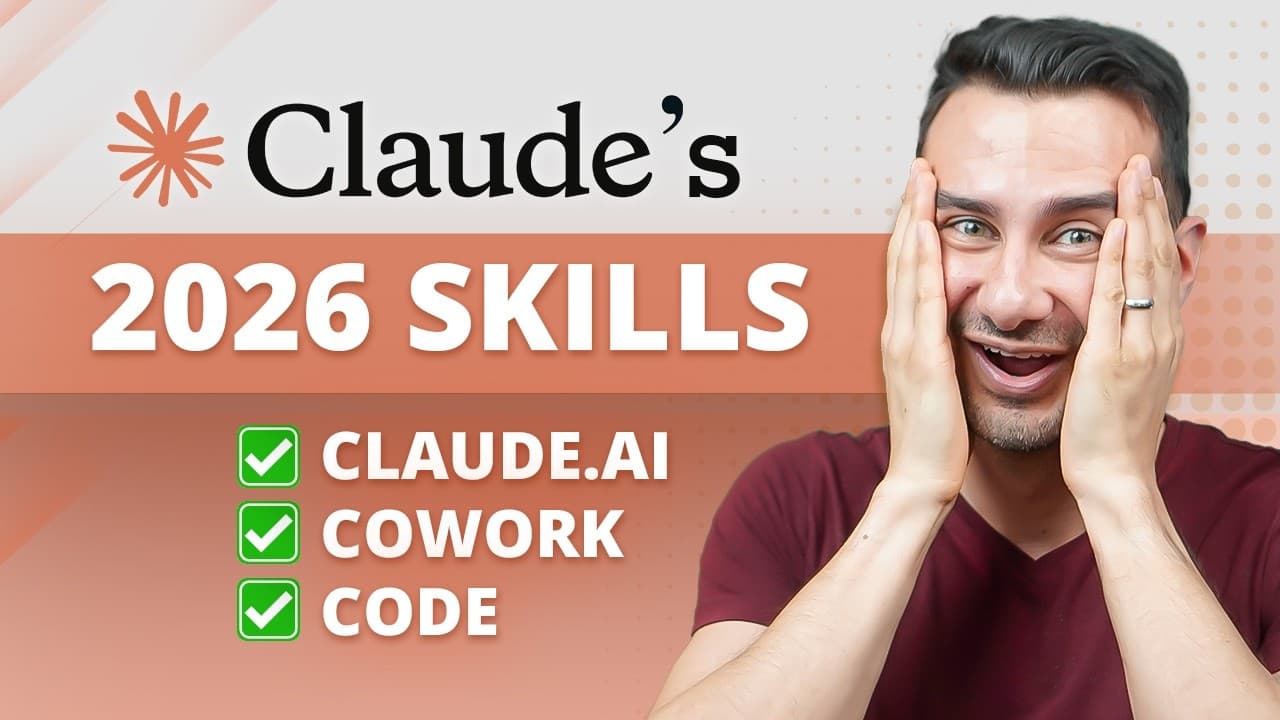
Claude Skills turn frequently used prompts into reusable files that can summarize information, identify action items, draft replies, and apply business rules. Create a skill through Customize, clarify its behavior, test it with real examples, save it, and invoke it with a slash command. Web and desktop environments share saved skills, while Claude Code requires installation in a .claude/skills folder.
Transcript
Claude Skills are reusable prompts you save once and run by typing forward slash and the name of the prompt. Today, you'll learn how to create your first skill step-by-step, run them across Chat, Cowork, and Claude Code, and share skills with your team. I'm David DeWinter, your guide to all things Claude. Open up a browser, head to Claude.ai with m... Read More
Key Insights
- Claude Skills are reusable saved prompts that run when Claude detects relevant context or when a user explicitly enters a slash command with the skill name.
- A simple Claude Skill is a Markdown file containing a prompt, while a more complex skill can also include executable code, such as Python used by a dashboard updater.
- The skill creation process is guided by Claude, which can ask clarification questions about expected behavior, tone, inputs, outputs, and triggering conditions before drafting the skill.
- A generated skill is divided into front matter and a body. The front matter provides a high-level description and usage details, while the body contains the actual prompt instructions.
- Testing with real examples is the main refinement step because feedback on actual summaries, action items, and drafted replies helps align the skill with the user's expectations and voice.
- Explicit slash commands are more reliable than automatic contextual triggering, although Claude can infer from a conversation that an installed skill should be used.
- Skill prompts are loaded only when triggered, rather than being placed into every conversation, which reduces the chance that numerous long prompts will confuse Claude about what to do.
- Claude Code stores skills differently from connected web and desktop environments. A downloaded skill must be extracted and its containing folder copied into a skills folder inside .claude.
- More videos from this channel:
- More from this channel: Kevin Stratvert
Install to Summarize YouTube Videos and Get Transcripts
Explore YouTube Video Summarizer or Get YouTube Transcript Extractor
Questions & Answers
Q: What is a Claude Skill and how does it work?
A Claude Skill is a reusable prompt saved as a file. A simple skill may contain only written instructions, while a more complex skill can include code. Its full prompt is not loaded into every conversation. Instead, it becomes active when the user invokes its slash command or when Claude infers from the current context that the skill is relevant.
Q: How do you create a reusable Claude Skill?
Open Claude, select Customize in the sidebar, go to the Skills tab, click the plus button, and choose the option to create a skill with Claude. Describe the result you want and invite clarification questions. Answer those questions thoughtfully, let Claude draft the skill, review its instructions, and test it with examples before saving it to the skills list.
Q: How should a Claude Skill be tested and refined?
Test a draft skill with realistic material that closely resembles what it will handle in regular use. Review every part of the result, including summaries, action items, and drafted responses. Give Claude direct feedback about weaknesses or unwanted habits, then ask it to update the skill. Continued use and revision help the instructions become more specific and dependable over time.
Q: What are front matter and the body of a Claude Skill?
Front matter is the section that describes a skill at a high level and records details about how it should be used. The body is the actual reusable prompt that directs Claude's work. Together, these sections define the skill's identity, intended use, and operational instructions, allowing Claude to understand when the skill applies and what result it should produce.
Q: How do you run an installed Claude Skill?
An installed skill can be run by typing a forward slash followed by the skill's name, then providing the context or source material it needs. Typing the forward slash also opens an autocomplete list, so users do not have to remember every name. Claude may trigger a skill from context, but direct slash invocation is described as the more reliable method.
Q: Why are Claude Skills not loaded into every conversation?
Skill prompts can be long, and loading every installed prompt into every conversation could make it harder for Claude to determine which instructions matter. Claude therefore loads a skill only when it is triggered. A trigger occurs when the user directly invokes the skill by name or when Claude infers from the context that the skill is appropriate for the current request.
Q: How do Claude Skills work across Chat and Cowork?
A skill created and saved through Claude on the web also appears in connected Claude desktop environments without a separate installation. The same skill can run in Chat or Cowork. Cowork adds the ability to work with a selected local folder, allowing the skill to use stored business, financial, or team context alongside the email thread or other material supplied by the user.
Q: How do you install a downloaded skill in Claude Code?
Download the skill from the skills view and rename the downloaded file with a .zip extension when prompted. Extract the archive to obtain a folder containing the skill file. In the folder opened by Claude Code, create or use a skills directory inside a .claude directory, then copy the complete extracted skill folder there rather than copying only the individual skill file.
Summary & Key Takeaways
-
Claude Skills are saved prompts packaged as reusable files. A basic skill can contain only instructions, while a more complex one can include code. Skills are loaded only when triggered, which prevents every installed prompt from entering every conversation and potentially confusing Claude about the task it should perform.
-
The demonstrated creation process starts under Customize and uses Claude's skill creator. The user describes the desired outcome, answers clarification questions, reviews the generated front matter and prompt body, and tests the draft against a real email thread. Feedback from realistic examples is then used to improve the skill before installation.
-
Saved skills appear across connected Claude web and desktop environments, including Chat and Cowork. Cowork can combine a skill with business context stored in a selected local folder. Claude Code handles installation differently, using skill folders on disk inside .claude/skills, with global and project skills serving different scopes.
Read in Other Languages (beta)
Share This Summary 📚
Summarize YouTube Videos and Get Video Transcripts with 1-Click
Try YouTube Summary with ChatGPT & Claude or YouTube Transcript Generator
Explore More Summaries from Kevin Stratvert 📚





Summarize YouTube Videos and Get Video Transcripts with 1-Click
Try YouTube Summary with ChatGPT & Claude or YouTube Transcript Generator