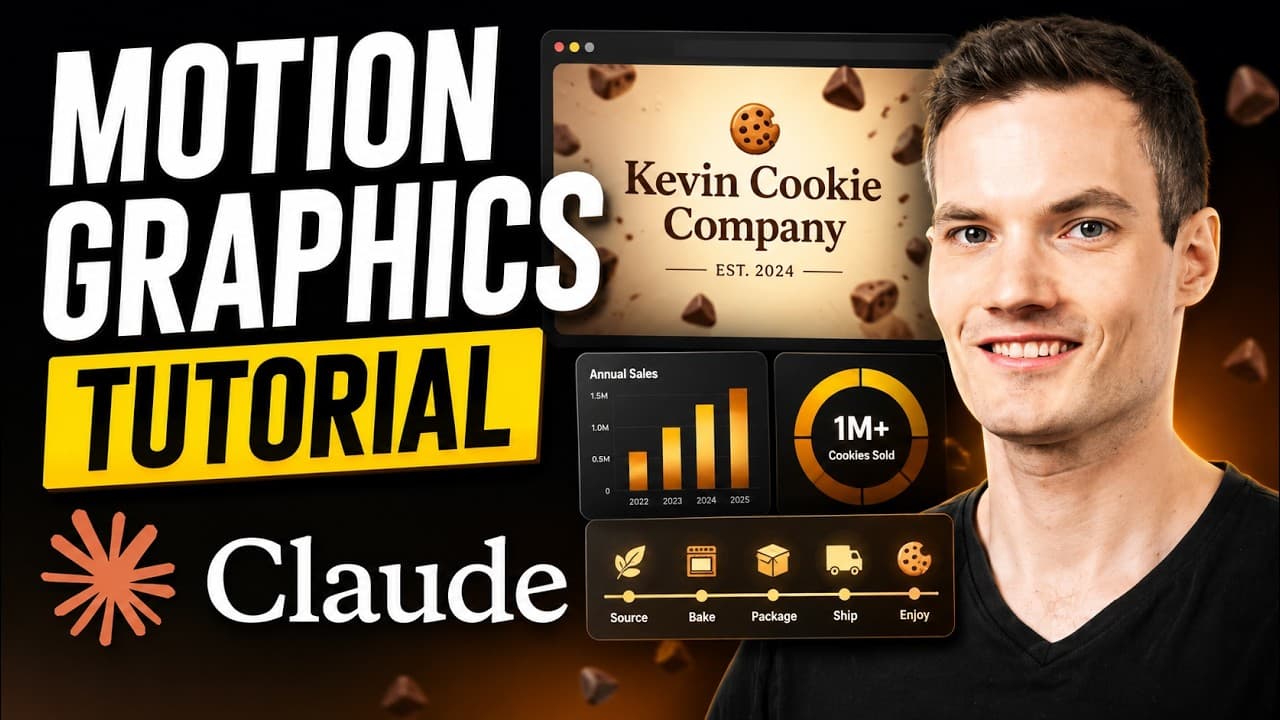
How to Make Motion Graphics with Claude Design
TL;DR
Create motion graphics by selecting Claude Design’s animation template, describing the desired visual in a specific prompt, and refining the result through natural-language feedback. For narration-synchronized graphics, upload an SRT file with timestamps and relevant brand assets, export the finished animation as an MP4, and combine it with the original footage in video-editing software.
Transcript
In this video, I'll show you how to create professional motion graphics with Claude AI step-by-step. We'll start with the basics and gradually build more advanced animations. I'm Kevin, and let's dive in. To get started, head to the following website. You'll find a link right here at the bottom of the screen. If you don't already have a C... Read More
Key Insights
- Claude Design creates motion graphics from natural-language prompts through its animation template. The prompt box is used to describe the desired project, while greater specificity generally produces results that more closely reflect the requested brand, movement, colors, and visual style.
- Iterative prompting is the presenter’s standard workflow for improving an animation. He starts with a simple request, reviews the first version, and submits targeted feedback, such as adding upward movement during a fade, until the result matches his intended design.
- Small visual details can make a basic animation feel more polished. In the title example, the presenter asks Claude Design to add falling chocolate chips and a subtle shadow after establishing the main animation, colors, and brand identity.
- An SRT file contains both narration text and timestamps. Uploading it gives Claude Design the information needed to create visuals that correspond with the spoken content and synchronize those graphics with the timing of an existing video.
- Brand assets provide additional context for generated graphics. The example includes a company logo and a product photograph, which are intended to help Claude Design create visuals that match the Kevin Cookie Company and its featured cookie.
- Detailed prompts can request varied storytelling elements within one synchronized animation. The demonstrated prompt asks for charts, timelines, icons, process diagrams, and product visuals that follow the narration rather than relying on one repeated type of graphic.
- Generated results may still omit requested assets or details. When Claude Design does not use the uploaded logo, the presenter identifies additional feedback as the appropriate next step, showing that output review remains necessary after generation.
- Claude Design exports completed animations as MP4 files through the share menu. The exported graphic can then be placed in DaVinci Resolve or other video-editing software alongside talking-head footage to create a more visually engaging presentation.
- More videos from this channel:
- More from this channel: Kevin Stratvert
Install to Summarize YouTube Videos and Get Transcripts
Explore YouTube Video Summarizer or Get YouTube Transcript Extractor
Questions & Answers
Q: How do you create motion graphics with Claude Design?
Open Claude Design, select the animation template, and enter a specific natural-language description of the motion graphic you want. Review the generated first version, then use the feedback field to request precise changes instead of starting over. Continue refining elements such as movement, shadows, decorative objects, colors, and branding until the animation matches your intended result.
Q: How should you prompt Claude Design for better animations?
Describe the desired animation as specifically as possible because, according to the presenter, more specific prompts tend to produce better results. Include the project type, company or subject, visual style, color palette, intended movement, and important brand details. You can also use Claude to help write the prompt before generating and then provide focused follow-up instructions for revisions.
Q: How can you refine a Claude Design animation without restarting?
Use the feedback area in the bottom-left corner to describe exactly what should change in the existing result. In the demonstration, the presenter asks for slight upward movement during the fade-in, then later requests falling chocolate chips and a subtle shadow. Several rounds of natural-language feedback turn the initial version into the desired polished animation without rebuilding it from scratch.
Q: How do you synchronize motion graphics with video narration?
Upload an SRT file containing the narration transcript and its timestamps to Claude Design. Then provide a detailed prompt asking for graphics that match the narration and follow those timestamps. The timing information helps Claude Design align visual elements with the spoken content, allowing charts, timelines, icons, diagrams, and product visuals to appear during the relevant parts of the video.
Q: What files should you upload for branded motion graphics?
Upload an SRT file when the graphics need to follow existing narration, along with relevant brand assets that give Claude Design visual context. In the example, the presenter supplies a company logo and a product photograph. These files help communicate the brand and subject, although the generated result should still be reviewed because an uploaded asset, such as the logo, may be omitted.
Q: How can you create an SRT file for Claude Design?
The presenter demonstrates Vibe as an option for producing the SRT file. Drag and drop the video into Vibe, select Transcribe at the bottom, wait for the transcript to be generated, and then choose Export to save it as an SRT file. The resulting file includes the transcript and timestamps needed to coordinate the graphics with the narration.
Q: How do you export a motion graphic from Claude Design?
Open the share menu in the top-right corner of Claude Design and select the option to export an MP4. Choose the desired quality setting, then start the export. In the demonstration, the presenter selects the best available quality before exporting. The resulting MP4 can be imported into DaVinci Resolve or another video-editing application for use with existing footage.
Q: How do you combine Claude Design graphics with a talking-head video?
Import the exported MP4 motion graphic and the talking-head footage into video-editing software. In the DaVinci Resolve example, the motion graphic is added to the timeline and the talking-head video is placed on the track above it. When the graphic was created from the narration’s SRT timestamps, its charts, process visuals, and product imagery can follow the spoken sequence.
Summary & Key Takeaways
-
Claude Design can generate a branded title animation from a natural-language description. The demonstrated workflow begins with the animation template and a specific prompt covering the company, style, and colors. Instead of restarting when the first version needs improvement, the creator submits additional feedback until the motion and visual treatment match the intended result.
-
Existing narration can guide a longer motion-graphics sequence when its transcript and timestamps are supplied in an SRT file. Adding a logo and product photo gives Claude Design more brand context. A detailed prompt can request synchronized charts, timelines, icons, process diagrams, and product visuals that support the spoken story at appropriate moments.
-
The completed animation can be exported as an MP4 through the share menu, with a selectable quality setting. In DaVinci Resolve, the presenter places the motion graphic on the timeline and the talking-head footage on the track above it. The resulting visuals follow the narration and make the simple presentation more engaging.
Read in Other Languages (beta)
Share This Summary 📚
Summarize YouTube Videos and Get Video Transcripts with 1-Click
Try YouTube Summary with ChatGPT & Claude or YouTube Transcript Generator
Explore More Summaries from Kevin Stratvert 📚





Summarize YouTube Videos and Get Video Transcripts with 1-Click
Try YouTube Summary with ChatGPT & Claude or YouTube Transcript Generator