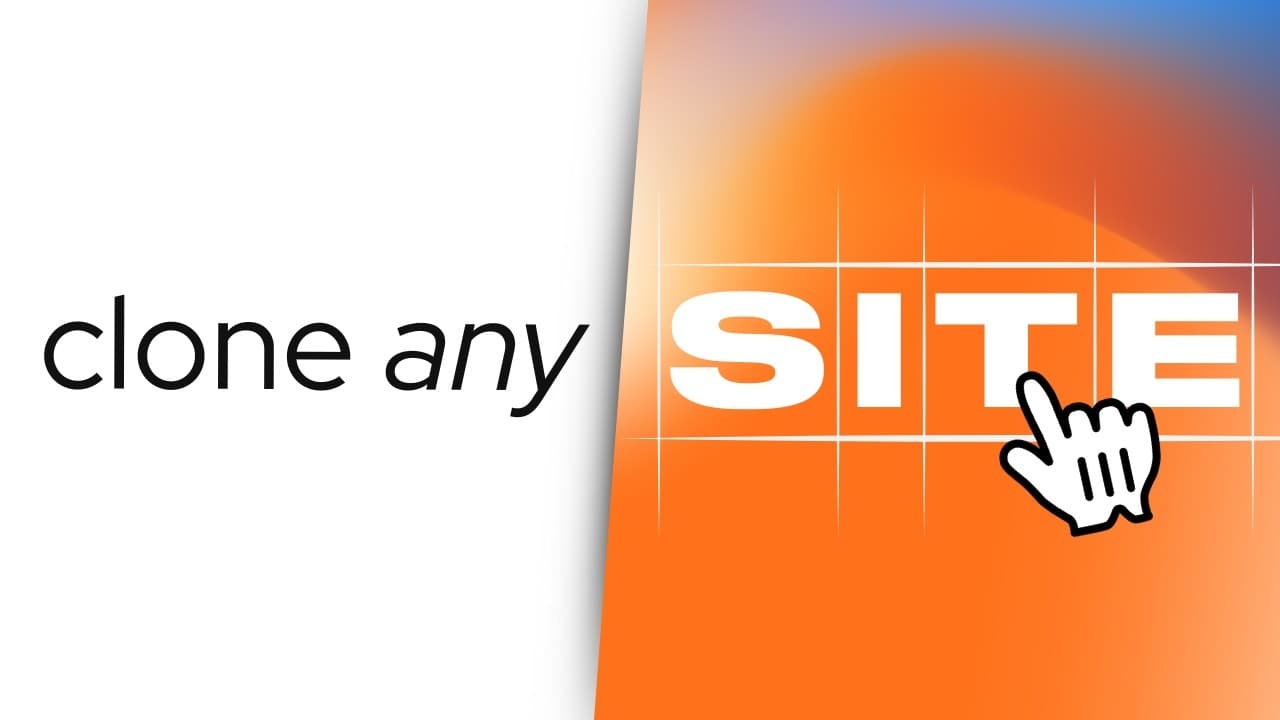
How to Recreate Website Designs with Cursor AI
TL;DR
Accurate design recreation depends on giving Cursor structured source data instead of asking it to infer everything from screenshots. Use Gemini Canvas with a full-page capture for existing sites, Figma MCP for design files and assets, or git2doc to index a GitHub repository’s documentation, then correct dependencies, imports, formatting, and interactions that the generated implementation misses.
Transcript
You see a stunning website design and think, "I want that exact look for my project." So, you screenshot it, paste it into cursor or chat GPT, and ask them to recreate it. But what do you get back? A janky mess that looks nothing like the original. The spacing's off, the colors are wrong, and it's missing half the elements. I know exactly why this ... Read More
Key Insights
- Accurate website recreation is primarily a source-data problem. A screenshot alone can force an AI coding tool to estimate spacing, colors, assets, and missing elements, while design files, downloaded images, repository documentation, and explicit project structures provide more dependable information for implementation.
- A full-page website screenshot can be captured from the browser’s inspect tools. Opening the command runner with Command-Shift-P on macOS or Control-Shift-P on Windows and selecting the full-size screenshot command saves the entire page, avoiding the need to assemble multiple captures.
- Gemini Canvas can convert a captured interface into React code. In the demonstrated comparison, Gemini produced a cleaner and more complete Wall Haven recreation than Claude Artifacts, with only minor color differences, and it successfully placed an image from the supplied interface capture.
- A generated shell script can distribute interface code across a Next.js project. Gemini receives Cursor’s proposed file structure, separates the generated code with markers, and produces a script that inserts those sections into the source folder instead of leaving Cursor to divide one large code file.
- Generated applications still require technical cleanup before they run correctly. The demonstrated Next.js recreation encountered a module error, missing dependencies, and cross-file import problems, but these issues were corrected before the server successfully displayed the recreated Wall Haven interface.
- Figma MCP gives Cursor access to structured design information through two tools: Get Figma Data and Download Figma Images. The image tool retrieves assets such as avatars, frames, and icons, organizes them inside the project directory, and lets the application use the original design assets.
- Figma links can target different levels of a design. A developer can copy a link to an entire page, a selected frame, or one component such as a button, then provide that link to Cursor so it implements only the requested design scope.
- git2doc turns a GitHub repository into documentation that Cursor can reference. After Cursor indexes the supplied documentation link, the repository’s architectural decisions, code patterns, and features become available as context for creating an MVP, studying an implementation, or adapting selected ideas.
Install to Summarize YouTube Videos and Get Transcripts
Explore YouTube Video Summarizer or Get YouTube Transcript Extractor
Questions & Answers
Q: How can I recreate an existing website with Cursor AI?
Capture a full-size screenshot of the target page through the browser’s inspect tools, then ask Gemini Canvas to analyze it and recreate the interface in React. Ask Cursor to create a Next.js application and provide its file structure. Give that structure to Gemini so it can generate a marked integration script, run the script, and then use Cursor to repair imports, dependencies, and module errors.
Q: How do I capture a full-page screenshot for AI coding?
Open the browser’s inspect tools and launch the command runner by pressing Command-Shift-P on macOS or Control-Shift-P on Windows. Type “screenshot,” then choose the option to capture a full-size screenshot. The browser saves the complete page to the downloads folder, giving Gemini or another coding assistant one continuous reference instead of several separate images.
Q: Why does recreating a website from a screenshot often fail?
A screenshot does not automatically provide the underlying values and assets that define an interface. The AI must estimate spacing, colors, structure, images, and omitted details, which can produce an incomplete or visually inaccurate result. The demonstrated workflows improve reliability by supplying additional information, including structured Figma data, original image assets, an explicit Next.js file structure, or indexed repository documentation.
Q: How does the Gemini integration script work with Next.js?
Cursor first creates the Next.js application and reports its file structure. That structure is pasted into Gemini with instructions to transfer the generated interface into the application using code markers. Gemini then produces a shell script that reads those marked sections, splits the implementation into components, and inserts them into the source folder. Remaining dependency, import, or module problems are fixed afterward.
Q: How can I convert a Figma design into code with Cursor?
Connect the Figma MCP server to Cursor, select the relevant page, frame, or component in Figma, and choose “copy link to selection.” Give that link to Cursor and instruct it to create the desired prototype. Cursor calls the MCP tools to fetch design data, download images, organize the assets in the project directory, and implement the supplied interface in code.
Q: What assets can Figma MCP download into a project?
The Download Figma Images tool can retrieve visual assets used by the selected design, including avatars, frames, icons, and other images. In the demonstrated mobile prototype, these files were placed into organized project folders and integrated into the application. This avoids asking Cursor to approximate complex imagery from a screenshot and preserves the visuals supplied by the Figma file.
Q: What are the limitations of converting Figma designs with Cursor?
The workflow can reproduce page layouts and include the images found in the Figma design, but it does not automatically infer every interaction. In the demonstrated prototype, navigation between screens was not created until the developer explicitly instructed Cursor to make a card clickable and open a menu. Device selection can also introduce formatting issues that require manual adjustment.
Q: How can git2doc help Cursor build an MVP from GitHub?
git2doc transforms a GitHub repository into documentation that Cursor can understand and index. Copy the repository link through the git2doc site, add the resulting documentation link to Cursor, and give the reference a recognizable name. Once indexing finishes, Cursor can consult the project’s architecture, code patterns, and features while building an MVP or adapting selected ideas from the repository.
Summary & Key Takeaways
-
For an existing website, capture a full-size screenshot through the browser’s inspect tools and ask Gemini Canvas to recreate the interface in React. Create a Next.js structure in Cursor, give that structure to Gemini, and use its generated shell script to split and integrate the implementation into the appropriate project files.
-
For a Figma design, connect the Figma MCP server to Cursor and provide links copied from selected pages, frames, or individual components. Cursor can fetch the design data, download images into organized project folders, and implement the visual interface. Navigation and certain formatting details may still require explicit follow-up instructions.
-
For inspiration from an open-source application, git2doc can transform a GitHub repository into documentation that Cursor can index. The resulting reference exposes the repository’s architecture, implementation patterns, and features inside Cursor, helping developers build an MVP or adapt selected ideas without beginning by modifying the entire original repository.
Read in Other Languages (beta)
Share This Summary 📚
Summarize YouTube Videos and Get Video Transcripts with 1-Click
Try YouTube Summary with ChatGPT & Claude or YouTube Transcript Generator
Explore More Summaries from AI LABS 📚
Summarize YouTube Videos and Get Video Transcripts with 1-Click
Try YouTube Summary with ChatGPT & Claude or YouTube Transcript Generator