How to Build a Complete Second Brain in Notion
TL;DR
Build a Notion second brain around low-friction capture, daily planning, and regular inbox processing. Connect tasks, projects, notes, goals, areas, and resources in one system, then use focused dashboards, PARA organization, and a Getting Things Done workflow to decide what belongs where and what action should happen next.
Transcript
- Hey, what is going on friends? Welcome back to "Thomas Frank Explains." In this video, I'll be giving you an in depth look at my complete second brain system inside of Notion. This is, at long last, an all-in-one system that tracks all of my tasks, my projects, my notes, my goals, and basically organizes my entire life. And this is what I have wa... Read More
Key Insights
- A second brain is an external system for storing ideas, tasks, events, and other information that would otherwise occupy mental attention. Moving these items into a trusted workspace allows a person to return to creative thinking and practical work.
- Low-friction capture is essential because tasks and ideas often appear while a person is away from their primary workspace. Favoriting the quick-capture page or adding it to a mobile home screen creates a direct path into separate task and note inboxes.
- An inbox is a temporary destination for information that has not been organized. A task remains in the task inbox until it receives a project, while a note remains in the note inbox until it receives an area or resource.
- The quick-capture view stays clean through a formula-based filter that hides captured items after 24 hours. Those items are not deleted, because they continue to exist in their respective inboxes until the user processes, organizes, completes, or removes them.
- Web clipping can route information either into the general note inbox or directly into a chosen resource. Assigning the fitness resource during capture, for example, bypasses the inbox and places the clipped article within the relevant collection immediately.
- Saved webpage highlights can synchronize into the corresponding Notion note. This creates a research workflow in which a user clips an article, marks useful passages on the webpage, and later reviews those passages inside the second-brain system.
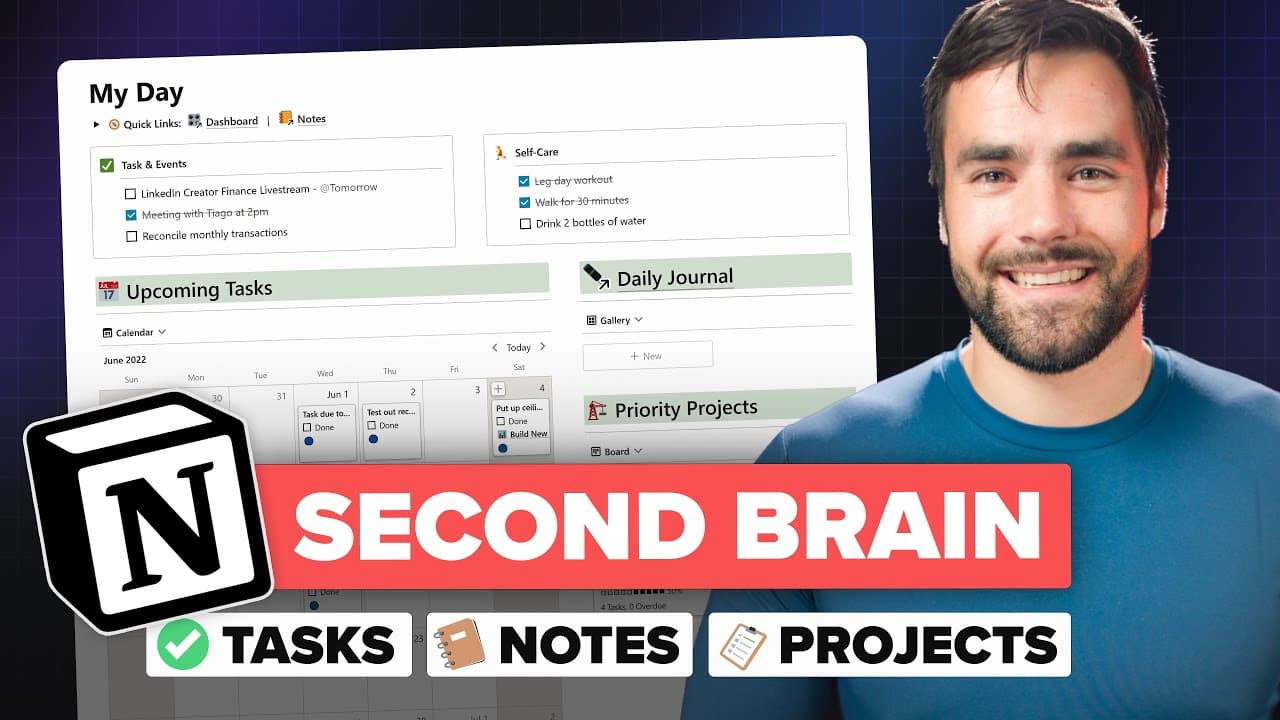
- Daily planning is a focused selection process rather than a review of every stored obligation. The My Day page provides a virtual whiteboard where a user can decide what to accomplish and view that plan without the distraction of the complete task database.
- The complete workspace connects several productivity structures rather than treating them as isolated lists. PARA organizes projects, areas, resources, and archives, while the Getting Things Done process helps users capture and process tasks before acting on them.
Install to Summarize YouTube Videos and Get Transcripts
Explore YouTube Video Summarizer or Get YouTube Transcript Extractor
Questions & Answers
Q: How do you build a second brain in Notion?
Build the system around a few connected functions: quick capture, daily planning, task management, project tracking, note storage, goals, and life organization. Create separate inboxes for unorganized tasks and notes, then process those items into projects, areas, or resources. Add focused dashboards for daily work and future planning, and use PARA plus a Getting Things Done workflow to maintain the larger structure.
Q: What should a Notion quick-capture page include?
A quick-capture page should provide immediate access to both a task inbox and a note inbox. It can be favorited in the Notion sidebar and added as a widget on an iOS or Android home screen for convenient mobile access. Dedicated links to the full inbox pages are also useful, allowing fast entry while preserving access to complete processing views.
Q: How do task and note inboxes work in Notion?
An inbox acts as the default location for an item that has not yet been organized. A captured task stays in the task inbox until it is assigned to a project or completed. A captured note stays in the note inbox until it is connected to an area or resource. This mirrors the inbox behavior found in task-management systems mentioned in the walkthrough.
Q: How can a Notion quick-capture view stay uncluttered?
The demonstrated system uses a Quick Capture checkbox and a formula-based filter. When a captured item becomes older than 24 hours, the formula stops it from appearing in the quick-capture view. The item does not disappear from the underlying database or inbox, so it remains available until the user deliberately processes, organizes, completes, or removes it.
Q: How can web articles be saved into a Notion second brain?
Web articles can be added with Notion's official Web Clipper or the Save to Notion browser extension. A clipping form can send an article into the general note inbox for later processing. Alternatively, the form can assign an area or resource during capture, causing the article to bypass the inbox and appear directly within the selected organizational category.
Q: How do webpage highlights sync with Notion notes?
After a webpage has been saved through the Save to Notion extension, selected passages can be marked with its highlight function. Those highlights then appear inside the corresponding record in the Notion system. The workflow keeps the source article and extracted passages together, making it possible to collect research on the web and review the useful sections from the notes workspace.
Q: How should you plan your day in a Notion workspace?
Use a dedicated My Day page to choose what you expect to accomplish either at the end of the previous day or at the beginning of the new one. The page should offer a focused view instead of showing the entire productivity system. Synced blocks can display the same written plan on the main dashboard, task manager, and views containing tasks due today.
Q: How do PARA and Getting Things Done fit together in Notion?
PARA supplies the organizational structure through projects, areas, resources, and archives. The Getting Things Done workflow supports capture and processing, helping users decide what captured items mean and what should happen next. In the demonstrated workspace, these approaches connect notes and tasks with projects while also supporting goals, recurring tasks, future planning, archives, and specialized views.
Summary & Key Takeaways
-
The system begins with a quick-capture page containing separate inboxes for tasks and notes. Items remain in their inbox until they are completed or organized, while a formula removes them from the quick-capture view after 24 hours. This keeps immediate capture uncluttered without deleting anything that still needs processing.
-
Daily planning happens on a dedicated My Day page that works like a virtual whiteboard. It helps users select what they intend to accomplish without displaying every item in the broader system. Synced blocks repeat the daily plan across dashboards, the task manager, and time-based views such as the list of tasks due today.
-
The broader workspace combines PARA organization with a Getting Things Done workflow. Projects, areas, resources, archives, tasks, notes, goals, and special collections receive dedicated views. Web clippers can save research into the note inbox or directly into a selected resource, while highlights can sync from webpages into the related Notion record.
Read in Other Languages (beta)
Share This Summary 📚
Summarize YouTube Videos and Get Video Transcripts with 1-Click
Try YouTube Summary with ChatGPT & Claude or YouTube Transcript Generator
Explore More Summaries from Thomas Frank Explains 📚

Summarize YouTube Videos and Get Video Transcripts with 1-Click
Try YouTube Summary with ChatGPT & Claude or YouTube Transcript Generator