How to Turn Voice Memos Into Notion Notes
TL;DR
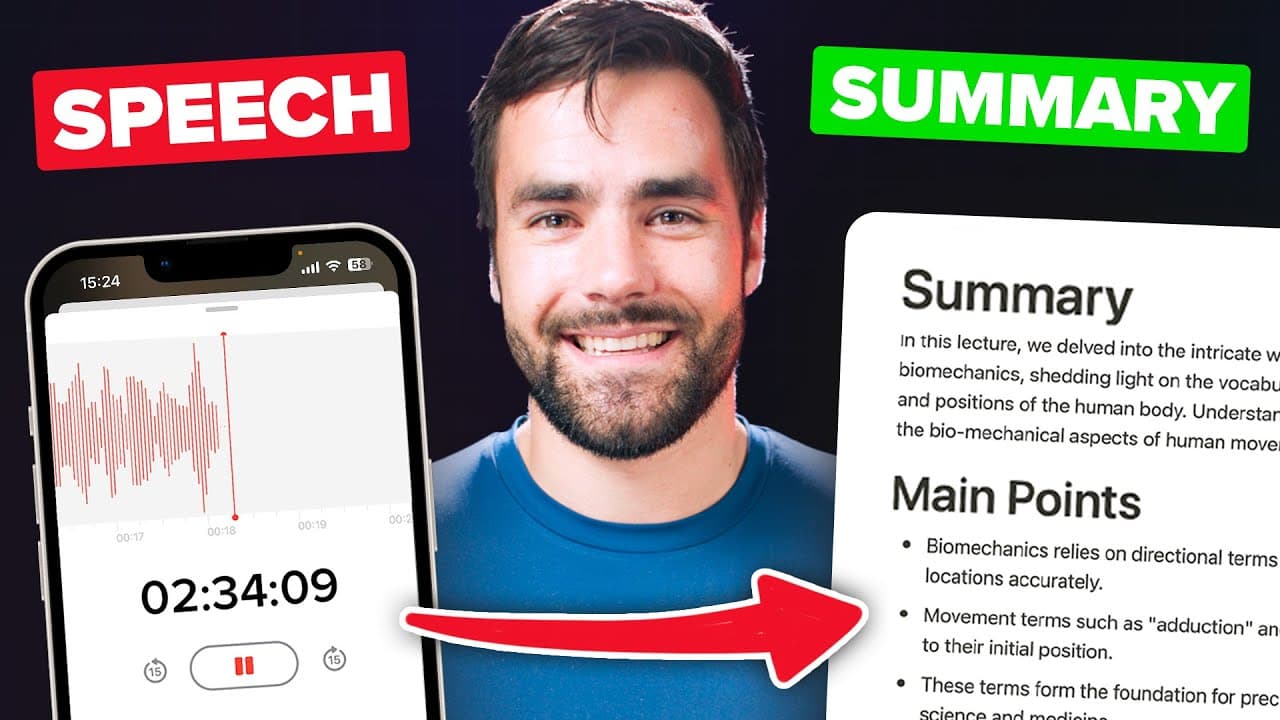
Upload a voice memo to a watched Dropbox, Google Drive, or OneDrive folder, and a Pipedream workflow can automatically transcribe it with OpenAI’s Whisper endpoint, summarize it with ChatGPT, and save both outputs to Notion. The improved workflow supports audio files up to two hours, offers configurable summary formats, and can run on Pipedream’s free plan for about 40 cents per transcribed hour.
Transcript
Well, hello there. So a few months ago, I made a bot that takes voice notes, like the one that I'm recording right now, transcribes them to near perfect text and automatically sends that transcription along with a summary to my note-taking database in Notion. Over the past few months, it has become one of my most used workflows. I am constantly tak... Read More
Key Insights
- The workflow automatically turns voice recordings into Notion notes by monitoring a designated cloud storage folder, transcribing each uploaded audio file through OpenAI’s Whisper endpoint, summarizing the resulting text with ChatGPT, and sending both the transcript and selected summaries to a Notion database.
- The improved workflow supports substantially longer recordings than its predecessor. The original version was limited to approximately 45 minutes of audio, while the revised version can process two-hour audio files without the same limitation, making it more suitable for extended spoken notes.
- Three cloud storage versions are available for the automation: Dropbox, Google Drive, and Microsoft OneDrive. Each version has a multi-step onboarding guide, while the demonstrated setup uses Dropbox and configures a particular folder that Pipedream watches for newly uploaded audio files.
- Pipedream’s free plan is sufficient to run the automation according to the walkthrough. Importing the provided workflow creates a project containing a cloud storage trigger and a custom Notion voice notes component that replaces the earlier, more complicated collection of workflow steps.
- A test event provides the trigger data needed to configure and validate the remaining automation. Users generate one by uploading an audio sample to the watched cloud folder, selecting that file inside Pipedream’s event selector, and continuing after receiving a success message.
- Notion authorization must include the destination notes database or a page containing that database. Access granted to a parent page cascades to its contained database, and the automation can work with an existing note-taking system or a newly created blank Notion database.
- An OpenAI API key enables both audio transcription and transcript summarization. The walkthrough recommends creating a secret key through the OpenAI platform, adding billing details when trial credit expires, and setting a monthly hard usage limit to control the maximum possible charge.
- Summary output is configurable through several selectable options. Users can include a paragraph summary, enable or disable bullet lists such as main points and action items, choose database properties for titles, duration, cost, and tags, and select a ChatGPT model.
Install to Summarize YouTube Videos and Get Transcripts
Explore YouTube Video Summarizer or Get YouTube Transcript Extractor
Questions & Answers
Q: How do I turn voice memos into Notion notes automatically?
Import the provided workflow into Pipedream, connect a supported cloud storage account, and select a specific folder for the automation to watch. Uploading a voice memo to that folder triggers the workflow. It sends the recording to OpenAI’s Whisper endpoint, asks ChatGPT to summarize the transcript, and creates a Notion page containing the resulting text and configured summary sections.
Q: Which cloud storage services work with the voice-note workflow?
The improved workflow has three versions designed for Dropbox, Google Drive, and Microsoft OneDrive. Each version comes with a multi-step onboarding guide, although the walkthrough demonstrates Dropbox. Regardless of the service selected, the user chooses a designated folder that the automation monitors, then uploads audio recordings to that folder whenever a new voice note should be processed.
Q: How do I configure the Dropbox trigger in Pipedream?
Connect the Dropbox account from the workflow’s trigger step, then select the folder path that Pipedream should monitor. Confirm that the include-link setting is set to true and create the source. Next, upload a sample audio file into the chosen Dropbox folder, return to the event selector in Pipedream, select that file, and continue after the success message appears.
Q: Why does the Pipedream workflow need a test audio file?
The test audio file creates a test event containing the trigger data required by later workflow steps. After placing the sample recording in the watched cloud folder, the user selects it in Pipedream’s event selector. That event allows the rest of the automation to be configured, tested, and eventually deployed as a live workflow for future recordings.
Q: How do I give Pipedream access to a Notion notes database?
Connect the Notion account from the custom voice notes component and choose the relevant workspace during authorization. Grant Pipedream access either directly to the notes database or to a page that contains it, which allows permissions to cascade into that database. The workflow can use any Notion database, including an existing note system or a new blank database.
Q: What OpenAI setup is required for voice-note transcription?
Create an account on the OpenAI platform, open the API keys area, and generate a new secret key. Copy that key into the workflow’s OpenAI API key field and save it. The key enables access to the Whisper endpoint for transcription and the ChatGPT endpoint for summarization. After trial credit expires, billing details and a newly configured key are required.
Q: How much does the automated voice-note workflow cost?
The walkthrough estimates the OpenAI processing cost at about 40 cents for each hour of transcribed audio. Pipedream’s free plan is described as sufficient for running the automation, so a paid Pipedream upgrade is not required. Users can also configure a monthly hard usage limit in the OpenAI billing settings to prevent charges from exceeding their chosen amount.
Q: How can I customize summaries and Notion properties?
The workflow lets users enable or disable a paragraph summary and select bullet-list outputs such as main points and action items. Summary length and density can also be adjusted. For Notion, users must map the note title and may optionally map number properties for recording duration and processing cost, choose a note tag, and select a different ChatGPT model.
Summary & Key Takeaways
-
The workflow converts smartphone voice memos into organized Notion notes. After an audio file reaches a designated cloud storage folder, Pipedream sends it to OpenAI’s Whisper endpoint for transcription, uses ChatGPT to create selected summaries, and adds the transcript, summary, duration, and cost information to a chosen Notion database.
-
The improved version is easier to configure, supports audio files as long as two hours, and provides more customization than the original workflow. Users can enable or disable a paragraph summary and several bullet-list formats, adjust summary length and density, select database properties, add tags, and choose a ChatGPT model.
-
Setup begins by importing the provided workflow into Pipedream and connecting Dropbox, Google Drive, or OneDrive. Users select a watched folder, upload a sample audio file to create a test event, authorize the relevant Notion database, enter an OpenAI API key, configure output options, test the workflow, and deploy it.
Read in Other Languages (beta)
Share This Summary 📚
Summarize YouTube Videos and Get Video Transcripts with 1-Click
Try YouTube Summary with ChatGPT & Claude or YouTube Transcript Generator
Explore More Summaries from Thomas Frank Explains 📚

Summarize YouTube Videos and Get Video Transcripts with 1-Click
Try YouTube Summary with ChatGPT & Claude or YouTube Transcript Generator