How to Create Recurring Tasks in Notion Databases
TL;DR
Create recurring tasks in Notion by storing a recurrence interval in the task database, then using a button or database automation to add that interval to the due date. Buttons work for manually completed tasks on the free plan, while paid automations can respond when a task status changes to complete and can support more advanced schedules and completion history.
Transcript
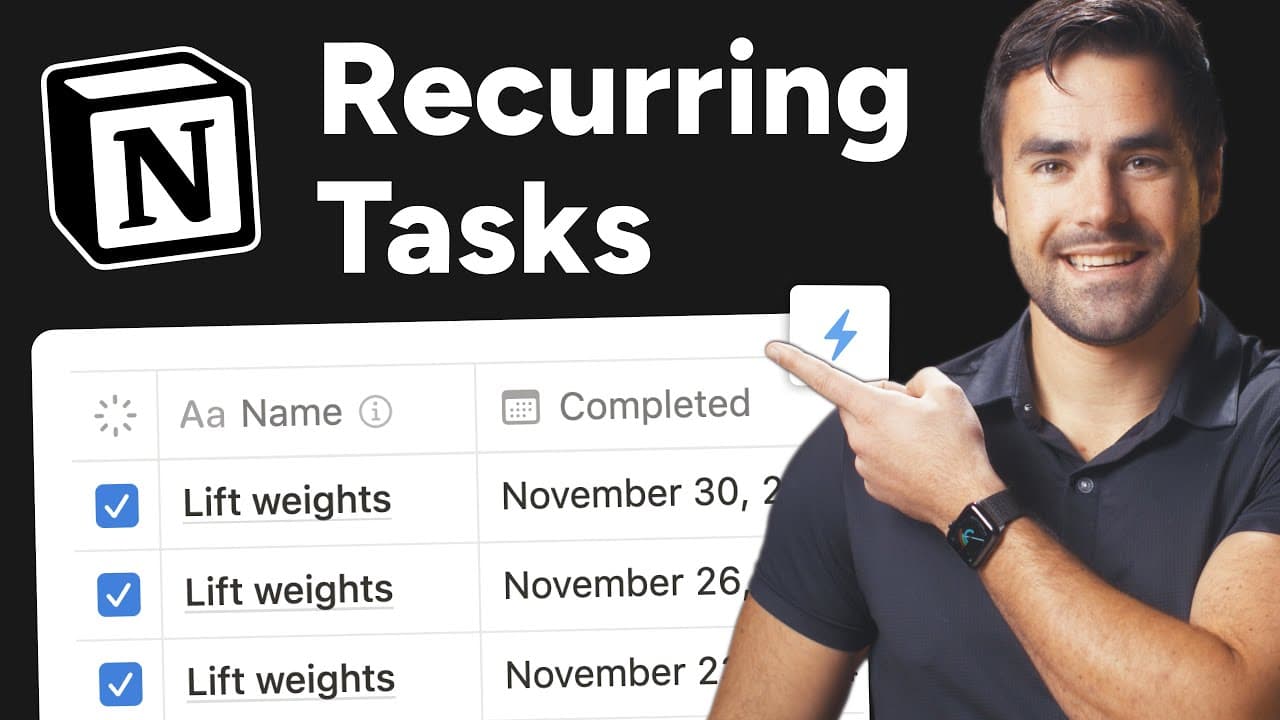
Notion finally has native recurring tasks support. You heard that right. Now, if you have a list of tasks you need to get done and some of them need to recur daily or weekly or whatever, you can check them off and Notion will automatically set them to the new due date they should have, just like you'd expect in Todoist or TickTick or any other task... Read More
Key Insights
- A recurring-task database is built from connected properties and actions. A name, due date, and status alone do not create recurrence because changing a task to done does not automatically alter its due date without a configured button or automation.
- The recurrence interval is a number property that tells Notion how many days to add to a completed task's due date. The demonstrated setup assigns one to a daily reading task and seven to weekly tasks such as a cardio workout or putting out a trashcan.
- A fixed number of days is unreliable for monthly recurrence. Assigning 31 days to a monthly budget review will cause scheduling problems when the calendar reaches a month with 30 days, so a more advanced formula must support months as a distinct unit.
- Notion buttons provide a free method for processing recurring tasks. A Complete button can edit the due-date property when clicked, making it possible to advance the task manually without relying on an external application to calculate the next date.
- Custom formulas are the feature that makes native due-date calculation possible. Inside a button or automation, the current page can be referenced, its properties can be accessed with dot notation, and its due date can be passed into the dateAdd function.
- The dateAdd function accepts a date, a number, and a unit. In the simple setup, the current task's due date is the date, its recurrence interval is the number, and days is the unit used to calculate the next due date.
- Database automations can trigger when the status property enters the complete category. This creates a familiar workflow in which marking a task done automatically advances its due date, without requiring the user to click a separate completion button.
- Task history can preserve a record of each completed occurrence instead of only moving the next due date. The demonstrated system can display past completions inside a task page and use Notion charts to show the number of completions during each week.
Install to Summarize YouTube Videos and Get Transcripts
Explore YouTube Video Summarizer or Get YouTube Transcript Extractor
Questions & Answers
Q: How do you create a simple recurring task in Notion?
Create a tasks database with name, due-date, status, and recurrence-interval properties. Enter the number of days between occurrences in the interval property, such as one for a daily task or seven for a weekly task. Then configure a database button or automation to edit the due date with a custom dateAdd formula that uses the current due date, the interval, and days.
Q: How can free-plan users make recurring tasks in Notion?
Free-plan users can add a button property to the tasks database and name it Complete. Configure the button so that clicking it edits the current task's due-date property. Its custom formula should read the task's existing due date and recurrence interval, then add that interval in days. The user clicks the button whenever the task is finished to schedule its next occurrence.
Q: What is the difference between Notion buttons and database automations?
A database button has one available trigger: the user clicks it. It can then perform actions such as editing the current task's due date with a custom formula. A database automation can use a property change as its trigger, including a status moving into the complete category. Creating or editing automations requires a paid Notion plan, while buttons provide a manual alternative.
Q: How does the dateAdd formula reschedule a Notion task?
The dateAdd function modifies a date by accepting three arguments: the original date, a number, and a unit such as days, weeks, or months. For a simple recurring task, the formula reads the current page's due-date property, uses the page's recurrence-interval property as the number, and selects days as the unit. The resulting date replaces the previous due date.
Q: Why is a fixed day interval unsuitable for monthly Notion tasks?
A fixed interval assumes that every recurrence covers the same number of days. Setting a monthly budget review to recur after 31 days will become inaccurate when a month contains 30 days. The simple day-based system is therefore appropriate for daily or weekly intervals, but monthly scheduling requires a more advanced configuration that can treat months as a separate date unit.
Q: How can a task recur when its Notion status changes to done?
Create a database automation and set its trigger to run when the status property changes to an option in the complete category, such as Done. Add an action that edits the task's due-date property. In the custom formula, apply dateAdd to the current due date using the recurrence interval and selected date unit. Saving this automation makes the update occur after completion.
Q: Can Notion track the history of recurring-task completions?
Yes. The advanced system described in the source can create a historical record for every time a recurring task is completed, rather than only advancing its due date. That history can appear as a view inside the task page. Notion charts can also use those records to display how many times the task was completed during each week.
Q: How can Notion support schedules such as Monday, Wednesday, and Friday?
Specific weekday schedules require a more advanced recurrence setup than the basic number-of-days example. The simple version only adds a stored day interval to the current due date. The advanced portion described in the source expands recurrence intervals to handle weeks, months, and designated days such as Monday, Wednesday, and Friday, allowing the next date to follow a defined weekly pattern.
Summary & Key Takeaways
-
A basic recurring-task system needs a task database with name, due-date, status, and recurrence-interval properties. The interval stores how many days should be added after completion. A daily task can use one, while a weekly task can use seven, although fixed day counts are insufficient for accurate monthly scheduling.
-
Free-plan users can create a database button named Complete. When clicked, the button edits the current page's due-date property using a custom formula. The formula accesses the page, reads its existing due date and recurrence interval, then applies Notion's dateAdd function with days as the selected unit.
-
Paid database automations provide a more natural completion workflow because they can trigger when a task's status enters the complete category. The same formula-based date update can then run automatically. More advanced configurations can support weeks, months, selected weekdays, completion records, and charts showing how often a task was completed each week.
Read in Other Languages (beta)
Share This Summary 📚
Summarize YouTube Videos and Get Video Transcripts with 1-Click
Try YouTube Summary with ChatGPT & Claude or YouTube Transcript Generator
Explore More Summaries from Thomas Frank Explains 📚





Summarize YouTube Videos and Get Video Transcripts with 1-Click
Try YouTube Summary with ChatGPT & Claude or YouTube Transcript Generator