How to Create Free AI Story Videos on Mobile
TL;DR
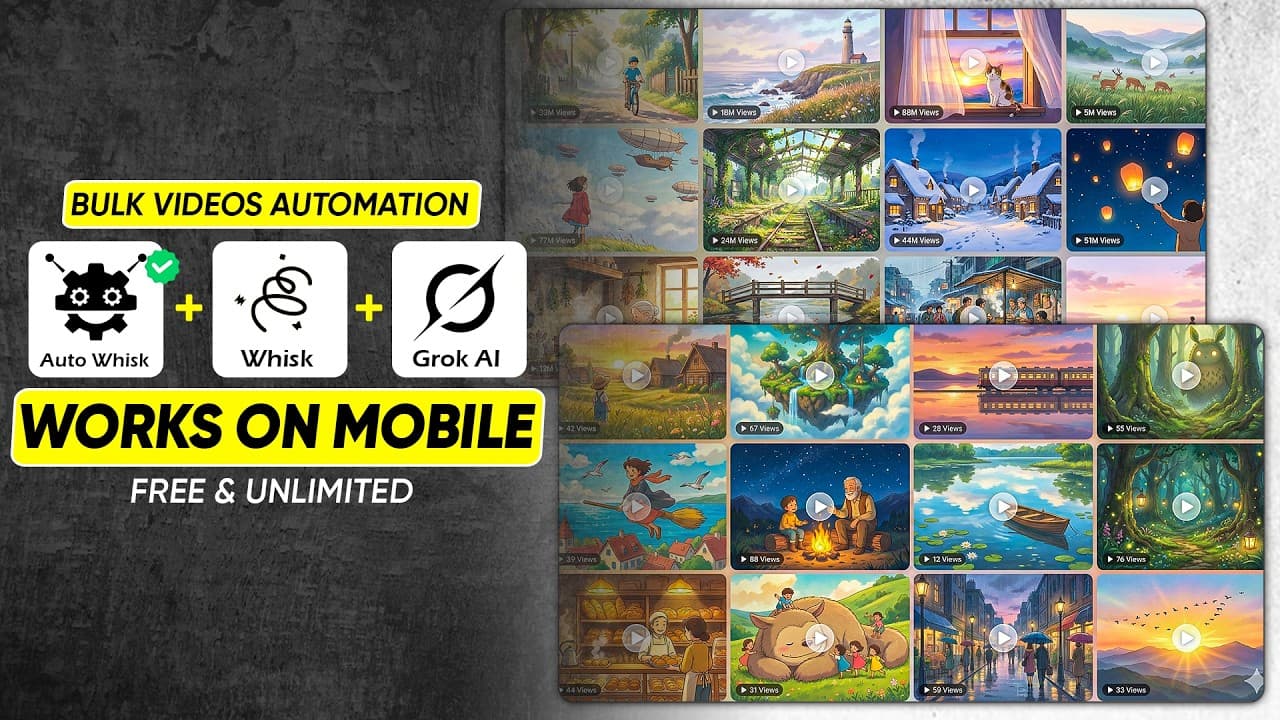
Create AI story videos on mobile by using AutoWISK inside Quetta Browser to automate Google Whisk image generation, then produce narration with Google AI Studio and assemble everything in a mobile editor. For consistent characters, generate reference images first, upload them to Whisk’s subject section, keep both references enabled, and leave the automation extension visible until it reports that processing is complete.
Transcript
This free AI tool can generate hundreds of videos in one click. And most people don't even believe it works. No credit card, no trial, 100% free. And yes, I'll even make it work on mobile. But listen carefully. If you skip even 10 seconds of this video, you'll miss the one setting that makes this automation actually work. I've tested dozens of AI a... Read More
Key Insights
- Quetta Browser supports Chrome extensions on mobile and provides the environment needed to install AutoWISK. The workflow avoids unofficial browser APK files, which the presenter warns may expose users to viruses, data leaks, or account compromises.
- A logged-in Google Whisk session is required before AutoWISK can operate. The correct Whisk interface must fully load, after which the extension is reopened, set to its classic version, and supplied with the complete image-prompt list.
- The correct mobile automation option is “run on this project.” After it is selected, AutoWISK processes prompts individually, generates the corresponding images, and downloads them automatically without requiring the user to save each result manually.
- The AutoWISK extension must remain open and visible throughout generation. Closing the extension, minimizing it, or switching to another application stops the automation, so users should wait until the extension displays the “all done” confirmation.
- A structured ChatGPT request can produce a story designed for visual adaptation. The demonstrated prompt asks for a story under three minutes, two characters, an opening suspense hook, and an additional suspense hook every five seconds.
- Scene prompts work best in this workflow when the output contains only prompts separated by single line breaks. Each prompt should name the intended 2D Ghibli Studio style, connect smoothly with the preceding scene, and mention characters whenever they appear.
- Character consistency is created by generating individual reference images for each character and uploading both images to Whisk’s subject section. Both reference images must have their tick marks enabled before the scene prompts are processed again.
- Google AI Studio generates the story narration through its text-to-audio interface. On mobile, the workflow enables the desktop site, selects single-speaker audio and a preferred voice, pastes the complete script, runs generation, reviews the result, and downloads the voiceover.
Install to Summarize YouTube Videos and Get Transcripts
Explore YouTube Video Summarizer or Get YouTube Transcript Extractor
Questions & Answers
Q: How can I use AutoWISK on a mobile phone?
Install Quetta Browser by Quetta Networks from the Google Play Store, open its menu, select the extensions area, and choose the option to install extensions. Search for AutoWISK and install it inside the browser. Open the extension, select a preferred language and the classic version, then open Google Whisk and log in before returning to AutoWISK to begin automation.
Q: Why does AutoWISK not work in standard mobile Chrome?
Standard mobile Chrome does not allow users to add the AutoWISK Chrome extension, so the normal desktop installation method cannot be used on a phone. The demonstrated workaround is Quetta Browser, which supports Chrome extensions on mobile. The presenter advises against downloading unofficial browser APK files because they may create risks involving viruses, leaked data, or compromised accounts.
Q: What settings make AutoWISK automation work on mobile?
Select the preferred language, use the classic version, and log in to Google Whisk before running the extension. Confirm that the required Whisk interface has loaded, paste the entire prompt list, tap start, and choose “run on this project.” Keep AutoWISK open and visible until the “all done” message appears, because minimizing or closing it stops processing.
Q: How do I generate many AI images from one prompt list?
Format the scene descriptions as separate prompts with one line break between each entry, then copy the entire list. Open a Google Whisk project, launch AutoWISK through Quetta Browser, choose the classic version, and paste all prompts into its text box. Tap start and select “run on this project.” The extension processes the prompts sequentially and downloads the completed images automatically.
Q: How can ChatGPT create prompts for an AI story video?
First, ask ChatGPT for an engaging short story with the required duration, characters, style, and suspense structure. Next, request one text-to-image prompt for every scene. Specify that scenes should connect smoothly, characters should be included whenever they appear, every prompt should contain the chosen 2D Ghibli Studio style, and the output should contain only prompts separated by single line breaks.
Q: How do I keep AI characters consistent across story scenes?
Ask ChatGPT to write a detailed visual prompt for every character in the story. Generate and download one reference image for each character in separate Google Whisk projects. In the story project, open the subject section, upload both character images, and ensure the tick mark is active on each one. Then rerun the complete scene-prompt list through AutoWISK using the same project.
Q: How can I create a free AI voiceover on mobile?
Open Google AI Studio in Chrome, locate the Gemini text-to-audio section, and enable the browser’s desktop-site setting. Select single-speaker audio, choose the preferred voice, and paste the complete story script into the text box. Tap run, listen to the generated narration, and download the audio file once its voice and delivery are suitable for the story.
Q: How do I assemble the generated assets into a complete video?
Open a preferred mobile video editor and import the generated scene images in story order. Add the downloaded voiceover and align the visuals with the narration. Apply smooth transitions, subtle effects, and pacing that follows the story’s emotional movement without overusing edits. Review the relationship between the images and audio, then export the finished cinematic story video from the editor.
Summary & Key Takeaways
-
The mobile workflow begins by installing Quetta Browser from Google Play Store because standard mobile Chrome does not support the required extension. AutoWISK is then installed through Quetta’s extension search, configured to use the classic version, and connected to a logged-in Google Whisk session before prompts are processed in bulk.
-
ChatGPT creates a suspense-driven story and a scene-by-scene prompt list with one line break between prompts. After the complete list is pasted into AutoWISK, selecting “run on this project” starts bulk generation. The extension must remain open and visible until every image has been generated and downloaded to the mobile device.
-
Character consistency is improved by generating separate reference images for both story characters and uploading them to Google Whisk’s subject section. Google AI Studio then converts the script into a single-speaker voiceover. Finally, the creator imports the images and narration into a mobile editor, adjusts pacing and transitions, and exports the completed story.
Read in Other Languages (beta)
Share This Summary 📚
Summarize YouTube Videos and Get Video Transcripts with 1-Click
Try YouTube Summary with ChatGPT & Claude or YouTube Transcript Generator
Explore More Summaries from zapiwala ai 📚

Summarize YouTube Videos and Get Video Transcripts with 1-Click
Try YouTube Summary with ChatGPT & Claude or YouTube Transcript Generator