How to Sync Claude Cowork Across All Devices
TL;DR
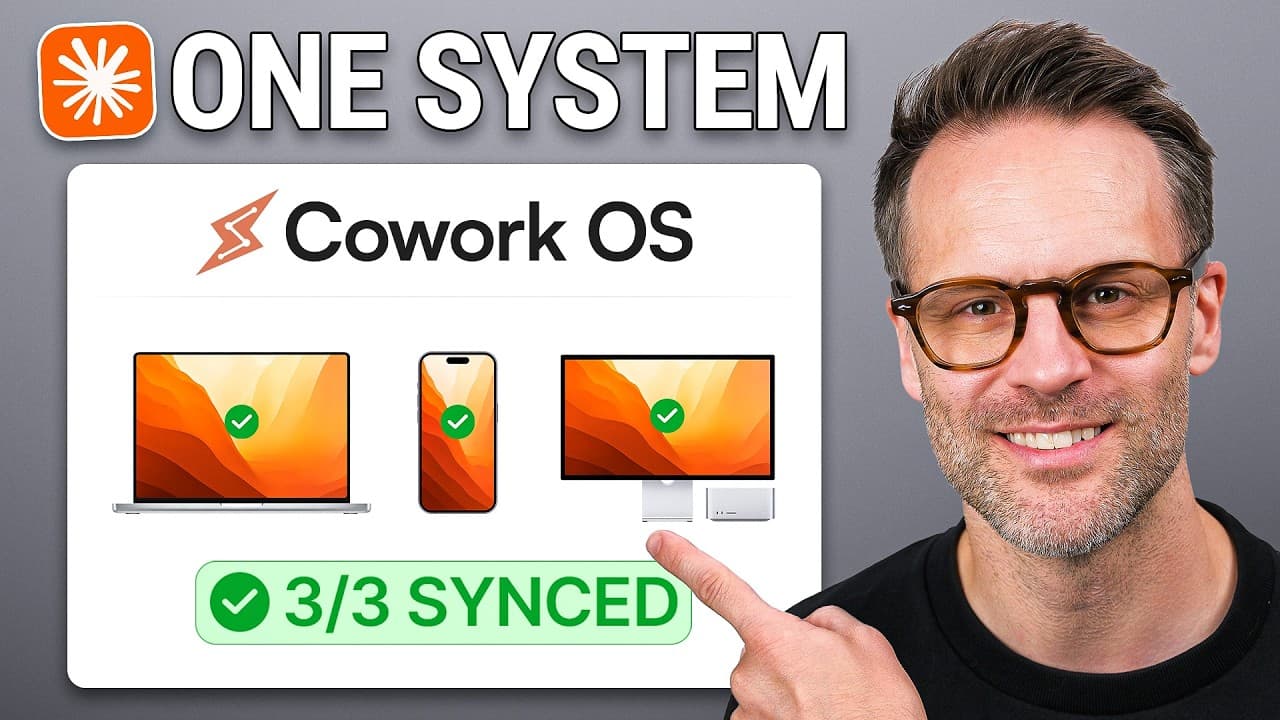
Use account-level skills for identity and instructions, then keep working files in cloud storage that Claude can access through a connector. This creates a shared setup across desktop, browser, and mobile, while cloud-based scheduled tasks can continue with the laptop shut. Local folders remain useful for computer-specific work, but they should not serve as the only source of truth.
Transcript
So, with Claude Co-work now on mobile, Claude now runs on your phone in the cloud and with your laptop shut. But the real headline here isn't the mobile access. Although I will show you what that's like. It's that with the right approach and a few tricks I'm going to show you in this video, I've finally unlocked how to sync a single Clawed Co setup... Read More
Key Insights
- A cross-device Claude setup requires two conditions: every update must synchronize between devices, and Claude must be able to load the relevant files, skills, and instructions from whichever platform or computer is being used.
- Claude Cowork is available through desktop, browser, and mobile, but these environments are only partly connected. Mobile sessions can access account-level skills and connectors, while local desktop files remain unavailable unless the computer is awake and accessible.
- Cloud scheduled tasks can continue running when a laptop is shut. A task should use automatic approval if it needs to complete unattended work, and its required information must be available through online connectors rather than only through local folders.
- Computer-based scheduled tasks require the selected computer to stay awake and online. They remain useful when a workflow depends on local folders, computer-use capabilities, or tools installed on that machine, but they do not provide the same device independence as cloud tasks.
- A selected local folder can prevent an existing scheduled task from being moved to the cloud. Deselecting the working folder, saving the task, and reopening its settings can restore the option to create or move a version that runs in the cloud.
- Account-level skills are suitable for stable identity context such as an about-me profile, brand voice, and writing rules. Converting these local Markdown files into skills allows Claude to retrieve the same instructions from mobile and other sessions connected to the account.
- Cloud storage should become the source of truth for project files that must work across devices. Project memory, briefs, outputs, and other working materials can remain organized in folders, provided Claude can reach that storage through an enabled connector such as Dropbox.
- Mobile-started sessions can synchronize through the cloud, but they do not automatically save changes back into desktop files. A dependable setup therefore combines portable skills for identity with connector-accessible cloud files for active work instead of relying entirely on a local folder.
Install to Summarize YouTube Videos and Get Transcripts
Explore YouTube Video Summarizer or Get YouTube Transcript Extractor
Questions & Answers
Q: How can I sync one Claude Cowork setup across devices?
Create two layers of shared context. Store stable identity information, including your about-me profile, brand voice, and writing rules, as account-level Claude skills. Keep project memories, briefs, outputs, and other active documents in cloud storage that Claude can access through a connector. This arrangement lets desktop, browser, and mobile sessions retrieve the same instructions and working files without depending entirely on one computer.
Q: Why should local folders not be the only source of truth?
Local folders tie important context to the computer that stores them. Mobile Claude cannot reliably reach those files when the machine is shut or unavailable, so a mobile session may behave like a generic assistant without business context. Using account-level skills for identity and connector-accessible cloud storage for working documents makes the setup available across desktop, browser, mobile, and cloud-based scheduled tasks.
Q: Which Claude files should be converted into skills?
Stable identity files are the strongest candidates for conversion into skills. The examples given are an about-me profile describing who you are and how you work, a voice profile, and writing rules designed to avoid unwanted AI-style writing. Global memory and context maps can remain at the folder level when they primarily help Claude navigate and understand the working files stored there.
Q: How do Claude scheduled tasks run with a laptop shut?
Scheduled tasks can run with the laptop shut when they are configured to operate in the cloud. They must be able to retrieve required information through online connectors instead of relying on local folders. The task should also use automatic approval so it can complete unattended actions. A computer-based task is different because it only runs while that computer remains awake and online.
Q: Why can a scheduled task fail to move to the cloud?
A scheduled task may lose the option to move to the cloud after a local working folder has been selected. That folder makes the task dependent on the computer and its local files. To restore cloud execution, deselect the working folder, save the task, return to its settings, and then choose the cloud option when it becomes available again.
Q: What can Claude Cowork access from a mobile device?
Mobile Cowork can access skills and connectors associated with the Claude account. This allows a mobile task to load saved identity instructions and reach connected services such as Dropbox, Gmail, or a calendar, as mentioned in the transcript. It cannot reliably use files stored only on a local computer unless that computer is turned on, awake, and available to the session.
Q: How should project files be organized for mobile access?
Project files should remain in a structured cloud folder that Claude can reach through a connector. A project can include its own memory, a project brief, and an outputs folder containing completed work such as newsletters. This preserves a practical folder structure while allowing Claude to inspect the same materials from mobile, browser, cloud tasks, and supported desktop sessions.
Q: When should a Claude task run locally instead of in the cloud?
A task should run locally when it must access folders, applications, tools, or computer-use capabilities on a specific machine. The computer must remain awake and online for that task to operate. Cloud execution is more appropriate when the required information is available through connectors and the goal is to keep the task running independently of whether the laptop is open.
Summary & Key Takeaways
-
A unified Claude Cowork setup requires both synchronized information and reliable access from every session. Desktop, browser, and mobile experiences are connected, but local files do not automatically become available everywhere. The proposed system separates portable identity instructions from working documents so Claude can recover relevant context regardless of the device being used.
-
Account-level skills hold stable identity information such as an about-me profile, brand voice, and writing rules. Working files, project memories, briefs, and outputs remain in cloud storage that Claude can reach through a connector such as Dropbox. Folder-level memory and context maps can stay near the files they describe for easier discovery.
-
Cloud scheduled tasks can run while the laptop is shut, provided they use accessible connectors and automatic approval. Tasks configured for a local computer require that machine to remain awake and online. Selecting a local working folder can prevent a task from moving to the cloud until that folder selection is removed.
Read in Other Languages (beta)
Share This Summary 📚
Summarize YouTube Videos and Get Video Transcripts with 1-Click
Try YouTube Summary with ChatGPT & Claude or YouTube Transcript Generator
Explore More Summaries from Systems Made Better 📚


Summarize YouTube Videos and Get Video Transcripts with 1-Click
Try YouTube Summary with ChatGPT & Claude or YouTube Transcript Generator