How to Set Up Claude Cowork as an AI Assistant
TL;DR
Set up Claude Cowork as an AI assistant by installing the Claude desktop app, creating a dedicated workspace folder, choosing a suitable model, and adding clear instructions and safety boundaries. The full setup uses seven steps, requires no code, and recommends confirmation before Claude deletes, sends, or publishes anything. Read on for practical guidance on models, file organization, progress monitoring, and safer control.
Transcript
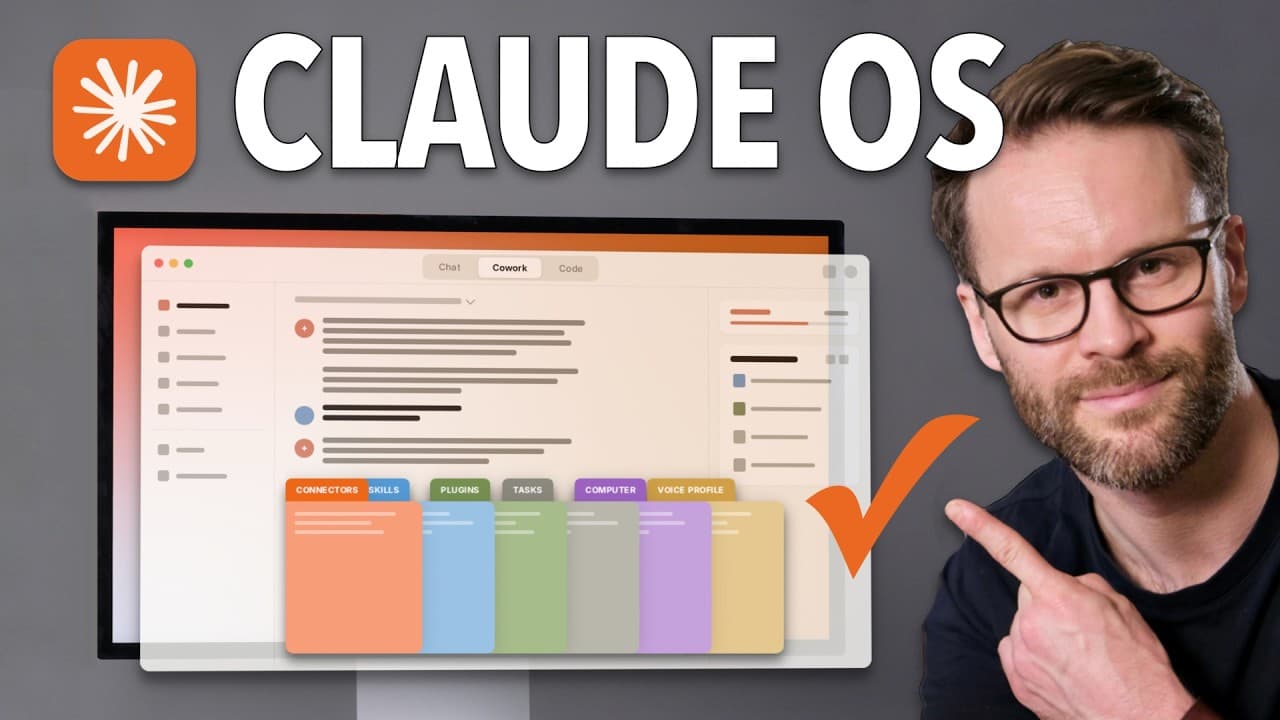
So, 2 months ago, I downloaded Claude Co-work to my Mac and stared at a blank screen for about 10 minutes before closing it. I had no idea what to do with it. Today, it reads my email, manages my calendar, writes in my voice, and connects to my notion workspace and second brain. It can create PowerPoint presentations, clean up my desktop, and code ... Read More
Key Insights
- A dedicated Cowork folder is a controlled shared workspace where Claude can read and modify the materials selected for collaboration. Files that should remain unavailable should stay outside that folder, creating a clear and understandable boundary around the assistant’s normal access.
- Global instructions are rules Claude reads at the beginning of every conversation. They can describe the user’s role, common tools, preferred tone, spelling conventions, desired explanation level, decision-making expectations, and safety requirements so the assistant behaves more consistently across different tasks.
- A claude.md file is a simple Markdown instruction file that can operate at a system level or inside an individual folder. System-level instructions provide broad guidance, while folder-specific files can supply additional rules and context for particular projects or types of work.
- Sonnet is recommended in the transcript for faster, routine answers, while Opus is presented as more powerful for ambitious projects and more demanding in token usage. Extended thinking can also be enabled, allowing users to choose a model configuration that matches the complexity of the task.
- Cowork can organize loose desktop files by category and rename files whose current names lack useful descriptions. The example explicitly excludes existing folders and a specified demo folder, showing that narrow task boundaries can be added before work begins or while instructions are queued.
- Claude’s progress view shows the tasks it has created and the stages it is working through. Users can inspect this view to understand its process, see which instruction files it has read, and review tools or contextual materials referenced during the task.
- Safety depends on explicit boundaries and active confirmation. The suggested global rules tell Claude never to delete, send, or publish without checking first, while the desktop example shows the user asking which files would be deleted before deciding whether to approve the action.
- Voice transcription can reduce the effort required to give detailed instructions. The creator uses Wispr Flow to dictate natural-language requests, corrections, exclusions, and preferences, demonstrating that Cowork tasks can be directed conversationally without code or a technical background.
Install to Summarize YouTube Videos and Get Transcripts
Explore YouTube Video Summarizer or Get YouTube Transcript Extractor
Questions & Answers
Q: How do you set up Claude Cowork as an AI assistant on a Mac?
Download the Claude desktop app from claude.com/down, drag it into Applications, open it, and sign in or create an account. Open the Cowork tab, select or create a dedicated folder, and allow Claude to work there. Then choose a model and add instructions describing your work, communication preferences, and safety rules.
Q: Why should Claude Cowork use a dedicated folder?
The folder acts as a shared workspace where Claude can see and modify approved materials. Put everything intended for Cowork inside it and keep everything else outside. This creates a clear boundary around Claude’s normal access.
Q: What should Claude Cowork’s global instructions include?
Global instructions can explain who you are, what work you do, which services you use, and how you want Claude to communicate. The example requests plain English, British spelling, a warm but direct tone, honest challenges, and minimal technical detail. It also establishes approval requirements for consequential actions.
Q: What safety rules should you give Claude Cowork?
Tell Claude never to delete, send, or publish anything without checking with you first. Define exclusions in each task, such as leaving existing folders or a named project folder untouched. Before approving a proposed action, ask Claude to identify the exact files or changes involved.
Q: Should you use Sonnet or Opus in Claude Cowork?
Sonnet is recommended for getting started and for faster, routine answers. Opus is presented as more powerful for ambitious projects, but it consumes more tokens. Extended thinking can also be enabled when a task benefits from more deliberate processing.
Q: How can Claude Cowork organize desktop files safely?
Ask Claude to organize only loose desktop files into folders by category and rename only files that need clearer descriptions. Explicitly exclude existing folders and any protected workspace, as the demonstration does with the Claude Cowork demo folder. Review any requested permission before allowing deletion or another consequential action.
Q: What does the Claude Cowork progress view show?
The progress view displays the tasks Claude has created and the stages it is working through. It can show which instruction files Claude read and which tools or contextual materials it referenced. Reviewing it helps you verify the task boundaries and intervene when clarification is needed.
Q: How can you control Claude Cowork without coding?
Use ordinary language to state the goal, exclusions, naming preferences, and actions that require approval. You can add clarifications while work is queued and question proposed actions before accepting them. The creator also uses Wispr Flow voice transcription to provide detailed instructions conversationally.
Summary & Key Takeaways
-
Claude Cowork can operate within folders on a Mac, letting it organize files and support computer-based work. The recommended starting point is a dedicated folder containing only material Claude may access. This boundary creates a shared workspace while keeping unrelated files beyond its normal scope and reducing unnecessary exposure.
-
Global instructions give Claude persistent context about the user, their work, preferred communication style, and safety expectations. The example instructions request plain English, British spelling, a warm but direct tone, honest challenges, and minimal jargon. They also require approval before Claude deletes, sends, or publishes anything on the user’s behalf.
-
A desktop cleanup demonstrates how Cowork plans and performs practical tasks. Claude categorizes loose files, proposes renaming unclear items, displays its task progress, and asks before deletion. Users can refine instructions while work is queued, inspect referenced instructions and context, and decline or question any proposed action before granting permission.
Read in Other Languages (beta)
Share This Summary 📚
Summarize YouTube Videos and Get Video Transcripts with 1-Click
Try YouTube Summary with ChatGPT & Claude or YouTube Transcript Generator
Explore More Summaries from Systems Made Better 📚



Summarize YouTube Videos and Get Video Transcripts with 1-Click
Try YouTube Summary with ChatGPT & Claude or YouTube Transcript Generator