How to Get Help With Commands in Linux Terminal
TL;DR
Use man followed by a command name to open its detailed Linux manual, then press q to quit. For quicker guidance, try the command with -h or --help. Understanding the terminal emulator, shell, prompt, and basic system-information commands also makes the command line easier to navigate safely.
Transcript
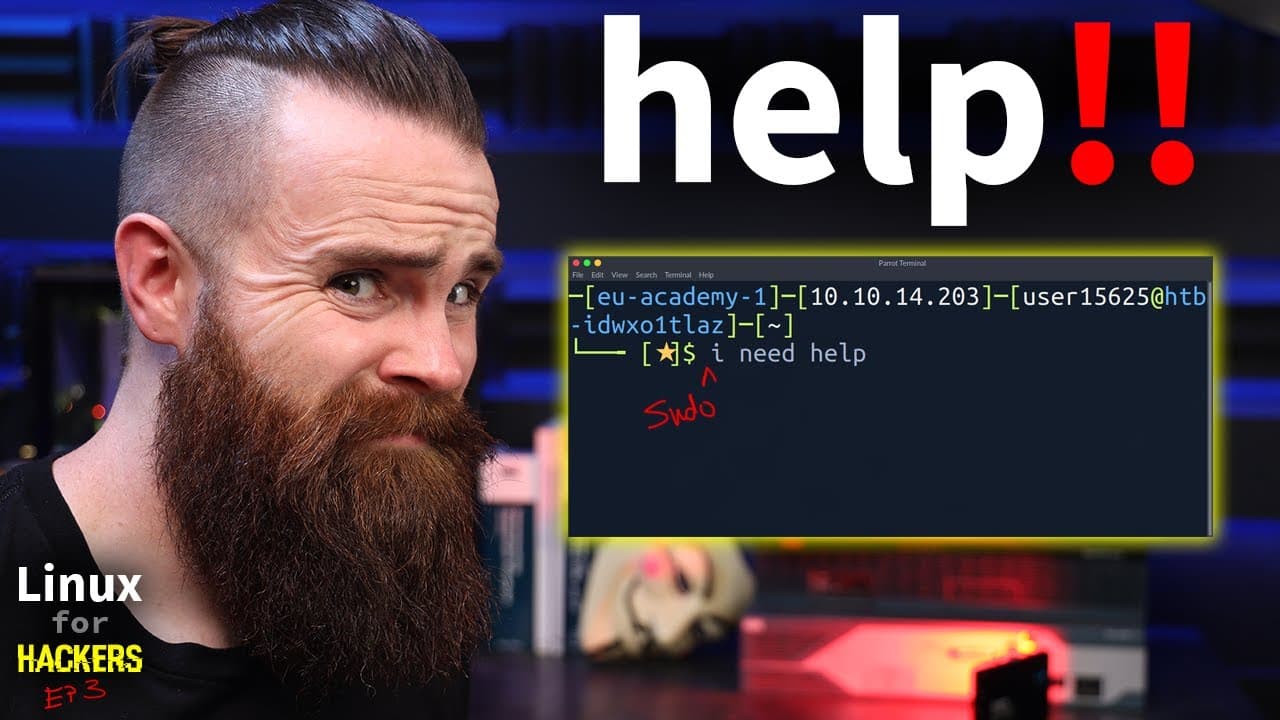
oh i need some help do you ever get that feeling when working with linux yeah all the time right now don't get me wrong linux is amazing but sometimes it's a bit of a beast isn't it like it's complex especially if you're just starting to use it all these commands you have to know all the different switches and ways you can use them help so that's w... Read More
Key Insights
- A terminal emulator is a graphical window that imitates the keyboard-and-screen function of an old physical terminal. Its main purpose is to provide access to a shell, which accepts commands and serves as the user interface for interacting with the operating system.
- The shell is distinct from the terminal emulator. Commands belong to the shell environment, while the emulator provides the interface through which users type commands and view results. People commonly use terms such as terminal, shell, Bash, and console interchangeably in casual conversation.
- Bash is the shell used in the demonstrated Linux lab, and ps can help identify it by listing running processes. The same method shows pwsh when PowerShell is running, demonstrating that Linux can support different shells as interfaces to the operating system.
- The shell prompt commonly identifies the current user, the hostname of the Linux machine, and the current location in the file system. The displayed directory provides information similar to running pwd, which reports where the user is currently working.
- A dollar sign in the prompt indicates that the session belongs to an ordinary user. A pound sign indicates the root user, whose extensive system permissions require extra caution. The prompt therefore provides a visible reminder of the session's current privilege level.
- Linux system-information commands reveal different parts of the environment. id reports user information, hostname reports the machine name, uname reports system information, ps lists processes, who shows logged-in users, env displays environment variables, and lsblk lists block devices.
- Network and resource inspection commands serve specialized purposes. ifconfig and ip provide network information, netstat reports network status, ss provides session-related information, lsusb checks connected USB devices, and lsof lists open files, which may produce extensive output.
- The man command opens detailed documentation for another command, including its description, available switches, and usage information. Typing man followed by a command name provides built-in assistance, while q exits the manual. Many commands also support -h or --help for quicker guidance.
Install to Summarize YouTube Videos and Get Transcripts
Explore YouTube Video Summarizer or Get YouTube Transcript Extractor
Questions & Answers
Q: How do I get help with a Linux command?
Type man followed by the command name to open its detailed manual. For example, using man with uname displays the command description, its switches, and information about how it can be used. Press q when you want to quit the manual. For shorter guidance, many commands also accept -h or --help directly after the command name.
Q: What is the difference between a terminal and a shell?
A terminal originally referred to the physical keyboard and screen used to interact with a computer. A modern terminal emulator is a graphical window that imitates that physical equipment. The shell is the user interface running through it, accepting commands and interacting with the operating system. The terminal emulator therefore provides access to the shell rather than being the shell itself.
Q: How can I find which shell I am using on Linux?
Run the ps command, which stands for process status and lists processes running on the Linux machine. In the demonstrated environment, the output includes bash when the Bash shell is active. When the PowerShell interface is used, the process appears as pwsh. This offers a simple way to recognize the shell among the session's active processes.
Q: What information does the Linux shell prompt show?
A common Linux shell prompt shows the current user account, an at symbol, the hostname of the Linux machine, and the current location in the file system. That location communicates information similar to the output from pwd. The prompt also ends with a symbol that helps distinguish an ordinary user session from a root session.
Q: What do the dollar and pound signs mean in a Linux prompt?
A dollar sign indicates that the current shell session is running as an ordinary user. A pound sign, also described as a hashtag, indicates that the session is running as the root user. This distinction is important because root has extensive power over the system, so the alternate prompt symbol acts as a useful reminder to proceed carefully.
Q: Which Linux commands show user and login information?
The id command reports information about the current user, while who reports other users logged into the system. The transcript also identifies whoami as a related command, although it focuses on who during the command overview. The shell prompt itself provides another immediate clue because it commonly begins with the current account name before the hostname.
Q: Which commands can inspect a Linux system and its devices?
Several commands inspect different system areas. hostname displays the machine name, uname provides system information, ps reports processes, env displays environment variables, and lsblk lists block devices associated with storage. The lsusb command checks for connected USB devices, while lsof lists open files and may return a large amount of output.
Q: Which Linux commands provide network information?
The transcript introduces ifconfig and ip as commands for examining network-related information. It also describes netstat as a command for viewing network status and ss as a command associated with session information. Each command can have numerous options, so users can consult its man page or try -h or --help instead of attempting to memorize every available form.
Summary & Key Takeaways
-
A terminal emulator provides a graphical replacement for old physical terminals, while the shell is the user interface that accepts commands and interacts with Linux. Bash is a common shell, but other shells can run on Linux, including PowerShell. Running ps can reveal the shell among active processes.
-
The shell prompt commonly displays the current username, the machine hostname, and the working directory. A dollar sign indicates an ordinary user session, while a pound sign indicates the root user. Recognizing root access matters because it grants extensive power and requires greater care when running commands.
-
Linux includes commands for examining users, hosts, networks, processes, sessions, variables, storage devices, USB devices, and open files. Users do not need to memorize every command option because man pages provide detailed documentation, while -h and --help commonly offer quicker usage guidance directly from a command.
Read in Other Languages (beta)
Share This Summary 📚
Summarize YouTube Videos and Get Video Transcripts with 1-Click
Try YouTube Summary with ChatGPT & Claude or YouTube Transcript Generator
Explore More Summaries from NetworkChuck 📚



Summarize YouTube Videos and Get Video Transcripts with 1-Click
Try YouTube Summary with ChatGPT & Claude or YouTube Transcript Generator