How to Install and Use Omarchy Linux on a PC
TL;DR
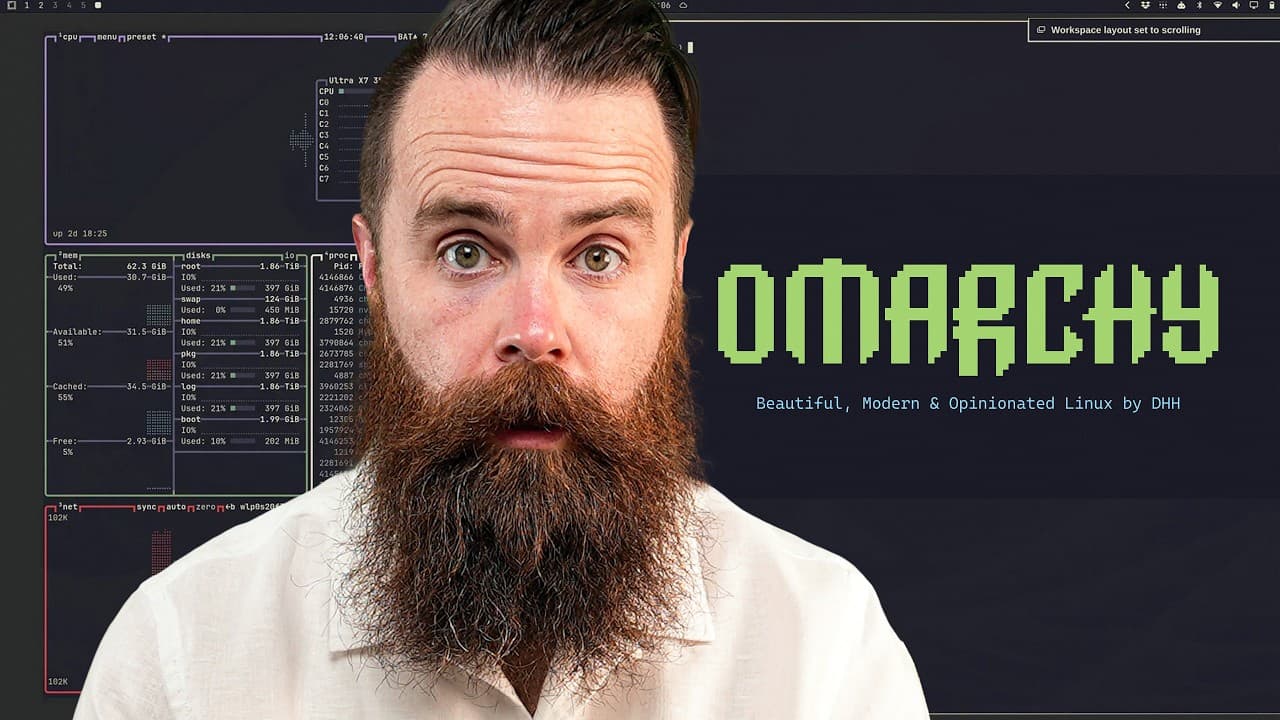
Omarchy turns Arch Linux into a polished, opinionated desktop that can be installed in minutes and controlled primarily through keyboard shortcuts. Built around Hyprland and a tiling window manager, it supplies coordinated themes, developer tools, AI agent harnesses, gaming support, and extensive customization while avoiding much of the manual setup normally associated with Arch.
Transcript
I think it's time. This is the year of the Linux desktop because now we have Omarchy, Omarchy, Omarchy. This is the Linux desktop we've been waiting for. It's like you step into hyperdrive. You go like, oh, I used to use a a three wheeler and pedal around with in my little computer world, And then here's the Millennium Falcon, and we're going to hy... Read More
Key Insights
- Omarchy is an opinionated Linux distribution built on Arch Linux, Hyprland, and Quickshell. It provides DHH's preferred desktop configuration as a polished starting point while preserving the ability to customize the system through a do-it-yourself process after installation.
- Arch Linux is a minimal, independently developed distribution built around rolling updates, the pacman package manager, and user configuration. A conventional Arch installation begins with few conveniences, requiring users to choose and configure elements such as the graphical interface, sound, fonts, and administrative tools.
- Omarchy reduces the initial work normally associated with Arch by supplying an integrated desktop, attractive terminal configuration, coordinated themes, installation tools, and agent harnesses. Changing a theme is designed to propagate its appearance across the system instead of requiring separate adjustments for every application.
- Omarchy installation starts with flashing the latest release to a USB drive, entering the computer's BIOS, and booting from that drive. The presenter completed one installation in roughly three minutes on older hardware and another in one minute forty-seven seconds on a dual RTX 4090 system.
- Hyprland navigation is centered on the Super key, which corresponds to the Windows or Command key. Super plus Space opens the fuzzy application launcher, Super plus a number changes workspaces, and Super combined with H, J, K, or L moves focus between visible panes.
- The tiling window manager removes familiar close and maximize controls, encouraging users to manage windows through keyboard commands. Super plus W closes the active window, while workspace and pane shortcuts make it possible to arrange, group, and switch among applications without repeatedly reaching for a mouse.
- Omarchy is intended for people willing to spend time learning how their computer works. Its keyboard-first workflow may initially frustrate users unfamiliar with tiling window managers, but the system is presented as rewarding deliberate practice with faster navigation and a stronger sense of control.
- Omarchy supports broader desktop use beyond development, according to the description. Its walkthrough covers Linux gaming with Steam and Proton, running Windows inside a container when necessary, adding plugins from a directory containing more than 500 options, and using an AI agent to customize the desktop.
Install to Summarize YouTube Videos and Get Transcripts
Explore YouTube Video Summarizer or Get YouTube Transcript Extractor
Questions & Answers
Q: How do you install Omarchy Linux on a PC?
Installation begins by flashing the latest Omarchy release to a USB drive. Next, boot the target computer into its BIOS, select the USB drive as the boot device, and start the installer. In the demonstrations, setup took roughly three minutes on an older gaming computer and one minute forty-seven seconds on a dual RTX 4090 machine.
Q: What is Omarchy Linux based on?
Omarchy is an opinionated Linux distribution built on Arch Linux, Hyprland, and Quickshell. Arch provides the minimal operating-system foundation, rolling updates, and pacman package manager. Omarchy adds DHH's preferred configuration, including an integrated visual design, a tiling window manager, developer-oriented tools, installation support, coordinated themes, and AI agent harnesses.
Q: How is Omarchy different from a standard Arch Linux installation?
A standard Arch installation gives users a minimal foundation and expects them to select and configure nearly everything themselves, including the graphical interface, sound, fonts, and administrative tools. Omarchy performs much of that initial configuration automatically, delivering a working and visually coordinated system within minutes while still leaving users free to customize it afterward.
Q: How do you navigate Hyprland without a mouse?
Hyprland uses the Super key as the center of desktop navigation. Super plus Space opens a fuzzy application launcher, while Super plus a number moves to the corresponding workspace. Super with H, J, K, or L changes focus among panes, and Super plus W closes the active window without requiring a conventional close button.
Q: Why does Omarchy use a tiling window manager?
The tiling window manager organizes applications into panes and workspaces that can be controlled quickly from the keyboard. It makes switching between panes, grouping windows, and moving through separate workspaces straightforward once the shortcuts are learned. The interface intentionally omits familiar close and maximize controls, reducing dependence on the mouse for routine window management.
Q: Is Omarchy suitable for people who are new to Linux?
Omarchy removes much of the configuration work that makes a conventional Arch installation difficult, but its tiling interface still requires a learning period. It is aimed at people who already enjoy computers or want to invest time in understanding them. New users may initially find the keyboard-first workflow frustrating, especially if they expect conventional mouse controls.
Q: Can Omarchy run on older or high-end hardware?
The presenter describes Omarchy as capable of running on almost any hardware and demonstrates it on both an older gaming computer and a dual RTX 4090 system. The older machine completed setup in roughly three minutes, while the higher-end system finished in one minute forty-seven seconds and recognized both graphics cards after installation.
Q: Can Omarchy handle gaming, Windows software, and customization?
The description presents Omarchy as supporting Linux gaming through Steam and Proton, with Windows available inside a container when it is still needed. Customization includes coordinated system themes, AI-assisted desktop changes, Quickshell plugin development, and access to an Omarchy plugin directory described as containing more than 500 plugins for extending the environment.
Summary & Key Takeaways
-
Omarchy packages Arch Linux into a ready-to-use desktop based on DHH's preferences. It retains Arch's rolling updates, minimal foundation, pacman package manager, and customization potential, but supplies the polished configuration that users might otherwise spend weeks or months assembling and maintaining themselves before completing productive work on the system.
-
Installation begins by flashing the latest Omarchy release to a USB drive, booting the target computer from that drive through its BIOS, and following the setup process. The demonstrated installations took roughly three minutes on an older gaming computer and one minute forty-seven seconds on a dual RTX 4090 machine.
-
The desktop uses Hyprland and a tiling window manager that emphasizes keyboard navigation instead of conventional window buttons. Users launch applications with Super plus Space, change workspaces with Super plus a number, move between panes with Super plus H, J, K, or L, and close windows using Super plus W.
Read in Other Languages (beta)
Share This Summary 📚
Summarize YouTube Videos and Get Video Transcripts with 1-Click
Try YouTube Summary with ChatGPT & Claude or YouTube Transcript Generator
Explore More Summaries from NetworkChuck 📚




Summarize YouTube Videos and Get Video Transcripts with 1-Click
Try YouTube Summary with ChatGPT & Claude or YouTube Transcript Generator