How to Master Gemini Notebook from Start to Finish
TL;DR
Gemini Notebook answers questions and creates content using sources you provide, making those materials its grounded knowledge base. Start by creating a notebook, adding trustworthy websites, YouTube videos, Drive content, uploaded files, or pasted text, then use chat for source-based questions and Studio for audio, slides, videos, reports, flashcards, infographics, and data tables.
Transcript
Gemini Notebook, formerly Notebook LM, has become one of the most powerful free AI tools you can use. But Google has packed so much into it that it's actually gotten pretty difficult to know where to start and how to get the most out of it. The newest version can do deeper research, analyze your own data, create PowerPoints and Excel files right fr... Read More
Key Insights
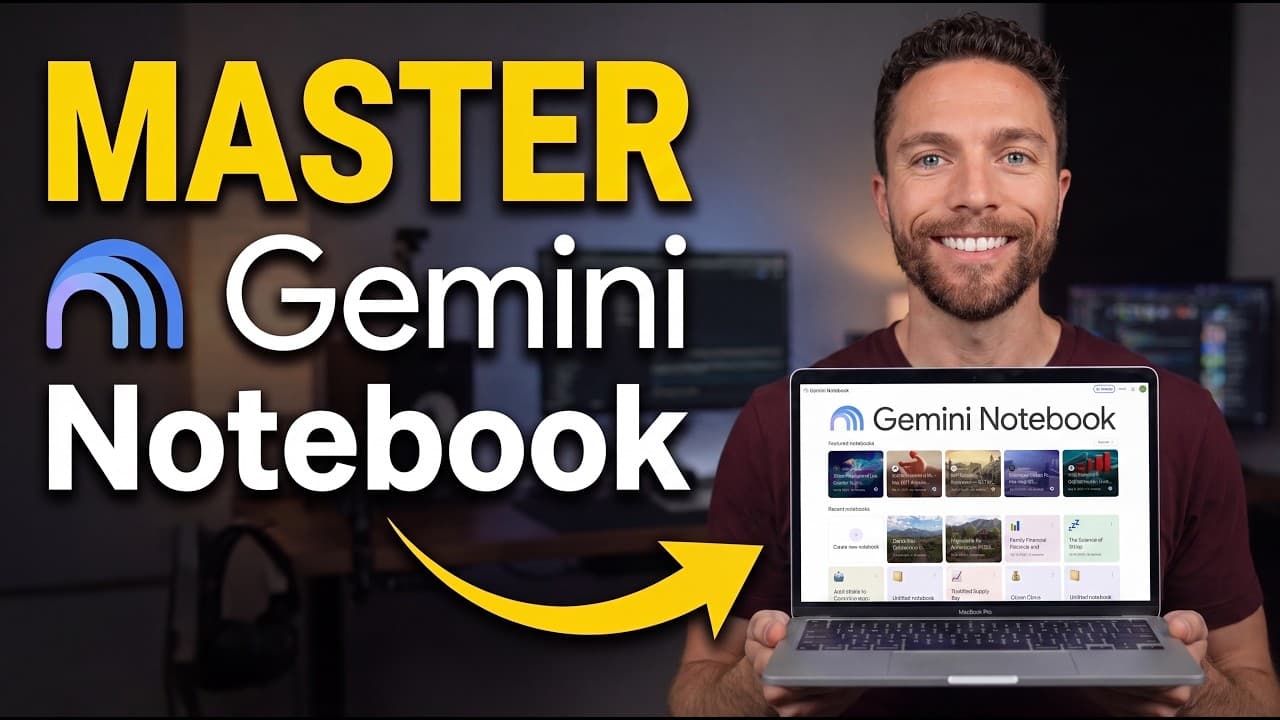
- Gemini Notebook is a free AI tool included with a Google account, and it can be opened at notebooklm.google.com in the same browser used for Gmail or Gemini. Its dashboard displays previously created notebooks alongside notebooks supplied by Google.
- Each notebook is a separate workspace for one topic or project, with sources in the left column, an AI chat in the middle, and Studio in the right column. This structure separates knowledge management, questioning, and content creation.
- Grounded chat is restricted to the sources supplied to the notebook, rather than drawing from its general training or the web. This makes the tool useful when an AI should answer questions using only a defined collection of information.
- Notebook sources can include websites, YouTube videos, Google Drive materials, uploaded files, and pasted text. Multiple website or video links can be entered during setup, and additional sources can be added later as the project develops.
- Fast research and deep research can find web information when users lack starting sources. Search results can be opened for review, selected individually, and imported, giving users control over which discovered websites become part of the notebook's knowledge base.
- Source quality directly affects the notebook because its answers and creations are grounded in the imported material. Users should choose reputable, trusted websites and inspect research results before importing them instead of treating every discovered source as equally reliable.
- Failed sources are identified in red when Gemini Notebook cannot process them, sometimes because a website is behind a paywall or for another access-related reason. The remove-all-failed-sources command clears these entries while retaining sources that loaded successfully.
- Auto labels organize expanding source collections into AI-generated groups, and a single source can appear under multiple applicable labels. Users can also open a label's menu to remove a source, rename it, or assign it a different label.
Install to Summarize YouTube Videos and Get Transcripts
Explore YouTube Video Summarizer or Get YouTube Transcript Extractor
Questions & Answers
Q: How do you create a notebook in Gemini Notebook?
Open notebooklm.google.com with the browser and Google account used for Gmail or Gemini, then select “Create new notebook” from the main dashboard. Gemini Notebook immediately asks for the sources that will define the workspace. Add relevant websites, YouTube videos, Google Drive materials, uploaded files, or pasted text. More sources can be added afterward through the “Add sources” control.
Q: What does grounded chat mean in Gemini Notebook?
Grounded chat means the notebook's AI uses the sources supplied by the user as its knowledge base. When users ask questions or create materials, the system pulls information from those sources rather than from its general training or the wider web. This is especially useful when answers need to remain limited to a specific set of documents, videos, websites, or pasted material.
Q: What types of sources can Gemini Notebook use?
Gemini Notebook can use website links, YouTube videos, items from Google Drive, files uploaded from a computer, and text pasted directly into the notebook. Several website or video links can be entered during the initial setup, provided they are separated appropriately. Users can continue expanding the source collection later by choosing “Add sources” in the left column.
Q: How can Gemini Notebook find sources from the web?
Gemini Notebook offers fast research and deep research options in the source area. A user enters the notebook's topic or intended purpose, starts the search, and receives a collection of relevant websites. Each result can be opened and reviewed before import. Users then select the sources they consider appropriate and import only those chosen websites into the notebook.
Q: Why should you check sources before importing them?
Source selection matters because Gemini Notebook grounds its chats and generated materials in the information users provide. Unreliable or unsuitable websites can therefore weaken the notebook's resulting answers and outputs. The course recommends using reputable, trusted sources and opening research results before importing them, allowing users to decide whether each site belongs in the notebook's knowledge base.
Q: How do you handle failed sources in Gemini Notebook?
Sources that Gemini Notebook cannot use appear highlighted in red. A website may fail because it is behind a paywall, although other access issues can also prevent it from loading. Rather than repeatedly trying to force those entries to work, users can open the relevant menu and select “Remove all failed sources,” which preserves successfully imported materials.
Q: How do you organize a large source list in Gemini Notebook?
Use the auto label feature when a notebook's source collection becomes difficult to manage. The AI automatically groups materials into topical sections, such as fruit cultivation, general gardening, or soil and pests. One source may belong to multiple labels when several categories apply. Through a label's menu, users can remove a source, rename it, or assign another label.
Q: What can you create with Gemini Notebook Studio?
Studio transforms a notebook's grounded source material into several output formats. The available examples include audio overviews, slide decks, video overviews, reports, flashcards, infographics, and data tables. The course also covers reviewing, editing, and exporting Studio content. These capabilities let users reuse one source collection for presentations, visual summaries, study materials, structured reports, and other deliverables.
Summary & Key Takeaways
-
Gemini Notebook is organized around separate notebooks, each serving as a workspace for one topic or project. Every notebook has three main columns: sources on the left, a grounded AI chat in the middle, and Studio tools on the right for transforming source material into several useful content formats.
-
A notebook can receive sources from websites, YouTube videos, Google Drive, uploaded files, and pasted text. Fast research or deep research can locate additional web sources when users do not already have suitable materials. Because the AI relies on these sources, trustworthy and reputable selections are essential for dependable results.
-
Notebook customization and organization make growing collections easier to navigate. Users can rename a notebook, replace its automatic summary, upload a dashboard image, remove failed sources, and apply automatic labels. After setup, they can question the grounded chat, create Studio outputs, analyze data, conduct web research, share notebooks, and use Gemini integration.
Read in Other Languages (beta)
Share This Summary 📚
Summarize YouTube Videos and Get Video Transcripts with 1-Click
Try YouTube Summary with ChatGPT & Claude or YouTube Transcript Generator
Explore More Summaries from Paul J Lipsky 📚



Summarize YouTube Videos and Get Video Transcripts with 1-Click
Try YouTube Summary with ChatGPT & Claude or YouTube Transcript Generator