How to Create and Edit Images in ChatGPT
TL;DR
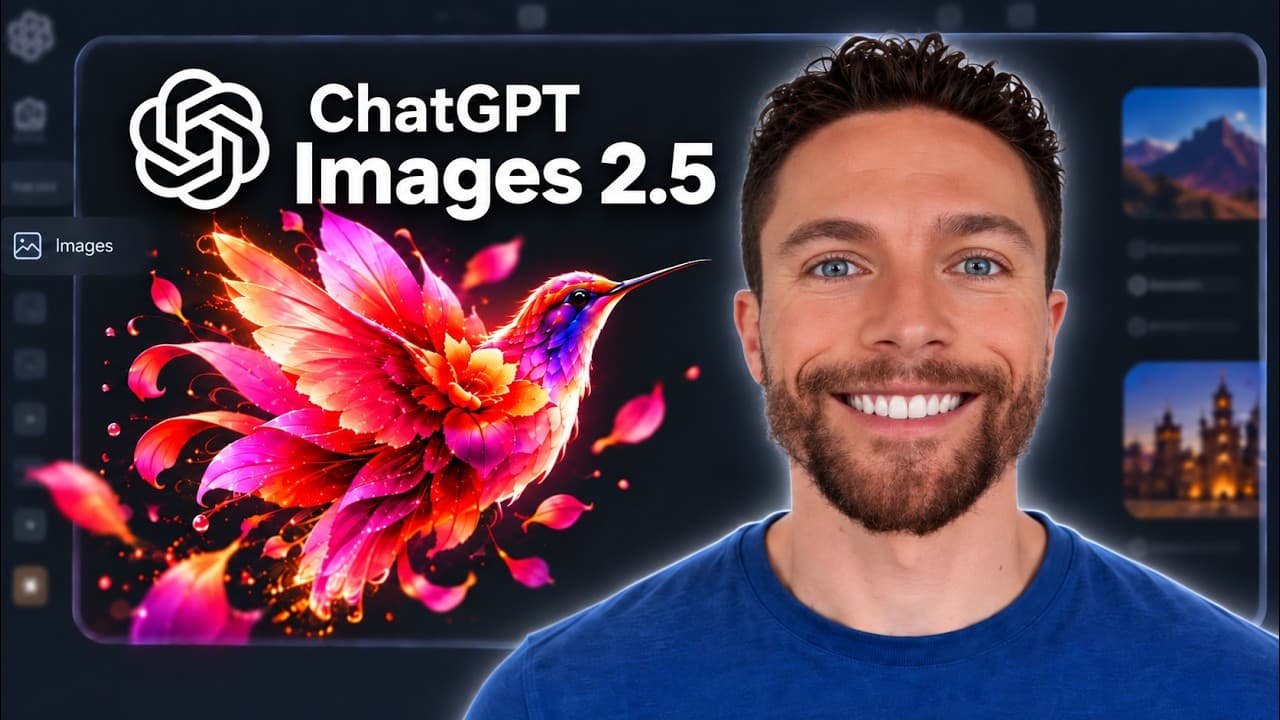
ChatGPT Images 2.5 can turn rough sketches into polished scenes, edit selected areas, remove suitable backgrounds, and transform reference photos while preserving recognizable subjects. Generation feels faster, and repeated edits can maintain human and animal consistency well, although comments may affect the wrong object and some templates may require clearer visual guidance.
Transcript
OpenAI just released Chat GPT images 2.5. This is supposed to have sharper details, faster generation, and more precise editing. And from what it looks like, this may be one of the funnest updates we've had from OpenAI in a long time. So, let's check out the new Chat GBT images 2.5 and all the things we can do with this. So, the new chat GPD images... Read More
Key Insights
- ChatGPT Images 2.5 is presented as a faster image generator with sharper details and more precise editing. In the demonstrations, generation appeared noticeably quicker than previous ChatGPT image experiences, although no measured generation times or formal comparisons were provided.
- The sketch tool converts rough drawings into complete images by using the placement, color, and shape of drawn elements as compositional guidance. A written explanation can clarify what each rough object represents, but the model can also infer recognizable items without additional instructions.
- Localized image editing is available through markup and comments. Users can circle an area, attach an instruction such as adding a cat, or place several comments on different regions before sending all requested changes together for a new generated version.
- Object targeting is not perfectly reliable during multi-part edits. When one specific plant was marked to become dead, the model changed a different plant instead, even though other requested changes, including a rainbow and gray walls, were completed successfully.
- The erase tool works by highlighting an unwanted area rather than immediately deleting its contents. After submission, the model interprets the marked region and regenerates the scene without the selected object, as demonstrated by removing a plant from a table.
- Background removal works best when the foreground subject has a clear separation from its surroundings. It produced an awkward result on a visually complex living-room scene but performed much better on a portrait with an obvious person and background boundary.
- Reference-photo editing can preserve identity while changing appearance or context. A childhood photograph remained closely recognizable after glare removal and the addition of a suit, while separate dog edits retained distinctive features through illustration, repositioning, and harness removal.
- Creative templates provide starting points for formats such as logos, posters, interior design, and illustration. Results can vary, as the interior-design template initially produced an unexpected single image, while a screenshot showing the desired layout helped the model create a more suitable result.
Install to Summarize YouTube Videos and Get Transcripts
Explore YouTube Video Summarizer or Get YouTube Transcript Extractor
Questions & Answers
Q: How do you access ChatGPT Images 2.5?
Open the ChatGPT web app and look at the Images option on the left side. An “updated” label beside Images indicates that the new image experience is available. Seeing a logo template in the Images area is another sign of access. The update was described as rolling out to all users, with the presenter assuming that this would include free users.
Q: How do you turn a sketch into an image in ChatGPT?
Select Images, click the plus icon, and choose the sketch option. Draw a rough arrangement of the objects you want, using selection controls to resize elements when necessary. After approving the sketch, describe what its shapes and colors represent. ChatGPT can then use both the drawing and written explanation to generate a polished scene that follows the intended composition.
Q: Can ChatGPT create an image from a sketch without instructions?
ChatGPT Images 2.5 can interpret a rough sketch without a written explanation, although the result may differ from the creator’s exact intention. In the test, it still recognized a couch, a dog, and a television-like object from an imprecise living-room drawing. It interpreted another element as a console, showing that visual inference works but remains open to ambiguity.
Q: How can you edit a specific part of a generated image?
Use the markup or comment tools to identify the exact region that needs changing. You can circle an area and request a new object, or attach comments directly to individual elements. Multiple comments can be prepared before submission, allowing several changes in one generation. The system generally follows these localized instructions, but it may occasionally modify a nearby object instead of the selected one.
Q: How does the erase tool work in ChatGPT Images?
The erase tool does not instantly remove pixels from the displayed image. Instead, it highlights the region containing the unwanted item and communicates that selection to ChatGPT. After the request is submitted, the model interprets what should disappear and regenerates the affected part of the scene. In the demonstration, this process successfully removed a plant that had been sitting on a table.
Q: When does background removal work best in ChatGPT Images?
Background removal works best when the main subject is visually distinct from the surrounding area. A busy living-room image produced an unsatisfactory result because the foreground and background contained many overlapping elements. A portrait of a man had a much clearer subject boundary, and the background remover handled that example far more successfully, producing a clean separation around the person.
Q: How well does ChatGPT Images preserve people and pets during edits?
The demonstrated results suggest that ChatGPT Images 2.5 can preserve recognizable human and animal features through significant edits. A childhood photo retained the same child after glare removal and the addition of a suit. Images of two dogs also maintained their individual appearance when converted into an illustration, repositioned to cuddle on a blanket, and edited to remove their harnesses.
Q: Are the creative templates in ChatGPT Images reliable?
Creative templates can provide useful starting points for logos, posters, interior design, illustrations, and other formats, but they do not always produce the expected structure immediately. The interior-design template initially returned a single image rather than the anticipated presentation. Supplying a screenshot of the desired output corrected the direction, while the illustration template produced an appealing result from photographs of two dogs.
Summary & Key Takeaways
-
ChatGPT Images 2.5 is rolling out to users with faster generation, sharper details, more precise editing, and several creative tools. Access is indicated by an “updated” label beside Images or the presence of a logo template. The demonstrated workflow covers sketches, localized edits, object removal, background removal, references, and templates.
-
A sketch tool lets users establish an image’s basic composition by drawing objects and then describing them. The model turned a rough living-room layout into a coherent scene and inferred several elements even without written instructions. Users can resize selected sketch elements before submitting the drawing for image generation.
-
Reference-image editing preserved recognizable people and animals across substantial transformations and repeated revisions. Successful examples included putting a child in a suit, redesigning a backyard, illustrating two dogs, removing their harnesses, and iterating on a thumbnail. However, object targeting and template behavior were not consistently accurate in every test.
Read in Other Languages (beta)
Share This Summary 📚
Summarize YouTube Videos and Get Video Transcripts with 1-Click
Try YouTube Summary with ChatGPT & Claude or YouTube Transcript Generator
Explore More Summaries from Paul J Lipsky 📚



Summarize YouTube Videos and Get Video Transcripts with 1-Click
Try YouTube Summary with ChatGPT & Claude or YouTube Transcript Generator