How to Cut AI Video Credits with Blender Previs
TL;DR
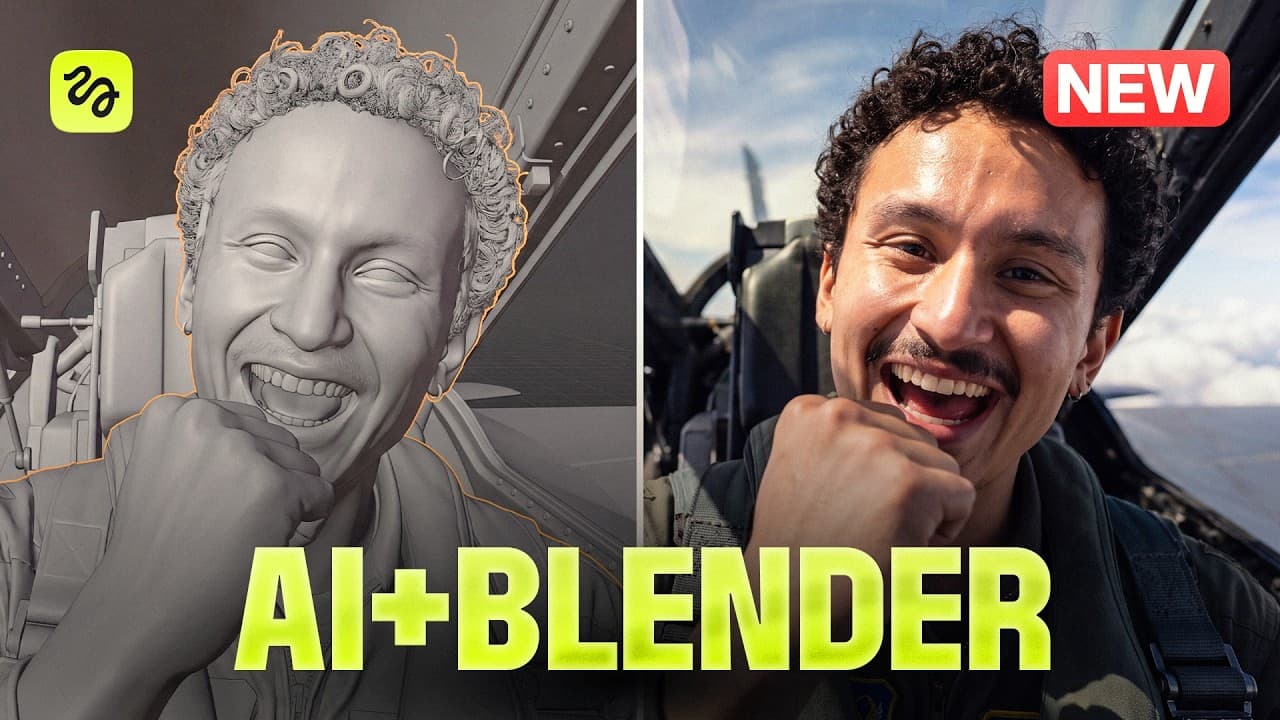
Block camera paths, timing, framing, and actor positions in Blender before sending a reference render to Higgsfield for final generation. The free plugin connects Claude to Blender, allowing prompts to create editable 3D previs, while the blocking guides Seedance 2.5 and reduces costly retries caused by camera drift, continuity errors, and ambiguous text prompts.
Transcript
Hi, I'm Adila. Everything you just saw, I directed. The camera path, the actors, the timing, all of it locked down before I spent a single credit. This is the new AI video workflow of 2026. The Hixel plugin right inside Blender. Full cinematic control. No more burning credits. And don't worry about Blender. You don't need to be a 3D artist or a V e... Read More
Key Insights
- Blender previs is a planning layer that establishes camera positions, movement, timing, framing, and actor placement before any AI video credits are spent. The final model receives mapped visual guidance instead of having to infer the entire scene from language alone.
- The Higgsfield bridge connects Claude directly to Blender through a connector. After receiving a written scene description or shot list, Claude can build editable 3D objects and camera animation that remain available for inspection and manual adjustment inside the Blender viewport.
- A viewport playblast is the main reference passed from Blender into the generation workflow. The creator exports a 1920 x 1080 MP4 at 24 frames per second, then asks Claude to describe its camera movements second by second for a matching generation prompt.
- Detailed camera instructions are more reliable than vague requests for cinematic movement. The dialogue example specifies rails, targets, and four cuts, then adds subtle handheld motion, giving the camera defined behavior while preserving the planned positions, eyelines, and continuity of six people.
- The six-person dialogue test demonstrates the continuity benefit of blocking. With Blender guidance, the generated scene keeps the characters in their seats and places each line on the intended face, while the raw-prompt comparison produces seat swaps and breaks the 180° rule.
- Camera paths remain editable without regenerating the entire plan. In the robotic-arm example, the movement follows a path with control points, so an angle can be changed by dragging a point instead of rewriting the prompt and requesting another AI-built camera setup.
- Separate inputs control motion and appearance in the final generation. The gray-box render supplies camera timing and spatial choreography, while character sheets and other reference assets supply the desired visuals, allowing each source to handle a clearly defined part of the result.
- Credit savings come primarily from resolving uncertainty before generation. The raw dialogue test consumed almost 5,000 credits without obtaining the required shot, while the blocked versions reached usable continuity and complex camera movement with far fewer attempts.
Install to Summarize YouTube Videos and Get Transcripts
Explore YouTube Video Summarizer or Get YouTube Transcript Extractor
Questions & Answers
Q: How can Blender previs reduce AI video credit use?
Blender previs reduces credit use by resolving camera paths, framing, timing, actor positions, and scene geography before the final AI generation begins. A low-cost gray-box playblast gives the model explicit motion guidance, so it does not need to guess from text alone. This approach limits retries caused by drifting cameras, incorrect reveals, seat swaps, broken eyelines, or inconsistent character scale.
Q: How do you connect Claude, Blender, and Higgsfield?
Download the Higgsfield plugin and copy its bridge URL. In Claude, open the connectors area and paste that URL. Then open Blender, drag in the plugin, and sign in to the Higgsfield account. Once connected, the Higgsfield toolbar appears in the Blender viewport, and Claude can use the bridge to construct editable objects, scenes, and camera movements from written instructions.
Q: How do you turn a Blender blocking render into an AI video?
First, complete the blocking and export a viewport playblast. The demonstrated settings are video output, 1920 x 1080 resolution, 24 frames per second, and MP4 encoding. Upload that render with the visual reference assets to Claude, then request a second-by-second prompt matching the camera moves. Paste the resulting prompt into Higgsfield, choose Seedance 2.5, match the generation duration to the blocking, and generate.
Q: Why is a shot list better than asking for cinematic camera movement?
A shot list defines what the camera must do instead of leaving the phrase cinematic open to interpretation. The creator specifies rails, targets, framings, and four exact cuts for the dialogue sequence. Claude can then build those requirements into the Blender scene. The resulting blocking provides measurable camera positions and transitions that can be reviewed, refined, and supplied to the final video model.
Q: How does Blender blocking improve dialogue continuity?
Dialogue continuity improves because the Blender scene fixes where every participant sits, which direction each person faces, where the camera stands, and how cuts relate to one another. In the demonstrated 30-second scene, six people remain in their seats across four cuts and their lines land on the intended faces. Without blocking, the comparison shows characters swapping seats and the 180° rule breaking.
Q: How can beginners create camera animation without knowing Blender?
Beginners can describe the scene and camera behavior to Claude rather than building every element manually. Through the bridge, Claude creates the corridor, figures, camera setup, and editable animation inside Blender. The user can preview the result from the camera view, request changes such as textures, different framings, lens animation, or handheld movement, and export the finished blocking as a reference.
Q: How are advanced camera moves controlled in this workflow?
Advanced moves are planned as real 3D paths before the visual generation. The examples include a continuous orbit across three scenes, a floor-rise movement through a building, and a robotic-arm-style move that rapidly reaches a frame and locks into position. Path control points can be moved directly in Blender, and a separate tracking target can create a more natural offset than locking onto a character's head.
Q: What happens when the same prompt is used without Blender blocking?
Without the blocking reference, the AI must infer camera motion and spatial relationships from the prompt and assets alone. In the comparisons, the dialogue characters change seats, the 180° rule disappears, and the desired shot is not achieved despite almost 5,000 credits of attempts. Another comparison produces an unwanted 180-degree camera spin, a top-down angle, changing character scale, and a missed robotic-arm move.
Summary & Key Takeaways
-
The workflow begins by downloading the Higgsfield plugin, copying its bridge URL into Claude's connectors, installing the plugin in Blender, and signing in. The resulting toolbar supports assets, models, and scenes inside the viewport, while the bridge lets Claude translate written scene directions into editable 3D objects and camera animation.
-
Instead of generating immediately from text, the creator blocks each scene in Blender and refines its framing, lens behavior, movement, and timing. A viewport playblast then becomes a visual reference. Claude analyzes that reference and writes a second-by-second prompt designed to reproduce the planned camera choreography in Higgsfield's Cinema Studio.
-
The demonstrations show why previs is valuable for complex production. A continuous cinematic shot preserves planned reveals, while a six-person dialogue maintains seats, eyelines, and speaker placement across four cuts. Advanced orbit, floor-rise, and robotic-arm moves also follow editable paths, reducing dependence on repeated prompting and uncertain generations.
Read in Other Languages (beta)
Share This Summary 📚
Summarize YouTube Videos and Get Video Transcripts with 1-Click
Try YouTube Summary with ChatGPT & Claude or YouTube Transcript Generator
Explore More Summaries from Higgsfield AI 📚



Summarize YouTube Videos and Get Video Transcripts with 1-Click
Try YouTube Summary with ChatGPT & Claude or YouTube Transcript Generator