How to Format and Edit Text Quickly in Notion
TL;DR
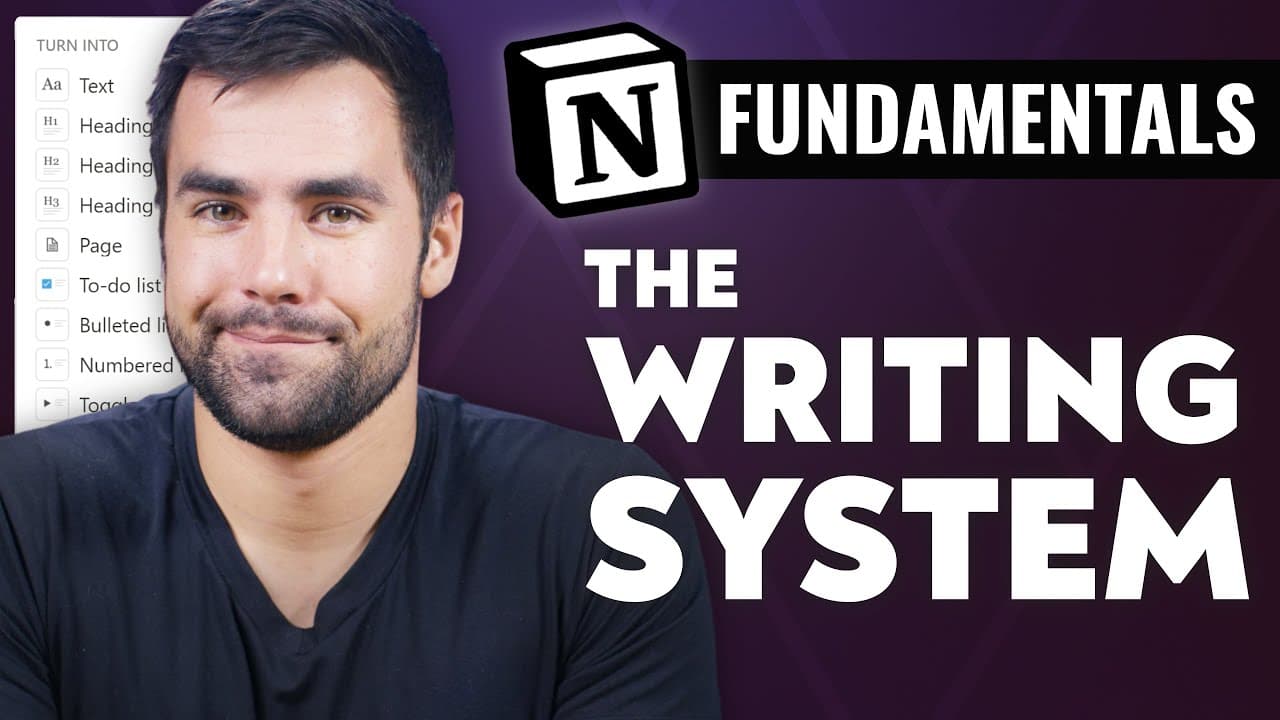
Format text in Notion by typing Markdown syntax, using familiar keyboard shortcuts, selecting options from the editing toolbar, or entering slash commands. Notion applies Markdown formatting immediately through its WYSIWYG editor, while slash commands can transform existing blocks, create lists, and add text or background colors without interrupting your writing flow.
Transcript
- Hello! And welcome back to Thomas Frank explains in this Notion Fundamentals lesson we are talking all about how to edit and format your text inside of Notion. You're gonna learn how to quickly apply formatting at the speed of thought using markdown, and also use some of the other tricks notion provides for you such as their keyboard shortcuts th... Read More
Key Insights
- Notion is a WYSIWYG Markdown editor that converts supported Markdown syntax into visible formatting as it is typed. Unlike a traditional Markdown editor with separate editing and preview areas, Notion lets users see the formatted result immediately and continue editing it directly.
- Markdown is a plain-text formatting method that adds small syntax markers to written content. In Notion, it can create headings, italic text, bold text, strikethrough, preformatted text, unordered lists, numbered lists, to-do items, block quotes, and toggle blocks.
- Pasted Markdown is largely preserved when plain text containing Markdown formatting is copied into Notion. The demonstrated paste retained elements such as bold text, a heading, a block quote, and list items, making externally written Markdown reusable inside a Notion workspace.
- Keyboard shortcuts are a direct way to format selected text in Notion. Command or Control plus B applies bold, Control plus I applies italics, and Control plus U applies underline, while other shortcuts can help users navigate backward and forward through a workspace.
- The editing toolbar appears when text is highlighted and provides access to comments, links, bold, italics, code, equations, and block transformations. It can convert an ordinary text block into a Heading 1 or Heading 2 without requiring Markdown syntax.
- Multiple selected blocks can be transformed together into another block type. Selecting several separate text blocks and choosing the numbered-list option converts them into a structured numbered list, which is faster than changing each block individually.
- Slash commands can transform an existing block by typing slash followed by a focused search such as "turn" or "turn bul." The resulting menu can be navigated with arrow keys, continued typing, or clicking before Enter confirms the selected block type.
- Slash commands can apply text color or background color to a block. Typing a color name selects the text-color option, while adding a space and the letter B narrows the command toward available background-color choices.
Install to Summarize YouTube Videos and Get Transcripts
Explore YouTube Video Summarizer or Get YouTube Transcript Extractor
Questions & Answers
Q: How do you format text quickly in Notion?
Text can be formatted quickly in Notion through Markdown syntax, keyboard shortcuts, the editing toolbar, or slash commands. Markdown applies formatting while you type, shortcuts modify selected text, and the toolbar appears after highlighting text. Slash commands can insert new block types, transform existing blocks, and apply text or background colors.
Q: What is Markdown in Notion?
Markdown in Notion is a method of adding small formatting syntax markers while typing so the text is formatted immediately. It can produce headings, italics, bold text, strikethrough, preformatted text, lists, to-do items, block quotes, and toggles. Notion displays these results directly instead of requiring a separate preview window.
Q: How is Notion Markdown different from traditional Markdown?
Traditional Markdown is written as syntax in plain text and then processed by a script, export tool, or preview window to display the formatting. Notion uses a WYSIWYG approach, meaning the syntax is converted into visible formatting as it is entered. The formatted content can then be edited directly inside the page.
Q: Can you paste Markdown-formatted text into Notion?
Plain text containing Markdown formatting can be copied from another editor and pasted into Notion, and most of the demonstrated formatting is preserved. In the example, Notion recognized bold text, a heading, a block quote, and list elements. This allows content written in a traditional Markdown editor to be transferred into a Notion page.
Q: Which keyboard shortcuts format text in Notion?
The demonstrated formatting shortcuts include Command or Control plus B for bold, Control plus I for italics, and Control plus U for underline. These commands work after the relevant text is selected. The lesson also identifies Control plus the bracket keys as a useful shortcut for navigating backward and forward through a Notion workspace.
Q: What can the Notion editing toolbar do?
The editing toolbar appears when text is highlighted. It can add comments and links, apply bold or italic formatting, and turn selected content into code or an equation. It can also transform a text block into another block type, such as Heading 1 or Heading 2, and convert multiple selected blocks into a numbered list.
Q: How do you turn existing text into a list in Notion?
Existing text can be converted through the editing toolbar or a slash command. Multiple blocks can be selected together and changed into a numbered list. For a single block, type slash, search for the "turn into" options, narrow the result toward a bulleted list, and press Enter after the intended block type is highlighted.
Q: How do you add text or background color in Notion?
A slash command can apply color to the current block. Typing slash followed by a color name brings up a matching text-color option. To find a background treatment, type the color name followed by a space and the letter B. Notion then presents background-color choices, and selecting one applies it to the block.
Summary & Key Takeaways
-
Notion provides several ways to edit and format text, including Markdown syntax, keyboard shortcuts, a contextual editing toolbar, and slash commands. Its WYSIWYG Markdown editor applies formatting as you type, allowing writers to create headings, emphasis, lists, quotes, and other structured elements without switching to a separate preview window.
-
Traditional Markdown stores formatting syntax in plain text and displays the rendered result through a script or preview window. Notion handles Markdown differently by immediately converting supported syntax into visible formatting. It can also preserve much of the formatting when Markdown text written in another editor is copied and pasted into a Notion page.
-
Keyboard shortcuts quickly apply bold, italic, and underline formatting, while the editing toolbar appears when text is highlighted. The toolbar can add links, comments, code, equations, or transform blocks into headings. Slash commands provide another route for changing block types, creating bulleted lists, and applying text colors or background colors.
Read in Other Languages (beta)
Share This Summary 📚
Summarize YouTube Videos and Get Video Transcripts with 1-Click
Try YouTube Summary with ChatGPT & Claude or YouTube Transcript Generator
Explore More Summaries from Thomas Frank Explains 📚





Summarize YouTube Videos and Get Video Transcripts with 1-Click
Try YouTube Summary with ChatGPT & Claude or YouTube Transcript Generator