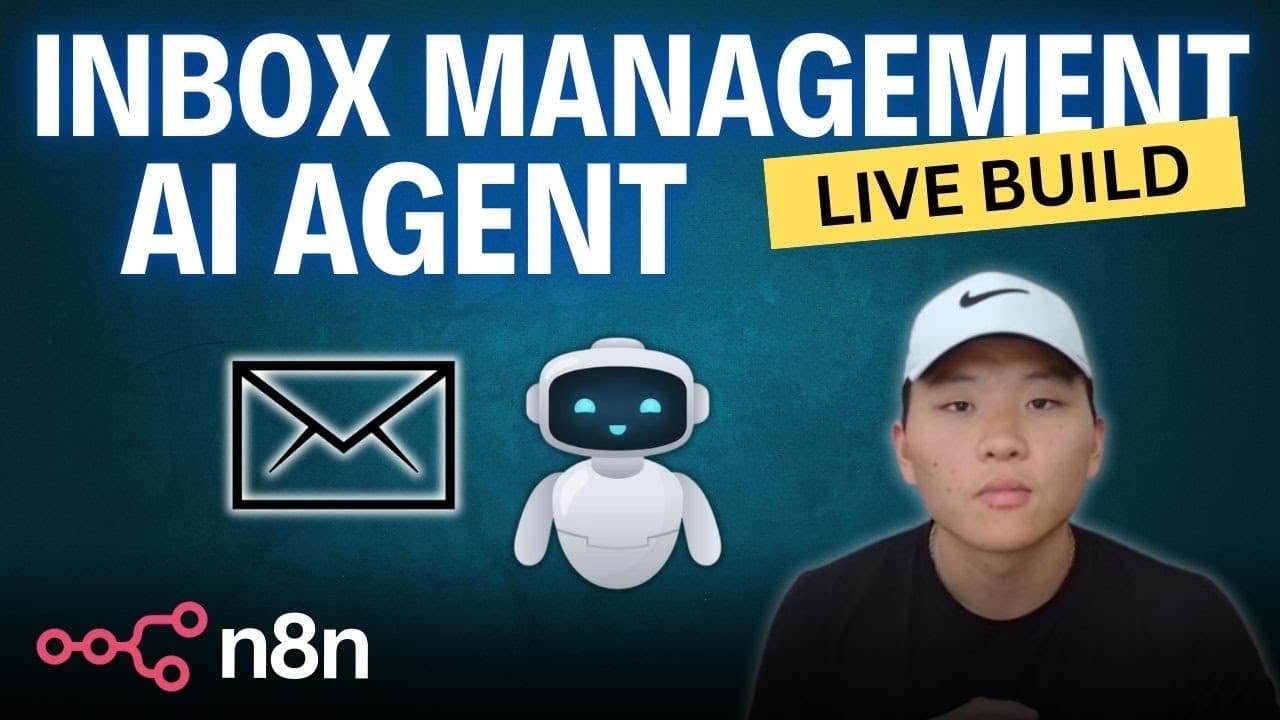
How to build an inbox management agent with n8n without code
TL;DR
An inbox management agent is built to categorize and label incoming emails in real time. The tutorial walks through creating a Gmail trigger, enabling Gmail API, and using a text classifier to assign labels like high priority, customer support, promotion, and finance. It then pushes labels back to Gmail to organize the inbox automatically.
Transcript
all right today we're going to be building a inbox management agent by the end of this video you'll have a workflow up and running that is going to be able to categorize and label your emails as they come in based on how you tell the agent to do so so let's not waste any more time and just start building this thing so the first thing we need to do ... Read More
Key Insights
- Gmail trigger is used to start the workflow whenever a message is received.
- The process requires enabling the Gmail API and configuring OAuth credentials in Google Cloud.
- A text classifier node is used to categorize email content into predefined labels.
- Four Gmail labels are created to categorize emails: high priority, customer support, promotion, finance and billing.
- An OpenAI GPT-4 model is integrated to improve classification accuracy with a system prompt.
- Labels are applied back to corresponding emails using a Gmail add label node.
- The workflow is tested by sending example emails to verify correct labeling.
- No code is required to build and run the inbox management agent in n8n.
- More videos from this channel:
- More from this channel: Nate Herk | AI Automation
Install to Summarize YouTube Videos and Get Transcripts
Explore YouTube Video Summarizer or Get YouTube Transcript Extractor
Questions & Answers
Q: How to set up a Gmail trigger in n8n for incoming messages
To set up a Gmail trigger in n8n, create a new Gmail trigger node and choose on message received as the event. Connect your Gmail account, then verify permissions by configuring OAuth credentials. This step starts the workflow any time a new email arrives, enabling subsequent steps to process the message.
Q: What credentials are needed to connect Gmail in the workflow
You need OAuth 2.0 credentials from Google Cloud. Create a project, enable the Gmail API, configure the OAuth consent screen, and create OAuth client credentials for a web application. Copy the client ID and client secret into n8n to establish a secure connection to Gmail.
Q: How is the Gmail API enabled and used in the setup
In Google Cloud Console, enable the Gmail API under APIs and Services, then set up the OAuth consent screen so Google trusts the app. After that, create OAuth credentials and paste the client ID and secret into n8n. This enables the workflow to access Gmail data and perform actions.
Q: What is the role of the text classifier in this workflow
The text classifier analyzes the email content and determines which label to apply. It uses a schema to extract the email body text and compare it against predefined categories. The classifier then outputs a label such as high priority, customer support, promotion, or finance and billing.
Q: How are labels defined and applied in Gmail
Labels are created in Gmail in advance (high priority, customer support, promotion, finance and billing). After the classifier assigns a category, a Gmail node uses the message ID to add the corresponding label to the email, effectively organizing the inbox in real time.
Q: What model is used for classification and how is it configured
The workflow uses a GPT 4 model for classification. An API key from OpenAI is added to n8n, and a system prompt is configured to instruct the model to categorize the email body into the defined labels. This setup helps improve accuracy in assigning the correct label.
Q: How does the workflow verify that labeling works during testing
Testing involves sending sample emails with body text that match category criteria and observing the labels applied by the classifier. If the high priority or other labels appear correctly, the corresponding Gmail add label nodes confirm that the workflow is functioning as intended and updating messages in real time.
Q: What is the overall purpose of this no code inbox management agent
The goal is to automate email organization by classifying incoming messages and applying appropriate Gmail labels without manual intervention. This improves efficiency and reduces inbox clutter by ensuring messages are categorized consistently based on content, using a no code workflow in n8n plus optional AI classification.
Summary & Key Takeaways
-
The video demonstrates setting up a no code workflow in n8n to classify emails and apply Gmail labels automatically.
-
It covers Gmail API setup, OAuth credentials, and configuring a text classifier to map emails to four categories.
-
Testing shows the workflow labeling a high priority message and updating Gmail labels accordingly.
Read in Other Languages (beta)
Share This Summary 📚
Summarize YouTube Videos and Get Video Transcripts with 1-Click
Try YouTube Summary with ChatGPT & Claude or YouTube Transcript Generator
Explore More Summaries from Nate Herk | AI Automation 📚

Summarize YouTube Videos and Get Video Transcripts with 1-Click
Try YouTube Summary with ChatGPT & Claude or YouTube Transcript Generator