How to Use Claude AI for Work and Automation
TL;DR
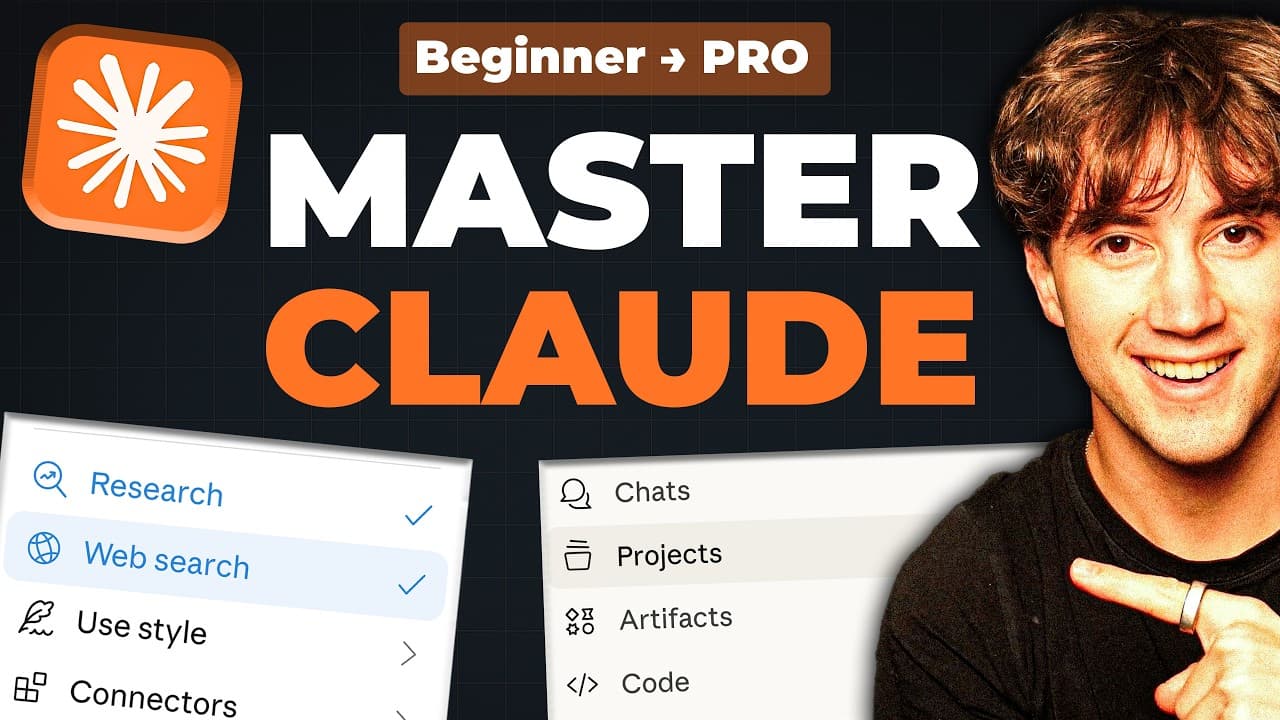
Claude produces more useful results when prompts specify a goal, relevant context, a clear action, and the desired output format. Start with the free plan, select Sonnet for everyday tasks or Opus for ambitious work, then improve responses through continued iteration and organize recurring work with features such as projects, custom instructions, skills, connectors, artifacts, web search, and vision.
Transcript
In this video, I'm going to walk you through every single feature in Claude from the basics all the way up to the more advanced techniques like creating automations that do the heavy lifting for you. Also, I'm going to show you how to build your AI operating system. This is going to turn Claude into your executive assistant. Now, I use Claude every... Read More
Key Insights
- Claude is presented as a workspace for research, scripting, strategy, brainstorming, and completing tasks that previously required more time. Its built-in features are intended to reduce the need to connect many separate tools before the system becomes useful for everyday work.
- The free Claude plan includes Claude Sonnet, web search, file uploads, and artifacts, according to the tutorial. The presenter recommends using the free tier first and treating repeated encounters with usage limits during the first week as a possible signal to upgrade.
- Sonnet is recommended for everyday tasks, while Opus is positioned for ambitious work. The interface also provides voice mode, a prompt bar, a model selector, a feature menu, new chats, conversation history, and a sidebar for navigating projects and previous threads.
- The quality of Claude’s output depends heavily on the information supplied in the prompt. Broad requests such as asking how to go viral tend to produce generic advice, while specific goals, constraints, problems, platforms, and audience details make responses more relevant to an actual workflow.
- The GCAO framework is a prompting method built from goal, context, action, and output format. It asks users to define what they want, explain their situation, assign a precise task, and state the structure or limitations the finished response should follow.
- Iteration is a core part of working effectively with Claude. After receiving an initial answer, users can select a promising section, request more variations, ask follow-up questions, and continue refining the conversation until the result is sufficiently specific and useful.
- Claude can access more than text responses, because the tutorial identifies web search and vision among its capabilities. The chapter structure also covers artifacts, custom instructions, projects, skills, and connectors as features that expand how information and recurring work can be handled.
- An AI operating system in Claude is presented as a way to turn the assistant into an executive assistant. The tutorial connects this setup with custom instructions, projects, skills, connectors, and a final workflow that combines the individual features into a more organized system.
Install to Summarize YouTube Videos and Get Transcripts
Explore YouTube Video Summarizer or Get YouTube Transcript Extractor
Questions & Answers
Q: How should beginners start using Claude AI?
Beginners can create a Claude account and begin with the free plan, which the tutorial says includes Claude Sonnet, web search, file uploads, and artifacts. After signing in, they can use the central prompt bar, choose a model, start new chats, and review conversations in the sidebar. The presenter suggests starting free and considering an upgrade if regular use reaches the plan limits within a week.
Q: How do you write a better prompt for Claude?
A better Claude prompt clearly defines the desired goal, provides relevant background and constraints, assigns a specific action, and states the required output format. For example, instead of requesting general social media advice, describe the audience, business situation, platforms, previous attempts, available time, and desired business result. Then request a defined number of content angles and explicitly exclude generic advice that would not be useful.
Q: What is the GCAO prompting framework?
GCAO stands for goal, context, action, and output format. The goal identifies the outcome the user wants. Context explains the situation, audience, constraints, resources, and previous attempts. Action tells Claude exactly what analysis or creation to perform. Output format defines the structure, quantity, and boundaries of the answer, such as requesting three content angles with one-sentence explanations and no generic advice.
Q: Why does a vague Claude prompt produce generic results?
A vague prompt gives Claude too little information about the user’s actual circumstances, priorities, constraints, and intended audience. The resulting response may contain broad recommendations that could apply to almost anyone, leaving the user to adapt the material afterward. Providing detailed context shapes the model around the user’s world, so the answer can address the real problem and arrive in a format that fits the intended workflow.
Q: How can you improve Claude’s first response?
Improving the first response requires continued iteration rather than ending the conversation immediately. Identify the most promising part of Claude’s answer, ask for more examples or variations, clarify missing requirements, and request greater specificity. The tutorial demonstrates this by selecting one proposed content angle and asking for six additional variations. Repeated follow-up requests help move the output closer to the user’s exact needs.
Q: Which Claude model should you choose for a task?
The tutorial recommends Claude Sonnet for everyday tasks and describes Opus as the choice for ambitious work. Users can change models through the model selector next to the main prompt area. The appropriate selection therefore depends on the kind of work being attempted, with Sonnet serving routine use and Opus being presented for more ambitious requests. The interface also includes a voice option for voice mode.
Q: How can Claude chats be organized for later use?
Claude’s sidebar displays previous conversations and provides access to projects and chat management options. A conversation can be starred so it remains pinned near the top, renamed with a more descriptive label, or added to a project. These controls make useful threads easier to find and group. The tutorial later connects projects with a broader AI operating system for organizing recurring work and relevant information.
Q: What features help turn Claude into an AI operating system?
The tutorial presents custom instructions, projects, skills, connectors, artifacts, web search, and vision as parts of a broader Claude workflow. Projects can organize related conversations, while custom instructions can shape how Claude works with the user. Skills and connectors are covered as additional capabilities, and artifacts, search, file uploads, and vision expand the types of work Claude can handle. Combining these features is presented as an executive-assistant setup.
Summary & Key Takeaways
-
Claude can support research, scripting, strategy, brainstorming, and routine task completion from a single workspace. Beginners can start on the free plan, which includes Claude Sonnet, web search, file uploads, and artifacts. The presenter recommends upgrading only after usage limits become a practical constraint during regular work.
-
The GCAO prompting framework structures requests around four elements: goal, context, action, and output format. A detailed prompt should explain the desired outcome, describe the user’s circumstances and constraints, specify the work Claude should perform, and define how the response should be presented for immediate use.
-
Claude becomes more valuable when conversations continue beyond the first response. Users can request additional variations, expand a promising idea, or refine an answer until it fits their needs. Projects, custom instructions, skills, connectors, artifacts, web search, and vision can then support a broader AI operating system.
Read in Other Languages (beta)
Share This Summary 📚
Summarize YouTube Videos and Get Video Transcripts with 1-Click
Try YouTube Summary with ChatGPT & Claude or YouTube Transcript Generator
Explore More Summaries from AI Foundations 📚

Summarize YouTube Videos and Get Video Transcripts with 1-Click
Try YouTube Summary with ChatGPT & Claude or YouTube Transcript Generator