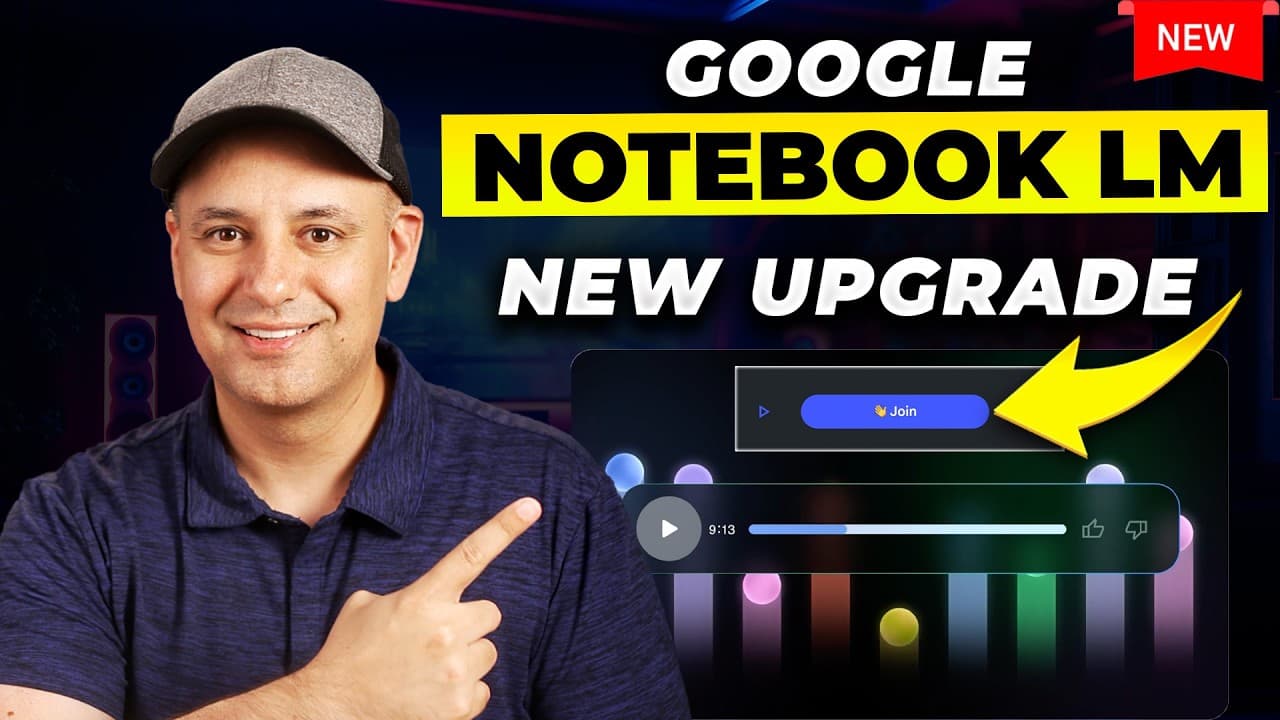
How to interact with NotebookLM interactive podcasts
TL;DR
NotebookLM now lets you join live conversations with AI-generated podcasts built from your uploaded sources. The interactive mode lets you ask questions in real time, interrupt, and get follow ups while using PDFs, books, websites, and YouTube as sources. It covers setup steps, from uploading sources to starting the conversation, plus practical use cases for education training content creation and personal development.
Transcript
notebook LM just released a brand new update I wanted to show you in this video where you could actually interact with the podcast have a live conversation with the podcasts that it generates let me show you how it works I'll do this as a quick demo right now then I'll show you how to do this completely from scratch even if you haven't used noteboo... Read More
Key Insights
- NotebookLM introduces an interactive podcast mode that enables live conversations with AI-generated podcasts built from user sources.
- Source types include books PDFs websites and YouTube videos, all usable to generate the AI podcast content.
- Interactive mode requires microphone access and allows users to join the podcast and ask questions in real time.
- Users can interrupt the podcast to request summaries detailed explanations or follow up questions.
- The generated audio podcasts can be played at different speeds and downloaded for offline use.
- A notebook can include up to 50 different sources, enabling rich multi-source conversations.
- The feature is positioned for education, corporate training, content creators, and personal development contexts.
- Prompts and follow-up suggestions are available to guide the conversation based on the sources.
Install to Summarize YouTube Videos and Get Transcripts
Explore YouTube Video Summarizer or Get YouTube Transcript Extractor
Questions & Answers
Q: How to start an interactive podcast in NotebookLM with a new source
To start an interactive podcast in NotebookLM you first create a new notebook and upload your source material such as a PDF book or a YouTube link. After the sources are added you click generate to create the audio podcast. Then you switch to interactive mode, press play, and you can join the conversation by asking questions in real time.
Q: What sources can be used to generate a NotebookLM podcast
You can use a variety of sources to generate a NotebookLM podcast including PDFs books websites and YouTube videos. The system allows you to upload or link these sources into a single notebook so the generated podcast reflects the content from multiple materials and you can query them during the interactive session.
Q: Are there any limitations on the number of sources per notebook
Yes, you can add up to 50 different sources in one notebook. This allows combining multiple documents and media types to create a richer interactive podcast experience where the AI can reference a wide range of information in follow up questions.
Q: Can you share or publish the interactive podcast for others to join
It is possible to share the interactive podcast. You can make the generated podcast publicly available or share a link so others can listen. While in interactive mode others may not be able to join the session unless they also have access to the notebook, the shared link provides access to the pre generated audio.
Q: What practical use cases are highlighted for NotebookLM audio
The video highlights use cases across education such as teaching with uploaded textbooks and having students listen to an audio summary with live questions, corporate training where employee manuals can be converted to interactive podcasts, content creators turning articles into podcasts for audience Q&A, and personal development where self improvement books are converted into conversational formats.
Q: How does the interactive mode handle real time questions
In interactive mode you press play and the podcast runs as usual but you can interrupt it to ask questions. The host and guest voices respond to the queries with follow ups and the conversation can continue with the AI referencing the uploaded sources. This creates a live dialogue based on the material provided.
Q: Can you adjust playback speed during the interactive session
Yes, the podcast can be played faster or slower during interaction. The video demonstrates a quick option to change speed which helps users skim through content or focus on key sections before asking follow up questions.
Q: What are the steps to enable microphone access for interactive mode
To enable interactive mode you must grant microphone access within NotebookLM when prompted. This permission allows the system to capture your live questions and integrate them into the ongoing AI podcast conversation so you can interact naturally as the content plays.
Summary & Key Takeaways
-
The video showcases NotebookLM's new interactive podcast feature that lets users converse with AI podcasts based on uploaded sources such as PDFs books and websites. It explains how to enable interactive mode grant microphone access and begin a live Q&A session during the podcast.
-
A practical walk-through demonstrates creating a notebook uploading diverse sources configuring prompts and generating an audio podcast that can be paused paused so viewers can ask questions and receive real time responses.
-
The presenter highlights use cases across education corporate training content creation and personal development and shares tips for sharing publicly and leveraging prompts for tailored conversations.
Read in Other Languages (beta)
Share This Summary 📚
Summarize YouTube Videos and Get Video Transcripts with 1-Click
Try YouTube Summary with ChatGPT & Claude or YouTube Transcript Generator
Explore More Summaries from Skill Leap AI 📚

Summarize YouTube Videos and Get Video Transcripts with 1-Click
Try YouTube Summary with ChatGPT & Claude or YouTube Transcript Generator