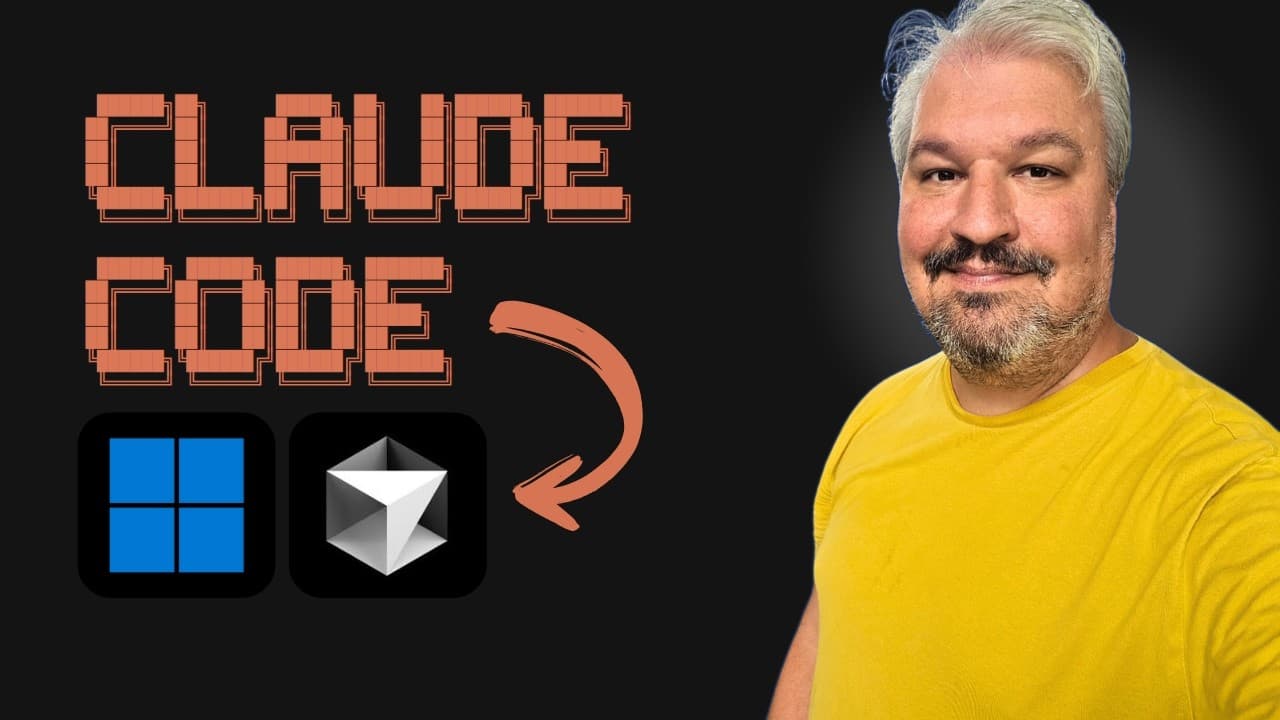
How to set up Claude Code on Windows with Cursor
TL;DR
Claude Code now runs natively on Windows, removing the need for WSL. Start by installing Node.js, then sign in with a Claude Pro or Max plan, or use an Anthropic API account with credits. Install Claude Code via npm, then connect it to Cursor or VS Code and try the Snake game demo.
Transcript
Cloud code is now natively supported on Windows, which makes the setup process super easy. We no longer need things like WSL to get Claude Code working. So, in this video, I'll show you how to set up Cloud Code on your machine, and I'll also show you how to add it to popular IDE like Cursor or VS Code. To get started, there's basically two prerequi... Read More
Key Insights
- Claude Code now has Windows native support eliminating WSL.
- Two main access options exist: Claude subscription or Anthropic API usage.
- Node.js must be installed to run Claude Code via npm.
- Claude Code installation uses npm install -g command.
- Authentication involves authorizing the Claude Code session in a browser.
- The tool can run in terminal or be embedded in IDEs like Cursor or VS Code.
- A virtual environment is recommended for Python projects like a Snake game.
- The session shows a to-do list and token usage during code generation.
- More videos from this channel:
- More from this channel: Leon van Zyl
Install to Summarize YouTube Videos and Get Transcripts
Explore YouTube Video Summarizer or Get YouTube Transcript Extractor
Questions & Answers
Q: How do you start using Claude Code on Windows with Cursor integration?
To start using Claude Code on Windows with Cursor, first install Node.js from the official site, then install Claude Code globally via npm. Sign in through your Claude subscription or via Anthropic API credentials, authorize the session in your browser, and then paste back the provided code to complete setup. You can then open Cursor and enable the Claude Code extension to begin editing tasks.
Q: What authentication steps are required for Claude Code in this setup?
Authentication requires either a Claude Pro or Max subscription or an Anthropic API account. After initiating the login in the CLI, you will open a browser-based authorization page, sign in, grant access, copy the authorization code, and paste it back into the command prompt. This completes the integration and unlocks interactive coding capabilities.
Q: Can Claude Code be used without paying per API usage, and how?
Yes, Claude Code can be used without paying per API usage if you have a Claude subscription such as Pro or Max. The subscription provides a defined quota of messages and includes access to Claude Code within those limits. If you exceed the allotted messages, you can opt to continue on a pay as you go basis via the API console.
Q: What is demonstrated with the Snake game example in the video?
The Snake game example demonstrates setting up a Python project in a virtual environment, installing Pygame, and using Claude Code to generate and modify code. It shows how Claude Code can create files, manage environment activation, and run the program, including a two-player variant, while providing a live to-do list and prompts.
Q: How does the video show integrating Claude Code with an IDE?
The video shows integrating Claude Code with Cursor by installing the Claude Code extension in the IDE. It then demonstrates splitting terminals, activating a virtual environment in one pane, and using Claude Code on the left to request changes while monitoring errors in the right pane. It also notes that the same steps apply to VS Code.
Q: What are the two main ways to run Claude Code according to the video?
The two main ways are running Claude Code in the terminal or integrating it into an IDE like Cursor or VS Code. In the terminal, you can issue commands directly and Claude Code will operate within the folder scope. In the IDE, Claude Code extension provides an interactive interface while you work in the editor.
Q: What should you do if Claude Code asks for permission to run a command?
If Claude Code asks for permission to run a command, you should review the proposed action, then approve it to proceed. This enables the agent to create virtual environments, install dependencies like Pygame, and generate or modify code within the project, maintaining a transparent workflow and allowing you to control each step.
Q: What is shown as a practical tip for managing projects with Claude Code?
A practical tip is to use a virtual environment for Python projects, activate it in a split-terminal setup, and monitor token usage while Claude Code performs tasks. This approach keeps dependencies isolated, helps track resource usage, and provides a clear view of the coding session from both terminal and IDE perspectives.
Summary & Key Takeaways
-
Claude Code on Windows is shown with two setup paths: direct subscription access or API usage. The video demonstrates installing Node.js, authenticating, and using a CLI and IDE integration to run and modify code. A Snake game example illustrates the workflow and to-do style prompts. The demonstration includes live coding and environment setup steps.
-
The tutorial also covers how to add Claude Code to the IDE, view token usage, and handle permission prompts during code generation. It emphasizes a user flow from installation to running a project in Cursor or VS Code, including a two-player modification scenario.
-
Finally, the video recaps practical tips like using a virtual environment, running commands in terminal, and switching between terminal and IDE views to manage the coding session.
Read in Other Languages (beta)
Share This Summary 📚
Summarize YouTube Videos and Get Video Transcripts with 1-Click
Try YouTube Summary with ChatGPT & Claude or YouTube Transcript Generator
Explore More Summaries from Leon van Zyl 📚





Summarize YouTube Videos and Get Video Transcripts with 1-Click
Try YouTube Summary with ChatGPT & Claude or YouTube Transcript Generator