How to master essential Linux commands quickly
TL;DR
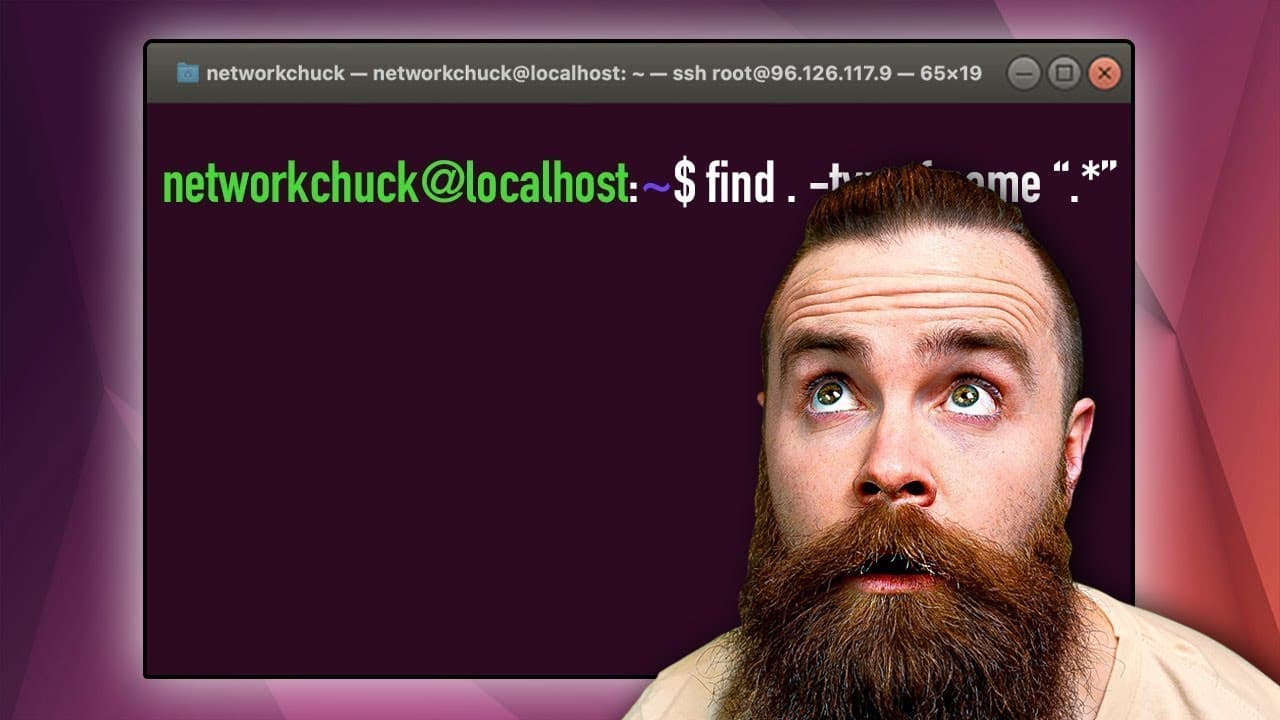
SSH is the first step to access a Linux machine, then you can list files with ls and show hidden files with ls -A. From there you navigate with pwd and cd, create files with touch, edit with nano or vim, view content with cat or less, and perform basic file operations like cp, mv, and rm. This video covers practical hands on examples for 60 commands.
Transcript
Here are the top 60 Linux commands you need to know, and we're gonna do this in 10 minutes. Our first command can be used anywhere. It's SSH because you can't use Linux unless you can get to it. To connect to your Linux machine, you'll specify your user it, then the ad symbol and then the server you're gonna connect to. So I'll copy the IP address ... Read More
Key Insights
- SSH is the gateway to remote Linux access, and credentials plus the server address determine reachability.
- The ls family lists directory contents, with -l for details and -A for hidden files, enabling a fuller view of the filesystem.
- pwd reveals the current working directory, while cd changes location and supports relative paths and home shortcuts.
- Touch creates files quickly, and multiple files can be created in one command, showing the speed of basic file creation.
- Nano and Vim are common text editors for editing files directly in the terminal, with specific save and exit sequences.
- Cat displays file contents rapidly, while Less enables paginated viewing for large files, and head/tail show the start or end portions of files.
- Mv and Cp handle moving and copying files, and RM removes files or directories, with RM -R allowing recursive deletion.
- Chmod changes file permissions, and chown changes ownership, enabling control over who can access or modify files.
- More videos from this channel:
- More from this channel: NetworkChuck
Install to Summarize YouTube Videos and Get Transcripts
Explore YouTube Video Summarizer or Get YouTube Transcript Extractor
Questions & Answers
Q: A real search query question about the video (How to...).
How to connect to a Linux server using SSH and what is the basic workflow for remote work? SSH involves specifying your user, an at symbol, and the server address to reach a remote machine. After connecting, you accept fingerprints, enter your password, and you can begin navigating the filesystem, listing files, and editing or creating new files with common commands. This workflow applies to most Linux environments and is the foundation for remote administration.
Q: What is the purpose of the ls command with -l and -A options?
The ls command with -l provides a long listing format that shows permissions, ownership, size, and timestamps for each file. The -A option adds hidden files to the listing, giving you a complete view of the directory contents. Together, these switches help you understand file metadata and hidden system items that are not shown by default, which is crucial for file management and auditing.
Q: How do you create and edit files in Linux from the terminal?
To create files quickly, use the touch command followed by one or more file names. Then use a text editor like nano or vim to edit the file contents. For nano, you save with Ctrl X, confirm, and press Enter. For Vim, you enter insert mode with I, type your changes, press Esc, and then type :wq to save and quit. This gives you a fast, reliable editing workflow.
Q: What are the differences between cat, less, head, and tail?
Cat prints the entire contents of a file to the terminal, which is fast for small files but impractical for large ones. Less provides paginated viewing, allowing you to scroll through content one page at a time, which is better for long files. Head shows only the first lines of a file, while Tail shows the last lines, useful for quickly inspecting recent entries or end of logs.
Q: How do you copy, move, and delete files, including directories?
Copy with cp requires a source file and a destination path, duplicating the file at the new location. Move with mv relocates the file to the target path, effectively renaming or reordering files within the filesystem. Delete with rm removes files, and rm -r or rm -R deletes directories recursively, including all their contents, so use these commands carefully to avoid data loss.
Q: How can you manage file permissions and ownership in Linux?
Permissions are changed with chmod, where you can grant execute permission using a plus x, which makes a file runnable. Ownership is managed with chown, where you specify the new owner and the file. These controls determine who can read, write, or execute a file, and who can modify its metadata, which is essential for multi user environments and security.
Q: What are practical networking commands mentioned in the video for diagnosing systems?
Networking tools include ifconfig or ip a to show IP configuration, ping to test connectivity, traceroute to map the path to a host, and netstat or ss to inspect open ports and running connections. These commands help diagnose network reachability, latency, and firewall behavior, giving quick visibility into how a system is communicating with other devices on the network.
Q: Why is using the manual and lightweight utilities recommended in Linux?
The manual (man) command provides quick in depth information about commands and options, helping you learn proper usage and nuances. Lightweight utilities like curl, grep, and nano enable fast, focused tasks without heavy dependencies. Relying on man pages and compact tools fosters a solid foundation for Linux proficiency and reduces reliance on graphical interfaces while maintaining productivity.]}]} } } } } } } } } } } } } } } } } } } } } } } } } } } } } } } } } } } } } } } } } } } } } } } } } } } } } } } } } } } } } } } } } } } } } } } } } } } } } } } } } } } } } } } } } } } } } } } } } } } } } } } } } } } } } } } } } } } } } } } } } } } } } } } } } } } } } } } } } } } } } } } } } } } } } } } } } } } } } } } } } } } } } } } } } } } } } } } } } } } } } } } } } } } } } } } } } } } } } } } } } } } } } } } } } } } } } } } } } } } } } } } } } } } } } } } } } } } } } } } } } } } } } } } } } }}}
Summary & Key Takeaways
-
This summary highlights how to connect to a Linux server using SSH, inspect the current directory with pwd, and explore files with ls including hidden ones. It also covers creating and editing files with touch, nano, or vim, and demonstrates essential file operations like copy, move, delete, and linking, all shown in quick, practical steps.
-
Next, the video introduces navigation and file manipulation commands such as cd, mkdir, and rm, followed by viewing and processing files with cat, less, head, and tail. It also touches on permissions, ownership, and basic network commands to inspect interfaces, IPs, and firewall settings in a concise, beginner friendly format.
-
Finally, the video emphasizes using the manual (man) command for learning, installing small utilities via package managers, and using lightweight tools like grep, curl, and nano to become productive quickly in a Linux environment.
Read in Other Languages (beta)
Share This Summary 📚
Summarize YouTube Videos and Get Video Transcripts with 1-Click
Try YouTube Summary with ChatGPT & Claude or YouTube Transcript Generator
Explore More Summaries from NetworkChuck 📚
Summarize YouTube Videos and Get Video Transcripts with 1-Click
Try YouTube Summary with ChatGPT & Claude or YouTube Transcript Generator