How to add a GPT-4o assistant to your website?
TL;DR
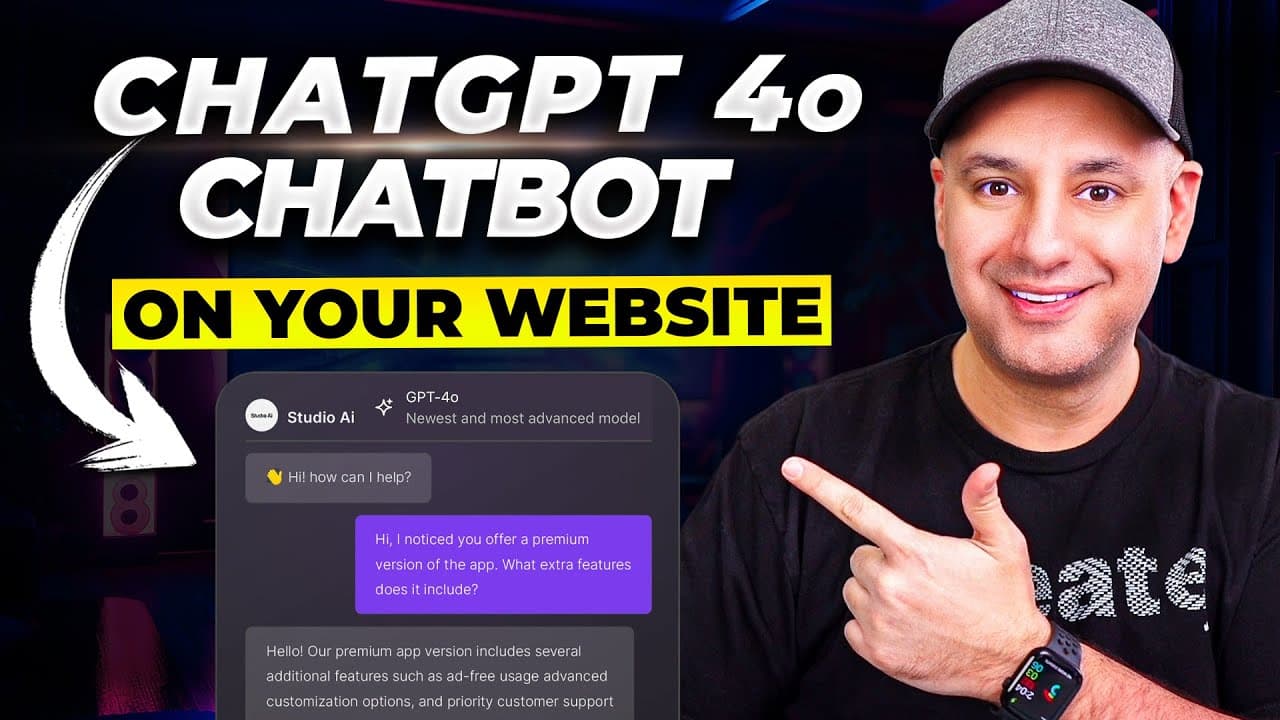
You can add a GPT-4o powered chatbot to your website by using Chatbase, training it with your own documents, and embedding it with an iframe or script. Start with a free plan to test, then upgrade for more messages, up to 40,000 messages, depending on plan. The tool supports uploading PDFs and text files and setting a custom instruction profile.
Transcript
let me show you one of the easiest ways for adding a chat GPT power chatbot to your website this is going to be powered by the new chat GPT 40 model and there's a couple ways to use it so on my website I have it like this as a knowledge base so this works as a tutor and this is trained on 5600 different documents that we have that are just transcri... Read More
Key Insights
- The chatbot is trained with your own data by uploading PDFs, text files, or URLs, enabling domain-specific answers.
- GPT-4o is the chosen model in this setup, offering stronger performance for knowledge base based interactions.
- You can train and update the chatbot over time, with a settings panel to adjust instructions, temperature, and visibility.
- The default temperature is kept low to maintain alignment with the provided instructions, reducing randomness in responses.
- Interface customization includes initial messages, suggested actions, and a dark mode option for user experience.
- Public visibility is required to embed the chatbot on a website, and rate limits help prevent abuse.
- Embedding can be done via iframe or a script snippet, compatible with various website builders like Wix.
- The platform supports training on a large document set, with a stated capacity of up to 11 million characters in the knowledge base.
Install to Summarize YouTube Videos and Get Transcripts
Explore YouTube Video Summarizer or Get YouTube Transcript Extractor
Questions & Answers
Q: How do I start building a GPT-4o website assistant with Chatbase
To start, create a new chatbot in Chatbase, select GPT-4o as the model, and set visibility to public so you can add it to your site. Then upload data sources such as PDFs or text files, train the bot, and customize with system prompts and initial messages. You can also enable suggested messages to guide users and adjust the temperature to balance consistency with creativity.
Q: What kinds of data sources can I train the bot with
You can train the bot using PDFs, text files, and other documents. You can copy and paste text or pull data from websites and Notion. The setup described includes uploading 10 documents and reaching a knowledge base of hundreds of thousands of characters, with a maximum capacity of 11 million characters mentioned for training.
Q: What are the pricing options and message limits
The platform offers a free version suitable for testing with a limited number of messages, and paid tiers that increase message credits. The referenced tiers provide thousands of messages per month with options to upgrade as traffic grows, including a higher limit to support more website activity.
Q: How do I embed the chatbot into my website
Embed options include an iframe or a script. The iframe embeds a visual chat widget directly on the page, while the script loads the chatbot functionality. For builders like Wix, you can use an Embed HTML option to place the code, then adjust the chat bubble size and position on the page.
Q: What is the role of system prompts and temperature
System prompts instruct the chatbot on how to respond and what tone to use, effectively guiding behavior. Temperature controls response randomness; lower temperatures yield more consistent outputs aligned with the prompts, while higher temperatures increase creativity but reduce reliability.
Q: Can I customize the chat interface
Yes, you can customize the chat interface including the initial message, suggested messages, profile picture, and chat icon. There is also a dark mode and options to adjust how the chat appears to visitors, ensuring it matches your website branding.
Q: What kind of checks prevent misuse of the chatbot
Rate limiting is used to prevent abuse by controlling how many messages can be sent in a given time frame. You can set visibility and security options to ensure the bot is public for website integration while still protecting the system from heavy usage.
Q: What additional resources are offered with the course
Beyond the basic setup, there is a course on building AI powered chatbots for websites, covering deeper integration with custom GPTs, advanced instructions, and examples such as customer service and sales chatbots. Access to a catalog of over 25 AI courses and a community is advertised.
Summary & Key Takeaways
-
A GPT-4 powered chatbot can be created for a website by using Chatbase, training it with documents, and embedding it via iframe or script. The process includes uploading data sources, selecting model GPT-4o, and configuring visibility and prompts. Users can test with a free plan and then scale up as needed.
-
The platform allows you to manage data sources, adjust temperature for response style, and set rate limits to prevent abuse. You can customize the chat interface, suggested messages, and embed method to fit a website builder like Wix.
-
You can embed the chatbot on your site and preview it live, adjusting the chat bubble size and initial message. Public visibility is required for website integration, with security and limits to control usage and performance.
Read in Other Languages (beta)
Share This Summary 📚
Summarize YouTube Videos and Get Video Transcripts with 1-Click
Try YouTube Summary with ChatGPT & Claude or YouTube Transcript Generator
Explore More Summaries from Skill Leap AI 📚






Summarize YouTube Videos and Get Video Transcripts with 1-Click
Try YouTube Summary with ChatGPT & Claude or YouTube Transcript Generator