Display All Formulas in Excel
TL;DR
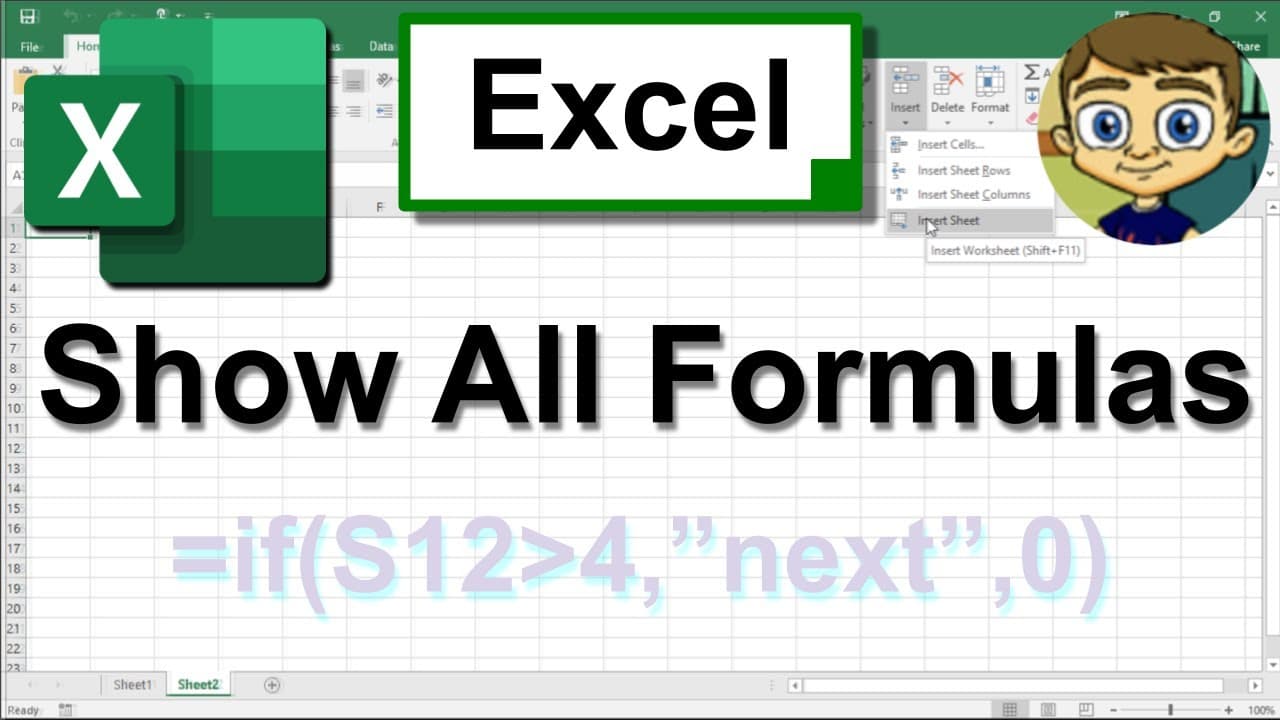
Learn how to quickly display all active formulas in your Excel worksheet and highlight cells referenced by a formula.
Transcript
in this video i will show you how to quickly and easily display all of the formulas that are active in your worksheet you'll also learn how to highlight all cells that are referenced by a formula first let's look at how to display all active formulas so here i am in microsoft excel you can see i have a spreadsheet listing some of the best guards in... Read More
Key Insights
- 🤩 You can display all active formulas in your Excel worksheet by holding Ctrl and tapping the grave accent key.
- 🤢 Clicking on a cell with a formula allows you to see the formula in the formula bar.
- 💄 Excel highlights the cells referenced by a formula when you click on it, making it easy to identify the data used.
- 🤩 Holding Ctrl and tapping the open square bracket key highlights the cells referenced by a formula without showing the formula itself.
Install to Summarize YouTube Videos and Get Transcripts
Explore YouTube Video Summarizer or Get YouTube Transcript Extractor
Questions & Answers
Q: How can I display all active formulas in my Excel worksheet?
To display all active formulas, hold the Ctrl key and tap the grave accent key. This will immediately show all cells that contain formulas in your worksheet.
Q: How can I see what cells are referenced by a formula in Excel?
Click on the cell with the formula, and Excel will highlight the referenced cells for that formula. You can easily identify the data that is being used in the formula.
Q: Can I view the actual formula in Excel?
Yes, by clicking on a cell with a formula, you can see the formula in the formula bar at the top of the Excel window. This allows you to understand the calculation being performed.
Q: How can I highlight the cells referenced by a formula without seeing the formula itself?
Click on the cell with the formula, hold the Ctrl key, and tap the open square bracket key. This will highlight all the cells that are referenced by the formula you selected.
Key Insights:
- You can display all active formulas in your Excel worksheet by holding Ctrl and tapping the grave accent key.
- Clicking on a cell with a formula allows you to see the formula in the formula bar.
- Excel highlights the cells referenced by a formula when you click on it, making it easy to identify the data used.
- Holding Ctrl and tapping the open square bracket key highlights the cells referenced by a formula without showing the formula itself.
- These techniques are useful for working with formulas and functions in Excel.
Summary & Key Takeaways
-
You can easily display all the active formulas in your Excel worksheet by holding the Ctrl key and tapping the grave accent key.
-
By clicking on a cell with a formula, you can see the formula in the formula bar, and Excel will highlight the referenced cells for that formula.
-
To highlight the cells referenced by a formula without seeing the formula itself, click on the cell with the formula, hold the Ctrl key, and tap the open square bracket key.
Read in Other Languages (beta)
Share This Summary 📚
Summarize YouTube Videos and Get Video Transcripts with 1-Click
Try YouTube Summary with ChatGPT & Claude or YouTube Transcript Generator
Explore More Summaries from Technology for Teachers and Students 📚




Summarize YouTube Videos and Get Video Transcripts with 1-Click
Try YouTube Summary with ChatGPT & Claude or YouTube Transcript Generator