How to Navigate and Create Tours in Google Earth
TL;DR
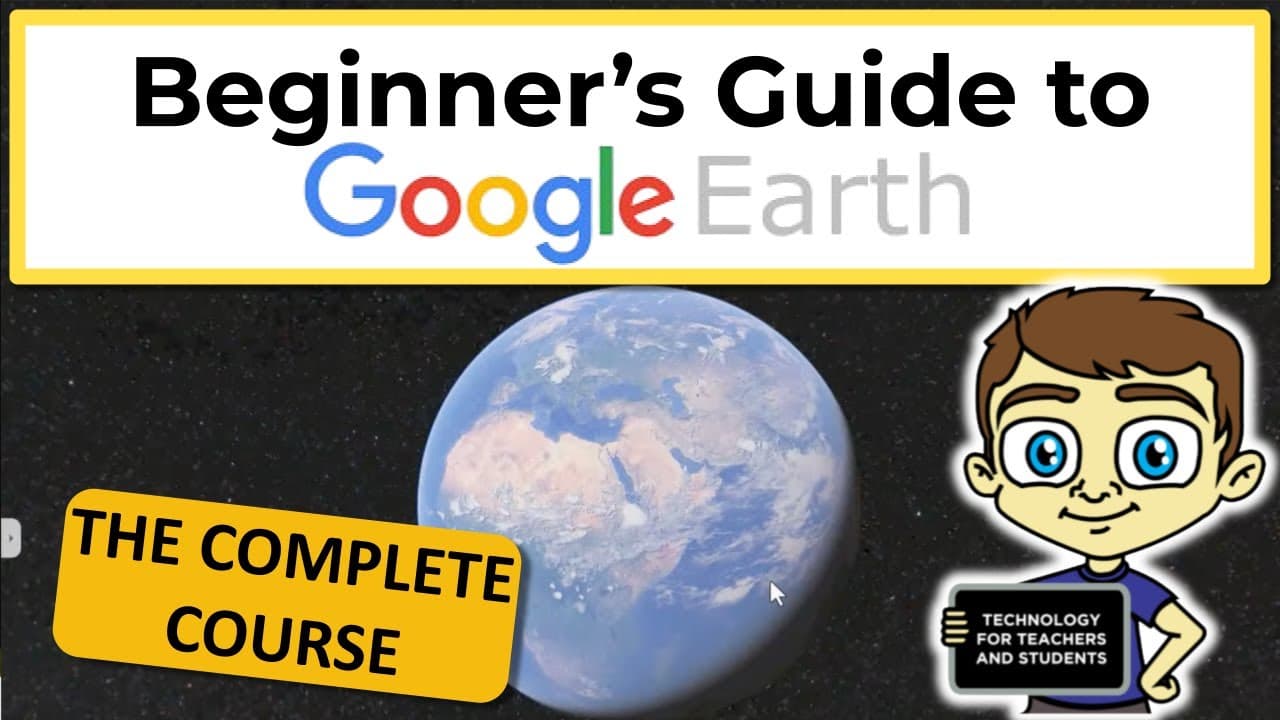
Access Google Earth at earth.google.com, sign in, then search for places, landmarks, or exact addresses and explore them with zoom, 2D or 3D views, Street View, and compass controls. Layers can add labels, photographs, timelapse imagery, grid lines, clouds, and 3D coverage, while projects let you begin creating and saving virtual tours.
Transcript
this is Google Earth for beginners the complete course let's get started so in this video you're going to learn everything you need to know about Google Earth Step One is how to access it just go to earth. goole.com and sign into your Google account and this is where you'll find yourself and in this first segment of Google Earth for beginners the c... Read More
Key Insights
- Google Earth is a 3D model of the planet that combines aerial photography with 3D models. Users can rotate the globe by clicking and dragging, then examine a location more closely by double-clicking repeatedly or using a mouse scroll wheel.
- Google Earth search can locate countries, towns, famous landmarks, and exact street addresses. Entering a query causes the service to fly virtually to the requested destination, making search a faster alternative to manually navigating across the globe.
- Street View is activated by dragging the small person icon onto an available city street. Once placed at street level, users can look around by clicking and dragging, move along the road with arrows, and exit through the arrow in the upper-left corner.
- The 2D and 3D control changes how terrain and buildings are presented. The 3D view tilts the scene to resemble an angled aerial perspective, and detailed building models may initially appear pixelated while Google Earth continues processing them.
- The compass provides controls for viewing tilt and directional heading. Users can change whether they face north, south, east, or west, and the reset-to-north option offers a quick way to recover when the current orientation becomes confusing.
- Google Earth layers determine which labels, borders, roads, places, and other information are visible. Clean view removes these elements, exploration view includes labels and borders, everything adds more information, and custom settings let users select individual categories.
- Turning off 3D buildings can improve the browsing experience when numerous models slow the browser or obscure the information being examined. The setting is optional, so users can restore 3D buildings whenever their visual detail is useful.
- Additional layers provide specialized ways to study the planet, including a global timelapse from 1984 to today, location-based photographs, 3D coverage, updated imagery, latitude and longitude grid lines, and animated clouds that move and shift across the view.
Install to Summarize YouTube Videos and Get Transcripts
Explore YouTube Video Summarizer or Get YouTube Transcript Extractor
Questions & Answers
Q: How do you access and start using Google Earth?
Go to earth.google.com and sign in to your Google account. Google Earth opens with a model of the planet that you can rotate by clicking and dragging. Double-click a location repeatedly or use the mouse scroll wheel to move closer. You can also use the on-screen zoom controls when you prefer buttons instead of mouse gestures.
Q: How do you search for a place in Google Earth?
Use the search field in the upper-left area and enter a country, town, famous landmark, or exact street address. After you press Enter, Google Earth flies virtually to that destination. Searches can be broad, such as New Zealand, or more specific, such as Napier, the Eiffel Tower, or the address of a particular house.
Q: How do you use Street View in Google Earth?
Zoom into or search for a city or town with available streets, then click and drag the small person icon onto a street. Releasing the mouse places you in Street View. Click and drag to look around, use the displayed arrows to move along the road, and select the upper-left arrow when you want to exit.
Q: How do you switch between 2D and 3D views in Google Earth?
Select the 2D or 3D view button to alternate between the two presentations. The 3D setting tilts the scene so it resembles a view from a helicopter or airplane and can display buildings as three-dimensional models. Those models may look pixelated at first, but their appearance improves as Google Earth processes and loads them.
Q: How do you control direction and tilt in Google Earth?
Open the compass control to adjust the tilt and directional heading of the current view. It lets you change whether you are facing north, south, east, or west and provides more control than the basic 2D or 3D switch. If the orientation becomes confusing, select the reset option to face north again.
Q: What do the main layer views change in Google Earth?
The main layer views control the amount and type of information shown over the planet. Clean view removes borders, labels, places, and roads. Exploration view restores labels and borders, while everything adds information such as water and transit details. Custom settings let you select particular place categories, including attractions, while excluding categories you do not want.
Q: Why would you turn off 3D buildings in Google Earth?
Turning off 3D buildings makes the displayed landscape flat, which can be useful when a large number of building models slows the browser or hides the information you are trying to examine. The option is available through Layers. When performance and visual obstruction are not concerns, the models can remain enabled to show structures in three dimensions.
Q: How do you begin creating a virtual tour in Google Earth?
Make sure the left panel is visible, using the panel button if it is hidden, and adjust its width by dragging the two bars if needed. Select New, then choose to create a project. One available method saves the tour as a local KML file, which is small but remains stored on that particular computer.
Summary & Key Takeaways
-
Google Earth presents a navigable 3D model of the planet that combines aerial photography with 3D models. Users can click and drag to rotate the globe, double-click or scroll to zoom, and search for countries, towns, landmarks, or exact street addresses to fly directly to a selected destination.
-
Navigation controls provide several ways to inspect a location. Street View places users at road level, while the 2D and 3D button changes the viewing angle. The compass controls tilt and heading, reset restores north orientation, and dedicated buttons offer another method for zooming into or away from the landscape.
-
Layers change the information and visual detail displayed in Google Earth. Users can select clean, exploration, everything, or custom views, then activate features such as photographs, timelapse, 3D coverage, updated imagery, latitude and longitude grid lines, and animated clouds. Projects provide a starting point for building virtual tours.
Read in Other Languages (beta)
Share This Summary 📚
Summarize YouTube Videos and Get Video Transcripts with 1-Click
Try YouTube Summary with ChatGPT & Claude or YouTube Transcript Generator
Explore More Summaries from Technology for Teachers and Students 📚

Summarize YouTube Videos and Get Video Transcripts with 1-Click
Try YouTube Summary with ChatGPT & Claude or YouTube Transcript Generator