How to Create a Microsoft Forms Survey Step by Step
TL;DR
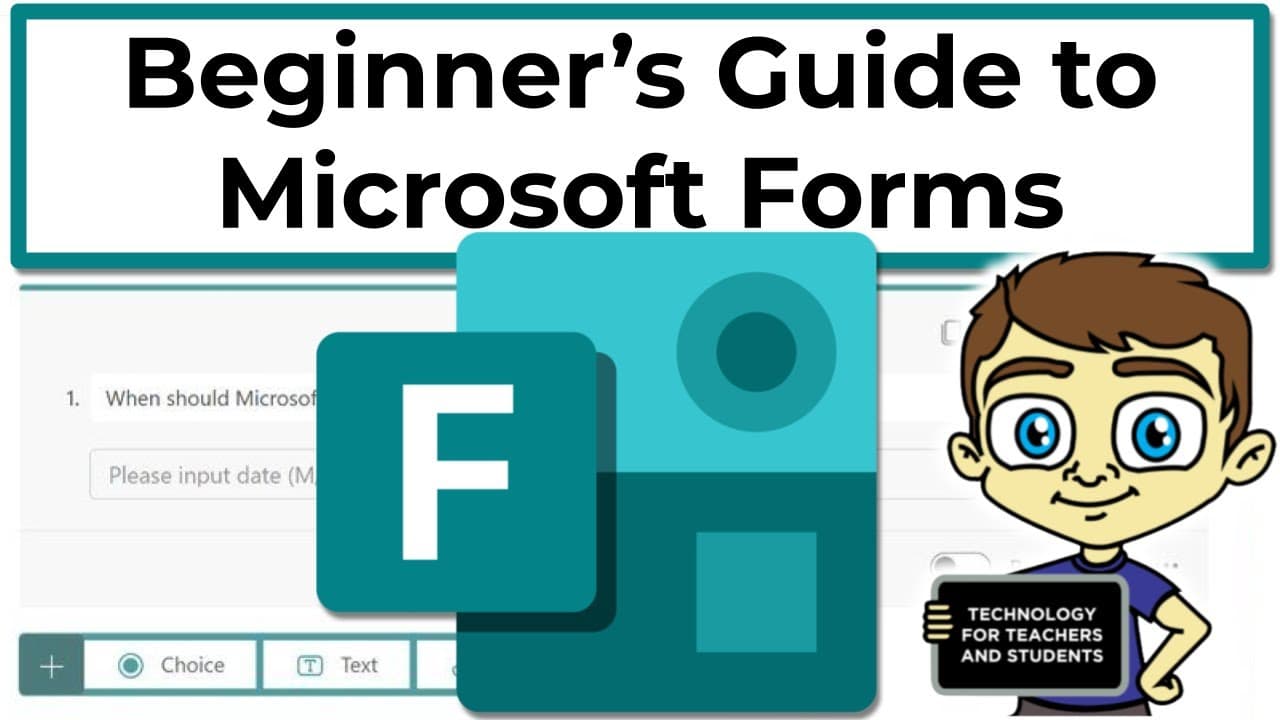
You can create surveys, quizzes, and polls in Microsoft Forms by signing in and choosing a form type. Then you customize the title, description, and cover image, add questions, and adjust settings to collect responses and manage availability. Preview shows how it looks on devices, and you can share the form when ready.
Transcript
This is the beginner's guide to Microsoft Forms. In this tutorial, I will teach you what you need to know to get started using this fantastic tool. No experience needed. It's going to be fun. Let's get started. And what is Microsoft Forms? It's a web-based tool that enables you to quickly create surveys, quizzes, and polls. You can customize templa... Read More
Key Insights
- Forms is a web based tool for surveys, quizzes, and polls
- Access Forms by visiting forms.microsoft.com and sign in
- You can customize a form with a title, description, and cover image
- Forms supports various question types including text, multiple choice, ranking, and rating
- Respondents can be limited or allowed multiple submissions via settings
- Branching and restrictions help tailor responses and ensure accuracy
- Preview mode lets you see the form on desktop and mobile
- You control response collection start and end times and notification options
Install to Summarize YouTube Videos and Get Transcripts
Explore YouTube Video Summarizer or Get YouTube Transcript Extractor
Questions & Answers
Q: How do you access Microsoft Forms and start a new form?
To access Microsoft Forms, go to forms.microsoft.com and sign in. Once you are signed in, you can click to start a new form like a survey or quiz. From there you will add a title, a description, and optionally a cover image. This initial setup helps define the purpose of your form and sets the stage for gathering responses efficiently.
Q: What steps are involved in creating the form’s title and description?
First, click to start editing the form and enter a clear title such as Reunion Questionnaire. Then add a short description that explains the form’s purpose, what kind of information you are collecting, and any instructions for respondents. This helps respondents understand why they are taking the form and what to expect when submitting their answers.
Q: How can you customize the cover image for a form?
You can add a visual cover image by clicking the image icon, which opens a Bing image search. Enter a relevant keyword like family reunion to find an appropriate image, select one, and click add. The cover image appears at the top of the form to make it more engaging for respondents.
Q: What variety of question types does Microsoft Forms support?
Microsoft Forms supports several question types including text for short or long answers, multiple choice with several options, ranking to order items, and rating using stars or other symbols. You can adjust options such as making a question required, allowing multiple answers, and reordering or shuffling options as needed.
Q: How do you control how many times a respondent can submit a form?
In the form settings you can decide whether respondents can submit more than once. You can allow multiple responses or restrict to a single submission per respondent. This setting helps you balance data collection needs with preventing duplicate entries in your survey data.
Q: What is the purpose of branching and how is it used?
Branching is a powerful feature that lets you guide respondents through different questions based on their previous answers. By enabling branching, you can tailor the form flow to collect more relevant data from each respondent, thereby improving data quality and respondent experience.
Q: Why is previewing the form important and how is it done?
Previewing lets you see how the form will appear to respondents on both desktop and mobile devices, ensuring readability and usability. You can switch to preview mode from the editor to fill out the form as a test respondent, verify question logic, and adjust layout or wording before sharing publicly.
Q: What settings help manage when and how responses are collected?
Settings let you enable or disable accepting responses, set a start date and end date, and specify how long responses are open. You can also enable email notifications for each response and customize a thank you message after submission. These controls help you manage timing, data flow, and respondent interaction.
Summary & Key Takeaways
-
This video walks through accessing Microsoft Forms, starting a new form like a survey, and naming it with an explanation to set the context for respondents. It shows how to add a cover image, a description, and organize the form’s layout for clarity and engagement.
-
It covers creating various question types such as short answer, multiple choice, ranking, and rating, including options like required fields, restrictions, and branching to tailor the respondent experience.
-
The guide finishes with how to review settings, enable or restrict responses, and preview the form on mobile and desktop to ensure a smooth submission process before sharing.
Read in Other Languages (beta)
Share This Summary 📚
Summarize YouTube Videos and Get Video Transcripts with 1-Click
Try YouTube Summary with ChatGPT & Claude or YouTube Transcript Generator
Explore More Summaries from Technology for Teachers and Students 📚
Summarize YouTube Videos and Get Video Transcripts with 1-Click
Try YouTube Summary with ChatGPT & Claude or YouTube Transcript Generator