How to Use Excel for Beginners: Complete Basics Guide
TL;DR
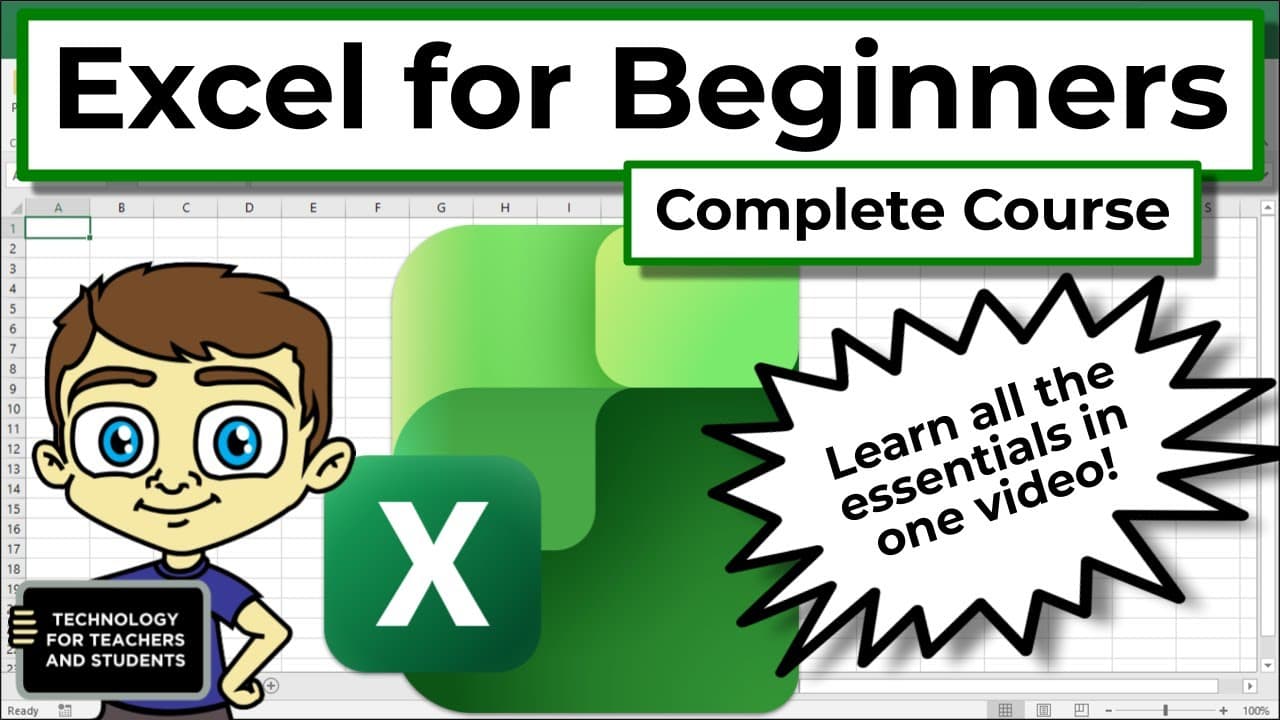
Excel organizes data in workbooks made of sheets, columns, rows, and cells, where each cell is named by its column letter and row number (like F8). Select a cell before typing, press Enter to confirm, and use the green fill handle to auto-extend patterns like sequential numbers down a column instantly.
Transcript
this is Excel for beginners the complete course it doesn't matter how little experience you have in Excel I promise you that as you watch this video and follow along that you will learn everything you need to know to get started using Excel effectively don't be intimidated by Excel you can do it and regardless of what version of excel you're using ... Read More
Key Insights
- A workbook is the collection of all sheets in an Excel file, while a single sheet is called a spreadsheet or worksheet. You can add more sheets by clicking the plus sign, and a new workbook starts with at least one sheet.
- A cell is the intersection of a column and a row, and each one is named by its column letter and row number, such as F8, L4, or B7. This naming makes powerful referencing possible across Excel.
- A range is a group of cells selected together, described by its upper-left and lower-right corners joined with a colon, for example D4:j14. This reference notation becomes increasingly useful as you keep working in Excel.
- The ribbon is the band of tool buttons below the tabs, and it changes completely when you click a different tab like Formulas or View. Each ribbon is divided into groups separated by lines, such as charts, tables, and comments.
- The 'Select to effect' rule means you must first select a cell before you can change its data. Click a cell once to select it, then type to enter a value, which only truly enters after you tap Enter or Return.
- The fill handle is the small green square in the lower-right corner of a selected range that extends recognized patterns. Dragging it after selecting cells numbered 1, 2, 3, 4 automatically continues the sequence down the spreadsheet.
- Clicking ON a cell selects the whole cell, so typing erases its entire contents, while double-clicking gets you INSIDE the cell to edit specific text without retyping everything. This distinction matters when fixing one misspelled word.
- The name box in the upper-left shows the reference of whichever cell is selected, and the formula bar near the top is where you enter formulas. An Excel workbook can contain over 17 billion cells.
Install to Summarize YouTube Videos and Get Transcripts
Explore YouTube Video Summarizer or Get YouTube Transcript Extractor
Questions & Answers
Q: What is the difference between a workbook and a worksheet in Excel?
A worksheet, also called a sheet or spreadsheet, is a single grid of columns and rows where you enter data. A workbook is the collection of all those sheets together in one Excel file. Every workbook always has at least one sheet, shown in the lower left as Sheet 1, and you can add more sheets by clicking the plus sign to turn one sheet into two, three, or more within the same workbook.
Q: How are cells named in Excel?
Every cell in Excel is named by the intersection of its column letter and row number. For example, the cell where column F meets row 8 is called F8, and other cells are named L4 or B7 the same way. Because every single cell can be described this way, many powerful possibilities open up as you use Excel more. When you click a cell it becomes the active cell, and its name appears in the name box in the upper-left corner.
Q: How do you describe a range of cells in Excel?
A range is a collection of cells grouped together, usually selected by clicking and dragging. You describe a range by naming its upper-left corner cell first, then its lower-right corner cell, joined by a colon which indicates 'through.' For example, a range starting at D4 and ending at j14 is written D4:j14. This reference notation becomes more and more useful and important as you continue working in Excel.
Q: What is the fill handle and how does it work?
The fill handle, also called the autofill handle, is the small green square in the lower-right corner of a selected range. When you point at it, the cursor becomes a black plus sign. Excel is set up to identify patterns and extend them, so if you select cells containing 1, 2, 3, 4 and drag the fill handle down, Excel automatically continues the pattern, filling in 5, 6, 7 and beyond, all the way to 70 if you drag that far. This saves you from repetitively typing each value.
Q: Why does typing in a selected cell erase what was already there?
When you click ON a cell once, the whole cell is selected, so the first letter you type erases whatever content the cell already held. This is fine for new entries but a problem when only one word in a longer cell is wrong. To fix a misspelling without retyping everything, double-click the cell instead. Double-clicking gets you INSIDE the cell, showing a flashing cursor you can move with the arrow keys to edit the exact spot, then press Enter to confirm the correction.
Q: What is the ribbon in Microsoft Excel?
The ribbon is the area of tool buttons displayed below the tabs across the top of the Excel screen. When you click a different tab, such as Formulas or View, the ribbon changes completely to show the tools for that tab. Each ribbon is divided into groups separated by lines, like a charts group, tables group, or comments group. Some groups have a small launch button, also called a dialogue launcher, that opens even more options than fit in the ribbon's space.
Q: How do you enter data into a cell in Excel?
The rule to remember is 'Select to effect': to affect a cell you must first select it by clicking on it once. Then type your value, which appears in the cell but is not truly entered until you tap Enter or Return on the keyboard. When you press Enter, the active cell moves down one, ready for the next entry. To move up the spreadsheet instead, hold the Shift key while tapping Enter.
Q: What are the main layout features you should know in Excel?
Key layout features include the tabs across the top and their ribbons of tool buttons divided into groups with optional launch buttons. On the right is a vertical scroll bar, plus a horizontal scroll bar and a zoom slider that zooms in or out without changing data. View buttons in the lower right switch between normal, page break preview, and page layout views. The upper-left name box shows the selected cell's reference, the quick access toolbar holds common commands like save and undo, and the formula bar is where you enter formulas.
Summary & Key Takeaways
-
The course opens with the anatomy of a spreadsheet: workbooks contain sheets, sheets are made of columns (letters) and rows (numbers), and their intersection forms a cell. Every cell is named by column and row, like F8, and a workbook can hold over 17 billion cells.
-
A range is a group of cells referenced by its top-left and bottom-right corners joined with a colon, such as D4:j14. The layout covers tabs, the ribbon that changes per tab, groups with launch buttons, scroll bars, the zoom slider, view buttons, the name box, quick access toolbar, and formula bar.
-
Entering data follows the 'Select to effect' rule: select a cell, type, then press Enter to confirm and move down. The fill handle auto-extends patterns like number sequences, and double-clicking a cell lets you edit text inside rather than overwriting the whole cell.
Read in Other Languages (beta)
Share This Summary 📚
Summarize YouTube Videos and Get Video Transcripts with 1-Click
Try YouTube Summary with ChatGPT & Claude or YouTube Transcript Generator
Explore More Summaries from Technology for Teachers and Students 📚


Summarize YouTube Videos and Get Video Transcripts with 1-Click
Try YouTube Summary with ChatGPT & Claude or YouTube Transcript Generator