How to begin with Excel 2016 basics and navigation
TL;DR
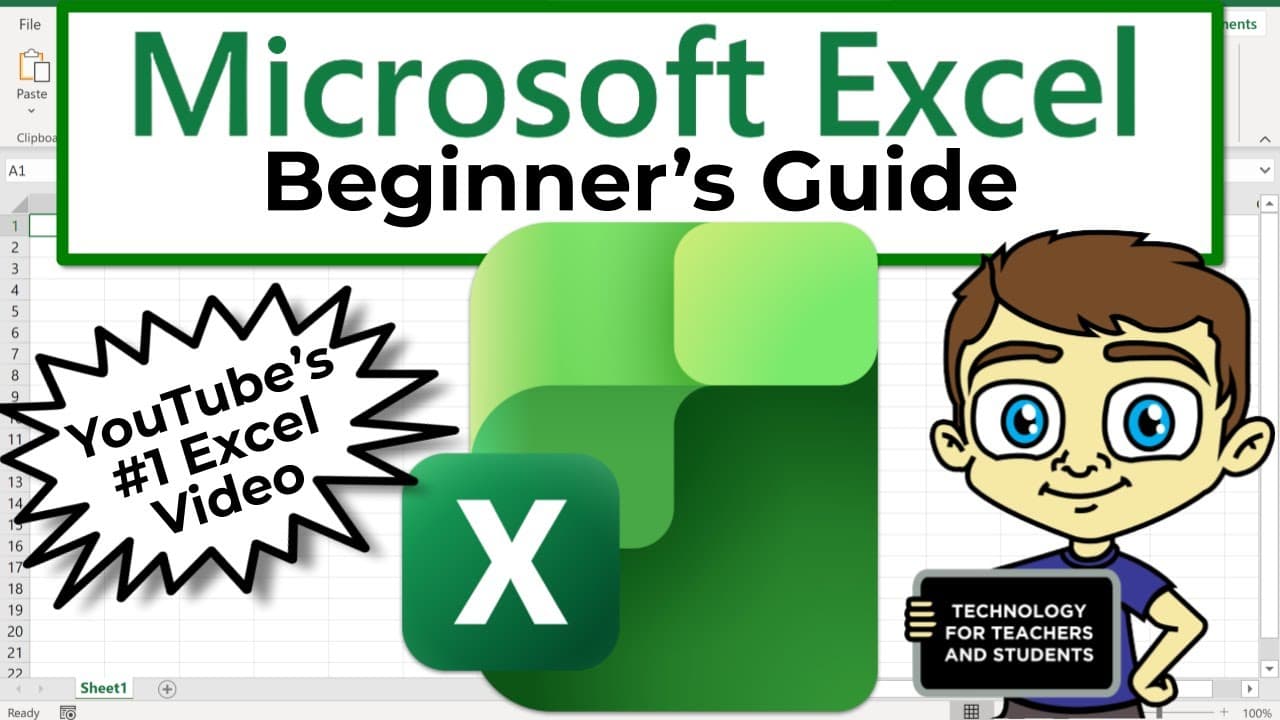
The video explains the core building blocks of Excel: how to start with a blank workbook or use templates, understand the ribbon, tabs, groups, and launch buttons, and identify columns, rows, cells, and ranges. It also covers basic navigation, zooming, and entering data for a simple movie inventory example.
Transcript
Welcome to this excel basics video tutorial in this tutorial I'll be showing you most of the basics that you need to know in order to get started using Microsoft excel and The version of excel that I'm going to be using in this tutorial is excel 2016 [for] Windows having said that if you're using a different version of excel Maybe an older version ... Read More
Key Insights
- Excel workbooks are built from sheets, which together form a workbook.
- A worksheet contains columns, rows, and cells, and every cell has a name like A1 or M9 for precise reference.
- Ranges are groups of adjacent cells that can be named using a top-left to bottom-right format.
- Templates provide ready made templates such as budgets or invoices that can be opened and edited.
- The ribbon is organized into tabs, each tab reveals a ribbon with groups of related options.
- Launch buttons in some groups give access to additional options beyond visible tools.
- Entering text can spill over visually but is stored in the original cell, and text width can be adjusted by stretching columns.
- Navigation can be done with Enter, Shift Enter, Tab, Shift Tab, or arrow keys for moving around the grid.
Install to Summarize YouTube Videos and Get Transcripts
Explore YouTube Video Summarizer or Get YouTube Transcript Extractor
Questions & Answers
Q: What is the basic structure of an Excel file and how do sheets relate to a workbook?
An Excel file is organized into worksheets, and multiple sheets together make up a workbook. Each sheet is a separate canvas where you can enter data, formulas, or templates. The collection of sheets in a workbook allows you to manage related datasets in one file while keeping data organized across different pages.
Q: How do you move around cells and enter data efficiently in Excel 2016?
To move around, you can use the Enter key to move down, Shift plus Enter to move up, the Tab key to move right, and Shift plus Tab to move left. You can also use the arrow keys for navigation. For data entry, type in a cell and press Enter to store the value, then continue with Tab to the next cell.
Q: What is a range in Excel and how is it named?
A range is a group of adjacent cells treated as a single block for operations. You name a range by identifying the upper left cell, then using through to the lower right cell, for example L7 through N12. The named range helps reference a block of cells in formulas and data management.
Q: What is the purpose of the template gallery in Excel 2016, and when should you use it?
Templates provide pre built spreadsheets such as budgets, cash flow analysis, or invoices. They can save time by offering ready made structures and formatting. You should use templates when you want to start quickly with a professional layout and only adjust data, not create the entire structure from scratch.
Q: What are ribbons and launch buttons in Excel, and how do they help users?
Ribbons are the visual interface containing tabs and groups that organize related tools. Launch buttons in some groups provide access to additional options beyond what is immediately visible on the ribbon. They help users access more advanced settings without cluttering the main interface.
Q: How can you adjust the readability of a spreadsheet for viewing, and what is the effect of zooming?
To improve readability, you can zoom in or out using the slider in the lower right corner. Zooming changes the display size of the spreadsheet on screen, making it easier to view data and enter information precisely, especially when dealing with long headers or dense data.
Q: What is the difference between a cell name and a cell location in Excel?
A cell location like A1 or M9 refers to the cell’s coordinates by column and row. A cell name is a label you assign to a specific cell or range to reference it more conveniently in formulas and data operations. Both concepts help with precise data manipulation.
Q: What basic data entry scenario is used in the video to illustrate Excel use, and what can you learn from it?
The video uses a movie inventory example to show entering a title and basic data into a spreadsheet. This scenario teaches you how to start a data table, enter headers, and understand how data appears in cells, while also demonstrating simple formatting and navigation techniques for better organization.
Summary & Key Takeaways
-
This summary covers the fundamental layout of Excel including the ribbon, tabs, groups, and launch buttons which help users access more options. It also explains workbook components such as sheets, columns, rows, and cells, and introduces range naming conventions for efficient data manipulation. The example uses a movie inventory to illustrate data entry and navigation.
-
The video demonstrates how to start a new workbook, browse templates, and zoom for readability. It then teaches basic data entry, cell referencing, and navigation using Enter, Tab, and Shift plus Enter. It emphasizes naming ranges and understanding how worksheets combine into a workbook.
-
The tutorial emphasizes practical steps for beginners to get productive quickly, focusing on terminology and simple data entry techniques that improve readability and organization, while noting cross version applicability from Excel 2016 to newer or older releases.
Read in Other Languages (beta)
Share This Summary 📚
Summarize YouTube Videos and Get Video Transcripts with 1-Click
Try YouTube Summary with ChatGPT & Claude or YouTube Transcript Generator
Explore More Summaries from Technology for Teachers and Students 📚


Summarize YouTube Videos and Get Video Transcripts with 1-Click
Try YouTube Summary with ChatGPT & Claude or YouTube Transcript Generator