How to create and edit images with OpenAI Image API in n8n
TL;DR
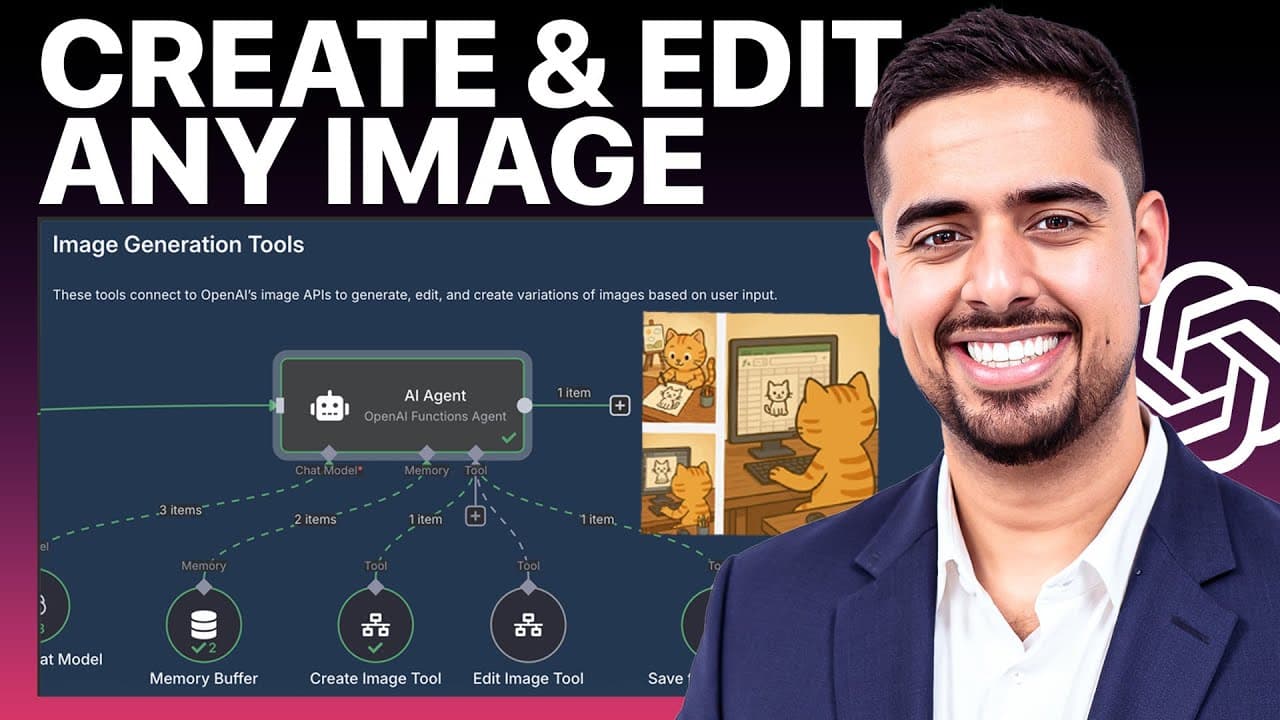
You can generate and edit images using OpenAI’s Image API inside an n8n AI agent, saving results to Google Sheets. The workflow routes prompts to create or edit actions, uploads assets to Google Drive, and records each version for tracking. This setup works with multiple image models and supports iterative refinement.
Transcript
OpenAI just released their image generation API that everyone's been waiting for. And in this video, I'm going to show you exactly how you can start using it to create and edit videos in NAD. I'm going to walk through this easy three-part system that you can download and use right away. Let's dive right in. All right. So, at a high level, it's a pr... Read More
Key Insights
- OpenAI's image generation API is used to create new images from text prompts.
- The workflow includes an image editing step to modify or extend existing images.
- n8n's AI agent module orchestrates the create and edit actions based on the chat trigger.
- Results are saved to a Google Sheet to track different image iterations.
- There is support for multiple image models including Dolly 2, Dolly 3, and GPT image-1.
- Images are stored and referenced via Google Drive links embedded in the workflow output.
- The process uses a binary base64 conversion to transfer image data during automation.
- A Google Drive presence check is used before uploading or referencing images in the system.
- More videos from this channel:
- More from this channel: Mark Kashef
Install to Summarize YouTube Videos and Get Transcripts
Explore YouTube Video Summarizer or Get YouTube Transcript Extractor
Questions & Answers
Q: How does the n8n agent decide whether to generate a new image or edit an existing one?
The n8n AI agent module receives a chat trigger and uses a system prompt that defines two possible operations: generate new images from text descriptions, and edit or extend existing images. The logic routes the request accordingly, selecting the appropriate OpenAI image API endpoint and workflow steps for creation or modification, then saving the result to Google Sheets.
Q: What models are supported for image generation in this workflow?
The workflow mentions three potential models that can be invoked: Dolly 2, Dolly 3, and GPT image-1. Dolly 2 is noted as probably less useful, while Dolly 3 and GPT image-1 are highlighted as the primary options to call for image generation and editing within the n8n setup.
Q: How are generated images stored and tracked after creation?
Generated images are uploaded to Google Drive and linked back into the chat, with a final link embedded for easy access. A Google Sheet records each run, including the prompt, model used, type of request (create or edit), and the resulting image link, providing a traceable log of all iterations.
Q: Can existing image edits reference an image that is not in Google Drive?
The edit workflow first checks if the referenced image exists in Google Drive. If it does, it downloads that image and creates a variation. If not, it attempts to process the target image address directly, though this scenario is described as more experimental and not guaranteed to work in all cases.
Q: How does the system handle image data during automation for transfer efficiency?
When images are generated or edited, the data is converted into a binary format (base64) for transfer through the automation steps. This ensures the image data can be carried through the various sub-workflows until it reaches Google Drive and is embedded in the chat output.
Q: What is the role of Google Sheets in this setup?
Google Sheets acts as a centralized log for all image generation and edit iterations. Each row captures key metadata such as the image link, type of request, the model used, and the prompt. This structure enables easy tracking, auditing, and collaboration for multiple iterations.
Q: How does the system ensure image links are usable in chat outputs?
Links are formatted to be embeddable so that once an image is uploaded to Google Drive, the link can be embedded in the chat output. If multiple images are produced, the workflow aggregates and returns multiple links for convenient access directly from the chat.
Q: What is the purpose of the AI agent prompt in this workflow?
The AI agent prompt defines the agent as an AI image generation assistant that helps users generate and edit images using OpenAI’s image APIs. It clarifies the two operation types, the decision logic for handling requests, and the storage behavior to ensure consistent, clear guidance for the agent to follow during execution.
Summary & Key Takeaways
-
This guide demonstrates a three-part n8n workflow for image generation, editing, and logging. It emphasizes using the OpenAI Image API through an AI agent module to manage prompts and actions. It also shows how to store outcomes in Google Sheets for version tracking.
-
The system prompts the AI agent to handle two operations, create from text descriptions and edit existing images, with explicit pathways for each action and data storage.
-
Users can swap models and manage image iterations with Google Drive links embedded for easy access and reference throughout the process.
Read in Other Languages (beta)
Share This Summary 📚
Summarize YouTube Videos and Get Video Transcripts with 1-Click
Try YouTube Summary with ChatGPT & Claude or YouTube Transcript Generator
Explore More Summaries from Mark Kashef 📚


Summarize YouTube Videos and Get Video Transcripts with 1-Click
Try YouTube Summary with ChatGPT & Claude or YouTube Transcript Generator