How to build an AI email agent with n8n no code
TL;DR
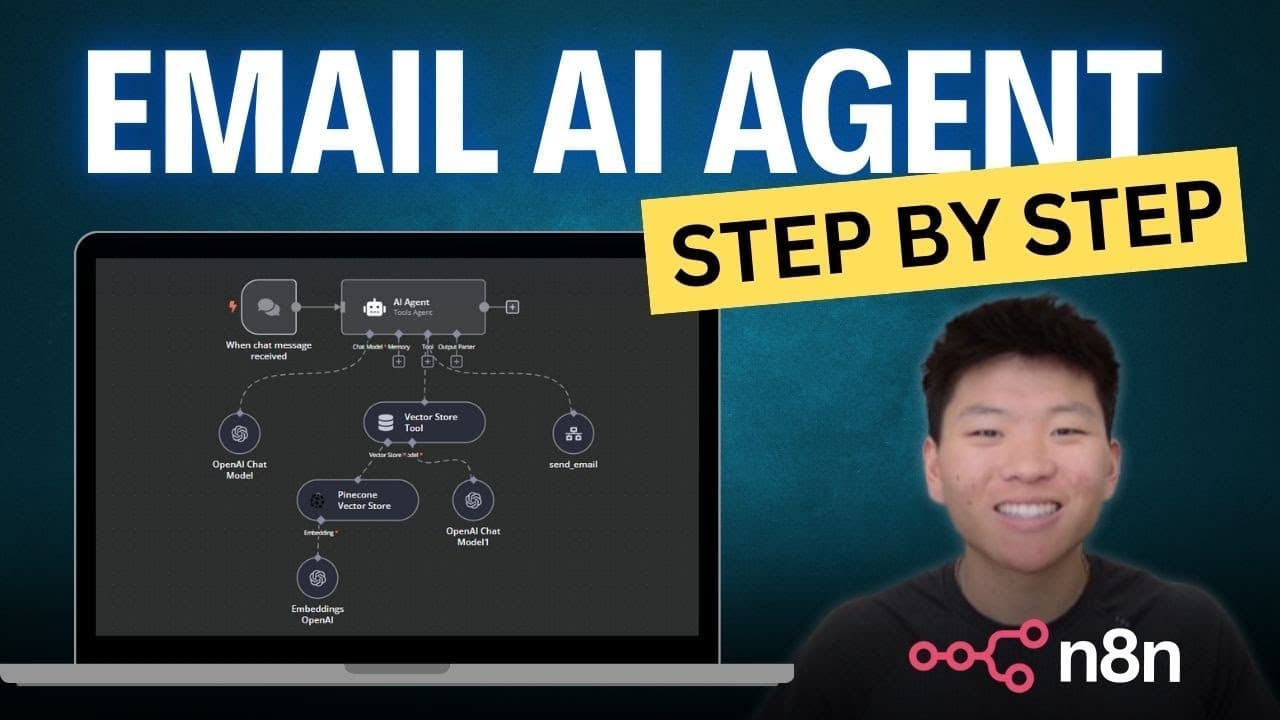
The video explains how to assemble a simple AI email agent using n8n, Pinecone, Google Docs and OpenAI without writing code. It covers creating a Google Docs data source, pushing contact data into a Pinecone vector store, and wiring an email tool and agent workflow for automated sending. It also shows credential setup and testing steps.
Transcript
all right so today I'm going to be walking through step by step how to build a super simple email AI agent if you know anything about agents you know that they can get super complex as you give them access to more tools and expose them to different scenarios so I just wanted to keep this first one super simple just to give everyone a good understan... Read More
Key Insights
- The agent setup starts by selecting a manual trigger in n8n to control when the workflow runs, ensuring you can test each step before full automation. This keeps testing predictable and resource usage low.
- The Google Docs node is used to fetch a document by ID, which supplies the contact data that will be pushed into the Pinecone vector store for fast retrieval by the agent.
- Pinecone is configured as a vector database with a specific index name and a context namespace to organize data, enabling efficient search and retrieval by the agent when composing emails.
- Embedding generation uses OpenAI, with a model setting that matches the Pinecone configuration to ensure consistency between data indexing and query processing.
- Credentials for Google Docs API and Pinecone API are created and linked within n8n, emphasizing secure handling of client IDs, secrets, and API keys during setup.
- The data loader and token splitter manage how the document data is chunked before embedding, affecting the balance between context coverage and retrieval speed.
- Testing the workflow involves pulling data from Google Docs, pushing it to Pinecone, and confirming the success by inspecting the Pinecone namespace and indices in real time.
- The final workflow combines the email sending tool with the agent logic, enabling automated email drafting and dispatch based on the indexed contact data and the language model output.
- More videos from this channel:
- More from this channel: Nate Herk | AI Automation
Install to Summarize YouTube Videos and Get Transcripts
Explore YouTube Video Summarizer or Get YouTube Transcript Extractor
Questions & Answers
Q: How to start building an AI email agent with no code using n8n
To start, set up a manual trigger in n8n to control when the workflow runs. Then add a Google Docs node to fetch a document by ID, ensuring you have the correct permissions and credentials. Connect a Pinecone node to push fetched data into a vector store and configure an OpenAI embedding step to create contextual representations. Finally, add an email tool and test the full flow to confirm the agent can draft and send messages automatically.
Q: What roles do Google Docs and Pinecone play in the setup?
Google Docs serves as the data source for contact information, while Pinecone acts as the vector store that indexes this data for fast retrieval by the agent. The workflow retrieves the document from Google Docs, extracts contact details, and pushes them into Pinecone under a defined namespace, enabling content based querying during email generation.
Q: How is embedding created for the agent?
Embedding is created using the OpenAI API with a model setting aligned to the Pinecone index configuration. This alignment ensures that the vector representations generated from the contact data are compatible with the storage and search operations in Pinecone, allowing the agent to locate relevant context efficiently when composing emails.
Q: What credential steps are required for Google Docs API in this setup?
You must create a Google Cloud project, enable the Google Docs API, and generate OAuth credentials including a client ID and client secret. Then configure the OAuth consent screen and provide a redirect URL as prompted, ensuring the app has permission to access Google Docs data for the workflow to run smoothly.
Q: How do you test the pine cone workflow in n8n?
Test begins by wiring the Google Docs node to fetch a document, then confirming the data is correctly loaded into Pinecone with the selected index and namespace. Use the test function to run the workflow and monitor the data as it appears in Pinecone, adjusting configuration if the data does not appear as expected.
Q: What is the purpose of the data loader and token splitter?
The data loader handles bringing in the raw document data into the workflow, while the token splitter breaks the text into chunks of configurable size. This chunking enables effective embedding and search within Pinecone, allowing the agent to retrieve relevant context pieces without overloading the vector store.
Q: How should the embedding model be selected for consistency?
Choose the OpenAI embedding model that matches the Pinecone index configuration, so the vector representations align with how the data is indexed. Consistency between embedding and indexing is critical for accurate retrieval when the agent searches for contextual information to include in emails.
Q: What is the final step to enable automated emailing with the agent?
The final step is to add an email sending tool to the workflow and connect it to the agent logic that uses the OpenAI generated text and retrieved context. Then test end to end by triggering the workflow, verifying that an email is drafted and dispatched to the intended recipient, and adjust any parameters as needed.
Summary & Key Takeaways
-
This overview demonstrates a step by step workflow to connect Google Docs, Pinecone, and OpenAI inside n8n to push contact data and prepare an email agent. It emphasizes keeping the initial setup simple, using a manual trigger, and validating each connection before running the full pipeline.
-
The tutorial highlights how to configure credentials for Google Docs API, Pinecone API, and OpenAI, showing practical tips for authenticating services and ensuring the agent can access data securely during testing and deployment.
-
The end goal is a functioning, no code email agent that can fetch contact data, index it in a vector store, and compose emails using an LLM, all within an accessible no code environment for beginners.
Read in Other Languages (beta)
Share This Summary 📚
Summarize YouTube Videos and Get Video Transcripts with 1-Click
Try YouTube Summary with ChatGPT & Claude or YouTube Transcript Generator
Explore More Summaries from Nate Herk | AI Automation 📚

Summarize YouTube Videos and Get Video Transcripts with 1-Click
Try YouTube Summary with ChatGPT & Claude or YouTube Transcript Generator