How to Build an AI Code Editor with Next.js 16
TL;DR
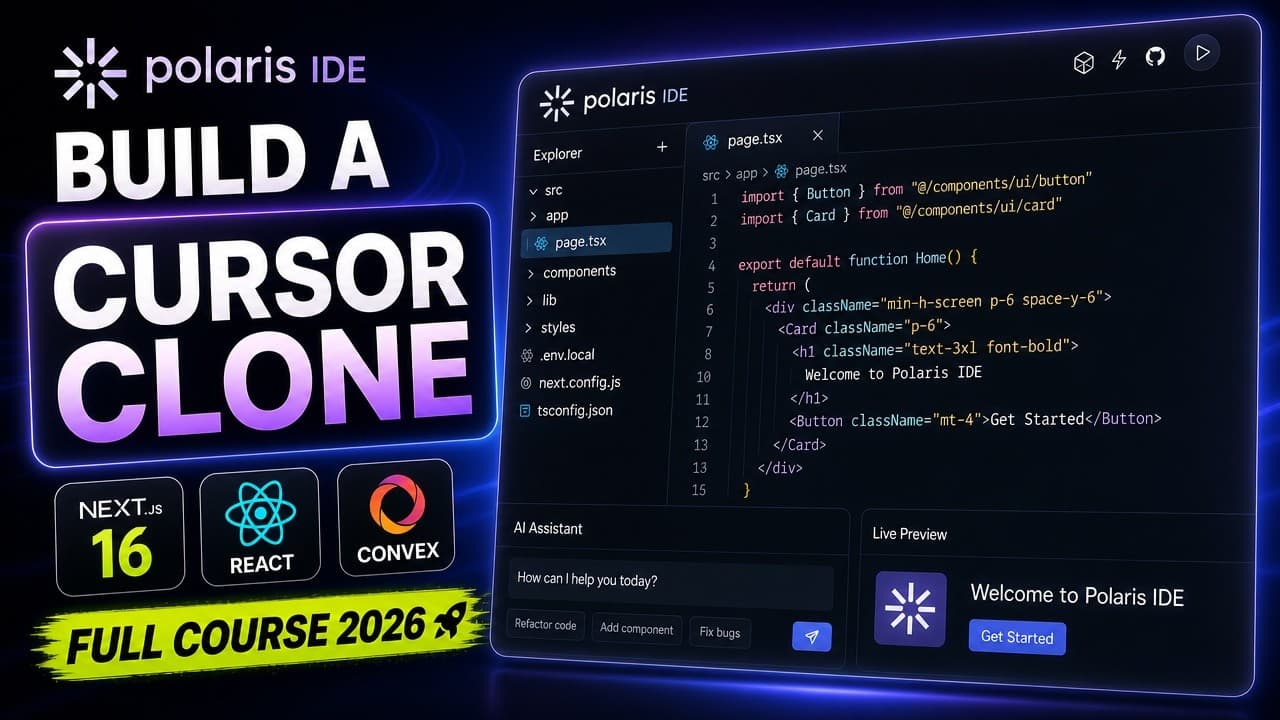
Building an AI IDE from scratch requires combining CodeMirror 6 for the editor, Convex for real-time database sync, WebContainers for in-browser Node.js execution, Inngest for background AI agent jobs, and Clerk for auth and billing. The tutorial project, called Polaris, adds ghost-text AI completions, a file-manipulating agent, Firecrawl URL scraping for fresh context, and GitHub import and export.
Transcript
AI editors like Cursor have changed how developers write code. But have you ever wondered what's actually happening behind the scenes? In this tutorial, we're building Polaris, a complete AI powered IDE from scratch, Ghost Text Suggestions, an AI agent that can create and modify your files, live preview running entirely in the browser, and full Git... Read More
Key Insights
- Polaris is an AI powered IDE built from scratch that includes ghost text suggestions, an AI agent capable of creating and modifying files, live preview running entirely in the browser, and full GitHub integration, demonstrating how modern AI coding tools like Cursor actually work under the hood.
- Convex's sync engine makes generated files, folders, and components available instantly with no refresh and no polling. Project creation works by describing what you want in plain English in the new project dialog, and the AI generates the entire project structure in real time.
- WebContainers provide a full Node.js environment directly in the browser, so the app runs with no local setup and no terminal commands. Install logs, development server output, and the live app all appear together in one place.
- The editor is built on CodeMirror 6 with full syntax highlighting, code folding, and a minimap. AI suggestions appear as ghost text while typing and are accepted with the Tab key, and the system is context aware, analyzing code around the cursor for relevant completions.
- Firecrawl removes the training cutoff limitation by scraping any URL and feeding it to the AI as context. Selecting code, opening quick edit, and pasting a URL lets documentation for a library released last week, a GitHub readme, or API references become live context.
- Inngest handles background processing, managing AI agent execution and retrying when something fails. It also runs GitHub repository imports as background jobs so large repositories import smoothly without blocking the user interface.
- Sentry provides error tracking and session replay plus a new AI monitoring feature that logs every LLM call with model, token counts, and cost per request, which is useful for keeping an eye on AI spend in production.
- The tutorial structures its Git workflow so each chapter is a branch and each feature is a pull request, with CodeRabbit performing AI powered pull request reviews, meaning viewers learn the complete Git workflow alongside building the product.
Install to Summarize YouTube Videos and Get Transcripts
Explore YouTube Video Summarizer or Get YouTube Transcript Extractor
Questions & Answers
Q: What tech stack is used to build an AI code editor like Cursor?
The full stack is Next.js and TypeScript for the foundation, Convex for the database and real-time sync, Clerk for authentication and billing, Inngest powering the AI agent and background jobs, CodeMirror 6 for the editor itself, WebContainers for in-browser code execution, Firecrawl for URL scraping, Sentry for error tracking and AI monitoring, and CodeRabbit for the GitHub pull request review workflow. The project built with this stack is called Polaris, and the tutorial presents it as a complete playbook for building AI powered developer tools rather than just a coding exercise.
Q: How do ghost text AI code suggestions work in a custom editor?
Ghost text suggestions appear inline as you type in the editor, which is built on CodeMirror 6 with full syntax highlighting, code folding, and a minimap. Pressing the Tab key accepts a suggestion. The system is context aware: it analyzes the code surrounding your cursor position in order to produce relevant completions rather than generic ones. This is the same interaction pattern that AI editors like Cursor use, and building it from scratch shows what is actually happening behind the scenes in those tools.
Q: How can an AI coding assistant use documentation it was never trained on?
Firecrawl solves this by scraping web pages on demand and feeding them directly to the AI as context. In the tutorial's implementation, you select any code, open quick edit, and paste a URL. Firecrawl scrapes that page and passes the content to the model. This means documentation for a library that launched last week, a GitHub readme, or API references can instantly become context. The AI is no longer limited to what it was trained on, which is the core value of the Firecrawl integration.
Q: What is WebContainers used for in a browser based IDE?
WebContainers give you a full Node.js environment running right in the browser, which is what makes the live preview possible. Because of this, the app being built is already running without any local setup and without running terminal commands. The interface shows install logs, development server output, and the live application all in one place. This removes the usual friction of cloning a project, installing dependencies locally, and starting a dev server before you can see anything working.
Q: Why should you pin Next.js to a specific version when following a tutorial?
The instructor installs Next.js version 16.1.1 explicitly instead of using latest, even though 16.1.1 was the newest version at recording time. The reason is that viewers may find the video a month, six months, or even a year later, and breaking changes could have arrived by then. Pinning keeps everyone on the exact same code so the tutorial can be followed without frustration. The recommendation is still to upgrade afterward, since Next.js often handles backwards compatibility and offers migration scripts when it cannot, and staying current matters for security issues.
Q: What are the system requirements for setting up Next.js?
The minimum Node version is 20.9, and the supported operating systems are macOS, Windows, and Linux. To check your version, run node -v in the terminal. An error means Node is not installed, and a version below 20.9 means you need to upgrade, then re-run the command to confirm. You should also verify npx and npm work. Their exact versions matter less because different operating systems ship different versions, so the only requirement is that none of the three commands produce errors.
Q: What options should you select when creating the Next.js project?
Using npx with create-next-app, select npm as the package manager and choose customize settings with the arrow keys. Then select yes for TypeScript, ESLint for the linter, no for the React compiler, yes for Tailwind, yes for a source directory, yes for the app router, and no for customizing the import alias. The project in the tutorial is named Polaris. After installation completes you see a success message, then you change your terminal directory into the new project and open that same folder in your code editor.
Q: Why does a Next.js page component need a default export?
Within page.tsx, export default is the required way of exporting. The tutorial demonstrates that other export forms throw an error and the page will not work, only a default export works. The second important rule is that page is a reserved file name, so the file cannot be renamed arbitrarily. The name of the component itself does not matter and can be anything. These two rules, the reserved page filename and the required default export, are the only essentials to know at this stage.
Summary & Key Takeaways
-
Polaris is a complete AI powered IDE built from scratch, featuring ghost text suggestions, an AI agent that creates and modifies files, live preview running entirely in the browser, and full GitHub integration. Projects start from a plain English description in a new project dialog, and the AI generates the entire structure of files, folders, and components in real time.
-
The stack combines Next.js 16 and TypeScript as the foundation, Convex for database and real-time sync, Clerk for authentication and billing, Inngest for the AI agent and background jobs, CodeMirror 6 for the editor, WebContainers for in-browser code execution, Firecrawl for URL scraping, Sentry for error tracking and AI monitoring, and CodeRabbit for pull request review.
-
Chapter one covers project setup: initializing Next.js with TypeScript, installing and configuring shadcn/ui components, adding a theme provider, and configuring fonts and global CSS variables. The instructor pins Next.js to version 16.1.1 rather than using latest so viewers avoid breaking changes, and walks through verifying Node, npx, and npm versions first.
Read in Other Languages (beta)
Share This Summary 📚
Summarize YouTube Videos and Get Video Transcripts with 1-Click
Try YouTube Summary with ChatGPT & Claude or YouTube Transcript Generator
Explore More Summaries from Code With Antonio 📚
Summarize YouTube Videos and Get Video Transcripts with 1-Click
Try YouTube Summary with ChatGPT & Claude or YouTube Transcript Generator