How to Use the ChatGPT + Canva Workflow to Start an Online Business
TL;DR
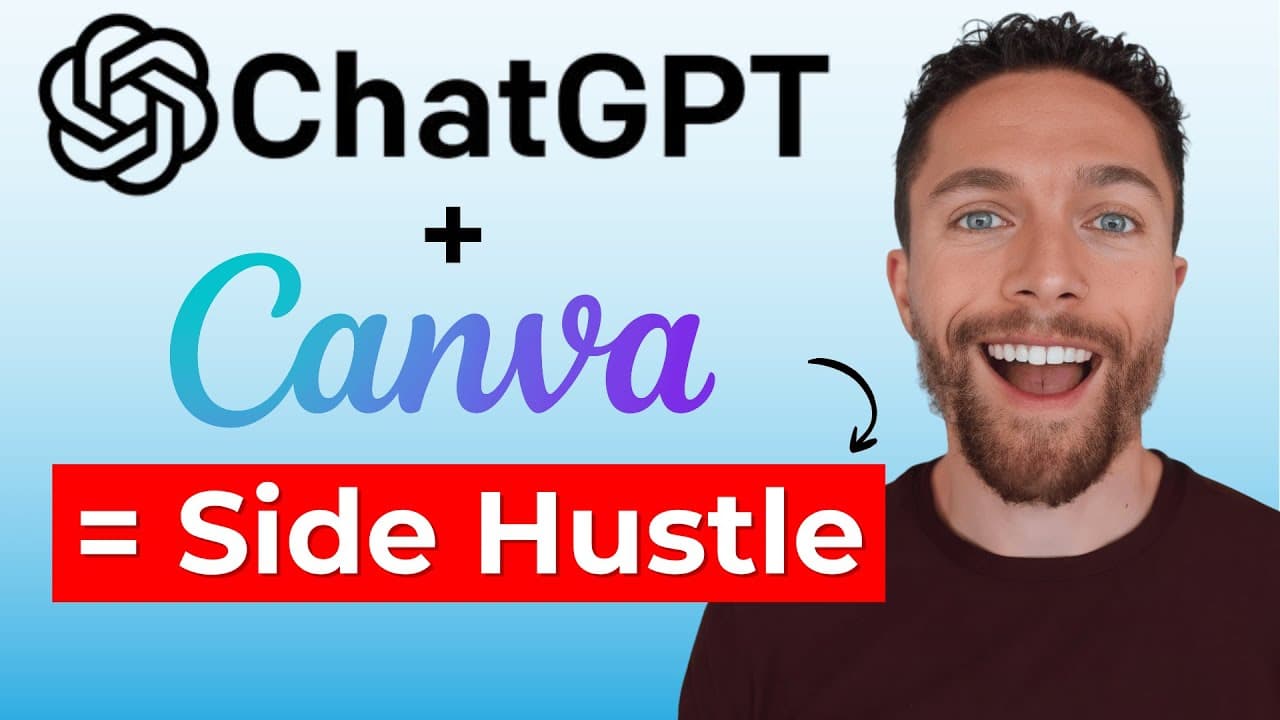
Create content in bulk by asking ChatGPT for a structured CSV, uploading it to Canva, generating visuals with Magic Media, and connecting the changing fields to a reusable template through Bulk Create. The walkthrough creates five Instagram designs for a local bike shop and suggests offering the service to Fiverr clients or small businesses, without guaranteeing income. Read on for the exact CSV fields, Canva connections, and review steps.
Transcript
So, I just found this insane AI workflow that combines chat GPT with this incredibly powerful feature inside of Canva that most people don't even know exists. And this has to be one of the most creative ways to make money with AI right now. I am genuinely blown away by how powerful this is. So, in this video, I'm going to walk you through step by s... Read More
Key Insights
- ChatGPT is used to generate a downloadable CSV whose rows contain individual content ideas and whose columns define the elements needed for each design, including descriptions, image prompts, headlines, captions, quotes, authors, publishing dates, hashtags, slide titles, and slide text.
- Canva's Magic Media converts the image descriptions stored in the uploaded sheet into generated visual options. The selected image can replace its original text prompt inside the sheet, allowing that image column to become a data source for automatically created designs.
- Canva's Bulk Create feature connects sheet columns to variable elements in a template. A headline column can populate a text box, while an image column can populate an image frame, producing multiple designs from one reusable layout after the connections are confirmed.
- A reusable social media template should separate fixed information from changing content. Business names, addresses, phone numbers, and other branding details can remain constant, while headlines and images are linked to CSV columns so that each generated post contains different material.
- Motivational quote posts can be produced without generated images by connecting quote and author columns directly to template text fields. Additional sheet columns can store captions, recommended publishing dates, and hashtags, creating a broader posting system alongside the finished graphics.
- The same data-driven workflow can create presentations by assigning each CSV row to a new slide. Useful columns include an image prompt, slide title, and slide text, which can be connected to matching elements in a selected Canva presentation template.
- The workflow can support services offered to local small businesses or Fiverr clients because it produces multiple social media designs in a short period. It can also support an owner's Instagram account, where prepared posts, captions, dates, and hashtags provide an organized publishing plan.
- AI-generated designs still require human review because text placement, image selection, and layout may need fine-tuning. The workflow reduces repetitive production, but the source explicitly warns that starting an online business is hard and that even perfect execution may not produce income.
Install to Summarize YouTube Videos and Get Transcripts
Explore YouTube Video Summarizer or Get YouTube Transcript Extractor
Questions & Answers
Q: How do you bulk create social media posts with ChatGPT and Canva?
Ask ChatGPT to create a CSV with one content idea per row and separate columns for the elements that will vary. Upload it to Canva, prepare a reusable post template, and use Bulk Create to connect each changing text or image element to its matching column. Continue to the generation screen, create the designs, and review the results.
Q: What columns should the CSV include for Instagram post ideas?
The local bike shop example uses columns for a short descriptive post name, an asset prompt describing the image, a headline for the graphic, and copy to appear beneath the post. These columns give Canva the content needed to populate each generated design.
Q: How do you upload a ChatGPT CSV file to Canva?
Download the completed CSV from ChatGPT, then select Create in Canva and choose Upload. Open the uploaded file to view its post ideas, asset prompts, headlines, and copy in a sheet.
Q: How are AI images added to the Canva Bulk Create sheet?
Open Magic Media, copy an asset prompt from the sheet, paste it into the text box, and select Generate. Canva provides four AI images to choose from; drag the preferred image into the sheet to replace the prompt text. Repeat the process for the remaining rows.
Q: How do you connect spreadsheet data to a Canva template?
Open Bulk Create, select Sheets, and choose the uploaded sheet containing the content and images. Select a variable template element, choose Connect Data, and assign its matching column, for example, connect the main text to Headline and the image to Asset Prompt. Then continue and generate the designs.
Q: Which Canva template elements should remain fixed during bulk creation?
Keep information shared by every post fixed in the template, such as the business name, address, phone number, and lower design elements. Connect only the content that changes between posts, such as the headline and image, to spreadsheet columns.
Q: How many Instagram designs does the demonstrated workflow generate?
The example asks ChatGPT for five creative Instagram ideas for a local bike shop. After connecting the headline and image fields, the presenter selects “generate five designs” in Canva and views the resulting posts.
Q: Can the ChatGPT and Canva workflow guarantee online income?
No. The workflow can create social media posts in minutes, and the service could be offered on Fiverr or directly to local small businesses. However, the presenter explicitly says that starting an online business is hard and that following the process perfectly may still produce no income.
Summary & Key Takeaways
-
ChatGPT creates a CSV in which each row represents a design and each column supplies a specific element, such as a headline, caption, image prompt, quote, author, date, hashtag, slide title, or body text. Clearly defining these required columns makes the file suitable for Canva's data-connected Bulk Create workflow.
-
After uploading the CSV to Canva, image prompts can be converted into visuals with Magic Media. The user then chooses a social post or presentation template, preserves fixed branding elements, and connects variable text and image fields to the corresponding sheet columns before generating a separate design from each populated row.
-
The workflow can support client services for local businesses or Fiverr, an original Instagram account built around motivational content, and presentation production. It reduces repetitive design work, but generated assets may require fine-tuning. Starting an online business remains difficult, and following the process perfectly does not guarantee revenue or success.
Read in Other Languages (beta)
Share This Summary 📚
Summarize YouTube Videos and Get Video Transcripts with 1-Click
Try YouTube Summary with ChatGPT & Claude or YouTube Transcript Generator
Explore More Summaries from Paul J Lipsky 📚




Summarize YouTube Videos and Get Video Transcripts with 1-Click
Try YouTube Summary with ChatGPT & Claude or YouTube Transcript Generator