How to Run Llama 3.2 Vision Locally and Privately
TL;DR
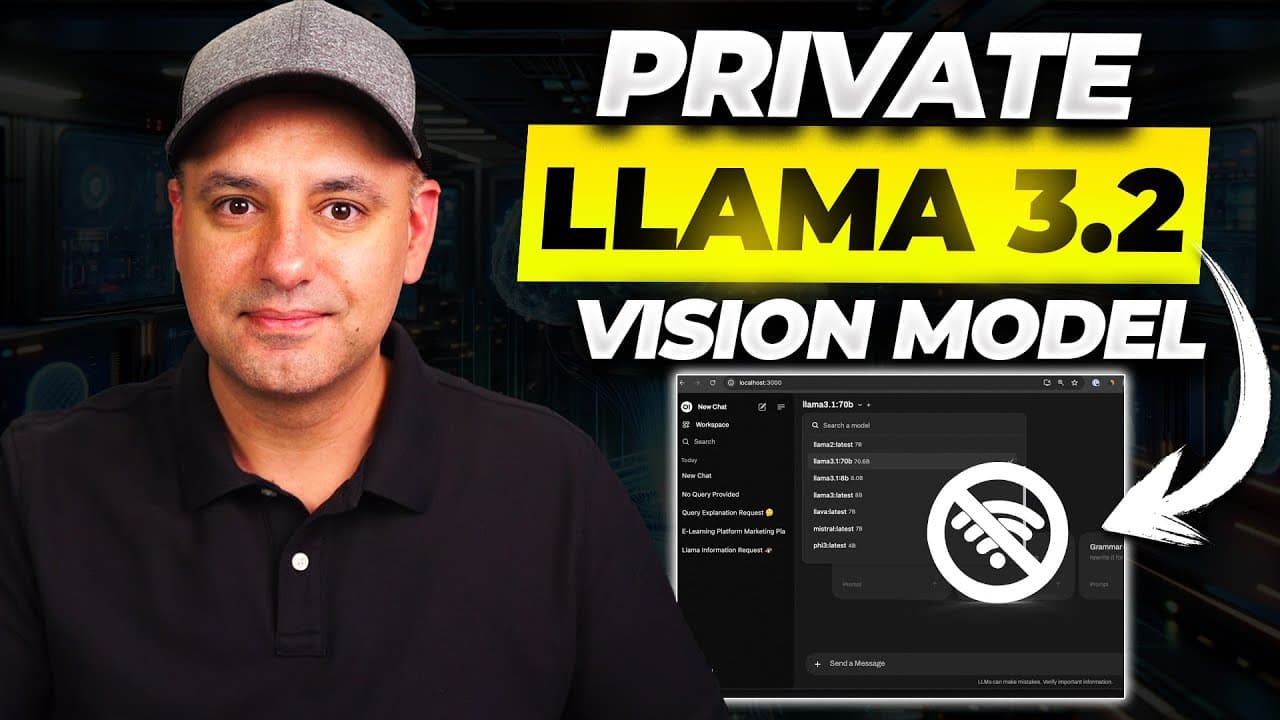
Install Ollama, download the Llama 3.2 Vision 11B model through Terminal, then add Docker and Open WebUI for a private local chat interface. The model can answer text prompts and analyze uploaded images without using a web-hosted chatbot, while Task Manager helps monitor CPU, memory, GPU, and NPU activity during local processing.
Transcript
llama recently introduced a brand new open-source version of llama 3.2 it's called llama 3.2 vision and I wanted to show you how to run it locally and completely privately on your own computer and obviously having an AI chatbot on your co-pilot plus PC which is what I have here allows you to have more privacy more security obviously it's going to b... Read More
Key Insights
- Ollama is the software used to download and run Llama 3.2 Vision locally. On Windows, the installation requires Windows 10 or later, and Ollama continues running in the background after installation without requiring regular interaction through its own interface.
- Llama 3.2 Vision is available in two sizes, and the demonstration uses the 11B model. Its installation command is copied from the Ollama model library and entered into Terminal, following the same general command-based method shown for installing other available language models.
- Terminal is sufficient for interacting with Llama 3.2 Vision after the model finishes downloading. Docker and Open WebUI are optional additions in the demonstrated workflow, used to replace the basic command-line experience with a cleaner, browser-based chat interface running locally.
- Docker is required to run the Open WebUI container in the demonstrated setup. The Docker application only needs to remain running, and creating a Docker account can be skipped before executing the Open WebUI quick-start command through Terminal.
- Open WebUI is a locally hosted interface that can manage multiple installed models. Users can select Llama 3.2 Vision for image-aware tasks, choose a regular Llama 3.2 model for text conversations, and designate an installed model as the default option.
- Llama 3.2 Vision is capable of examining uploaded images through Open WebUI. In the demonstration, a screenshot of a world map is uploaded, and the model identifies it as a map depicting the Roman Empire, showing how visual questions can be processed locally.
- Task Manager is a practical way to observe local AI resource consumption. Its performance view exposes CPU, memory, GPU, and NPU activity, helping users understand which hardware resources are active while models and other on-device AI tools generate responses.
- The HP AI Companion is shown performing local chatbot and document-analysis tasks. Its Analyze feature supports libraries containing PDFs and Word documents, accepts up to 100 megabytes of documents, answers questions about those sources, and identifies the document used for an answer.
Install to Summarize YouTube Videos and Get Transcripts
Explore YouTube Video Summarizer or Get YouTube Transcript Extractor
Questions & Answers
Q: How do you install Llama 3.2 Vision locally on Windows?
Install Ollama from its website on a computer running Windows 10 or later. Open the Ollama model library, select Llama 3.2 Vision, and copy the command for the 11B model. Open Terminal, paste the command, and press Enter. Once the model finishes downloading, it runs locally and can accept prompts directly inside Terminal without requiring a graphical interface.
Q: How do you add a chat interface to Llama 3.2 Vision?
Install Docker for the computer's system architecture and open the Docker application so it remains running. Creating a Docker account can be skipped in the demonstrated process. Next, open the Open WebUI documentation, copy its Docker quick-start command, and paste that command into Terminal. Docker creates a container whose listed port opens the locally hosted Open WebUI chat page.
Q: What is Open WebUI used for with a local Llama model?
Open WebUI provides a graphical chat interface on top of locally installed language models. After opening the local page and signing in or creating an account, users can choose Llama 3.2 Vision, set it as their default, enter text prompts, and upload images. They can also switch between the vision model and other models installed through Ollama commands.
Q: Can Llama 3.2 Vision analyze images without a web-hosted chatbot?
Yes. The demonstrated configuration runs Llama 3.2 Vision through Ollama and accesses it from a locally hosted Open WebUI page. A screenshot of a world map is uploaded to the vision model, which identifies the image as a map associated with the Roman Empire. The local URL indicates that the interface and model interaction are running on the computer.
Q: What hardware was used to run Llama 3.2 Vision locally?
The demonstration uses an HP EliteBook Ultra G1q powered by a Snapdragon X Elite processor. The computer has a 12-core CPU, a GPU, and an NPU designed for AI-related processing. It weighs less than three pounds and is described as supporting up to 25 hours of video playback from one charge under the referenced benchmark-style testing scenario.
Q: How can you monitor hardware usage while running local AI?
Open Windows Task Manager and select its performance section. The displayed categories include CPU usage, memory consumption, GPU usage, and NPU activity. Keeping this window visible while entering prompts shows how the computer's resources change during processing. In the HP AI Companion example, GPU activity appears while CPU usage remains relatively low, with the CPU shown at 16 percent.
Q: How do you install additional local models with Ollama?
Visit the models section of the Ollama website and select the desired model. Each listed model provides a short command that includes Ollama, the run instruction, and the model name. Copy that command, paste it into Terminal, and press Enter. After installation, refresh Open WebUI so the new model appears in the model selector alongside Llama 3.2 Vision.
Q: What local document features does HP AI Companion provide?
HP AI Companion can create document libraries for local analysis and supports PDFs and Word documents. The demonstrated Analyze feature accepts up to 100 megabytes of documents and allows multiple files to be grouped into a library. Users can ask questions or request a concise recap, and the interface identifies the source document used when producing an answer from the library.
Summary & Key Takeaways
-
The setup begins by installing Ollama on a computer running Windows 10 or later. The Llama 3.2 Vision 11B command is copied from the Ollama model library and pasted into Terminal. After the download finishes, the vision model can immediately accept prompts through the Terminal interface without requiring Open WebUI.
-
Docker and Open WebUI add a more familiar graphical chat experience. Docker must be installed and running before the Open WebUI quick-start command is entered in Terminal. The resulting container opens a locally hosted page where users can sign in, select Llama 3.2 Vision, and conduct conversations or upload images for analysis.
-
The demonstration uses an HP EliteBook Ultra G1q with a Snapdragon X Elite processor, 12-core CPU, GPU, NPU, and a weight below three pounds. Task Manager displays resource activity during AI processing. Additional HP tools locally analyze document libraries, produce cited answers, check system optimization, and report memory and battery information.
Read in Other Languages (beta)
Share This Summary 📚
Summarize YouTube Videos and Get Video Transcripts with 1-Click
Try YouTube Summary with ChatGPT & Claude or YouTube Transcript Generator
Explore More Summaries from Skill Leap AI 📚


Summarize YouTube Videos and Get Video Transcripts with 1-Click
Try YouTube Summary with ChatGPT & Claude or YouTube Transcript Generator