How to Auto-Publish Videos to 9 Social Platforms
TL;DR
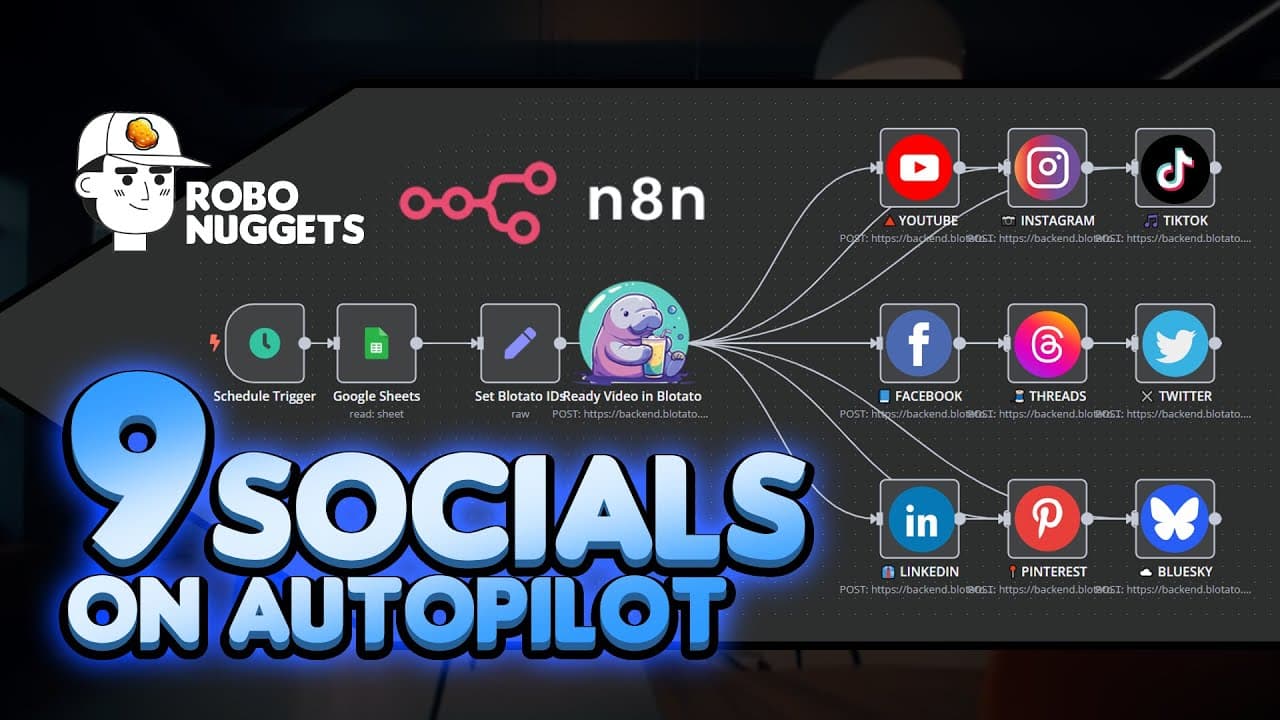
Use an n8n schedule trigger to select the first publishable video from Google Sheets, then pass the video and social account IDs to Blotato for distribution across nine platforms. The workflow can run daily or hourly, lets you skip selected rows, and uses no-code nodes that beginners can configure through credentials, filters, JSON values, and simple drag-and-drop actions.
Transcript
I just built this n8n Auto publishing system that takes any video and publish it to all nine of the social media platforms every day or even every hour and I'm sharing it to those who need it because in the previous lesson we just showed how to create these POV videos that are getting tens of millions of views automatically through Ai and no code s... Read More
Key Insights
- The workflow is organized into three sections: an input that identifies videos, a configuration that supplies social account details, and an output that publishes posts to the selected channels.
- The n8n schedule trigger is the starting point of the automation. It can be configured to activate the workflow daily, hourly, or according to another available schedule, with the demonstrated default left at once a day at midnight.
- The Google Sheets node retrieves candidate videos from a spreadsheet. Its filter searches the Publishing column for the value "For Publishing," allowing spreadsheet rows marked "Skip" to be excluded manually from the automated publishing process.
- The workflow processes one video at a time by enabling the "Return Only First Matching Row" option. During the demonstration, the node selects the first qualifying row and outputs its associated MP4 file for use by later publishing steps.
- An n8n node follows an input, configuration, and output pattern. It receives values or files from a previous node, applies settings specific to its action, and exposes an output that can be passed to the next node.
- External applications require credentials before n8n can use them. For Google Sheets, the demonstrated setup creates a new credential and uses the available Google sign-in process to connect the workflow to spreadsheets stored in Google Drive.
- Blotato provides connections to nine named social platforms in the demonstrated system: TikTok, YouTube, Instagram, Facebook, Twitter, LinkedIn, Threads, Pinterest, and Bluesky. Pinterest and Bluesky are specifically described as supporting image posts in this workflow.
- The Blotato configuration uses JSON values that map platforms to numerical account IDs. Each ID identifies the specific connected account that should receive a post, while an Edit Fields node named "Set BL IDs" makes those values available to subsequent automation steps.
Install to Summarize YouTube Videos and Get Transcripts
Explore YouTube Video Summarizer or Get YouTube Transcript Extractor
Questions & Answers
Q: How do you auto-publish videos to multiple social platforms with n8n?
Create an n8n workflow with three sections: input, configuration, and output. Start with a schedule trigger, retrieve the next eligible video from Google Sheets, and provide Blotato with the numerical IDs of the connected social accounts. The later publishing action can then distribute the selected video to the chosen platforms using the spreadsheet data and account configuration.
Q: How do you schedule an n8n social publishing workflow?
Add a Schedule Trigger as the first node because this node starts the entire workflow. The demonstrated configuration is left at once a day at midnight, but the system is described as capable of publishing daily or even hourly. Select the schedule that matches the desired publishing frequency, then connect the trigger to the Google Sheets input node.
Q: How does Google Sheets control which video gets published?
The spreadsheet contains video records and a Publishing column that controls eligibility. Configure the Google Sheets node to get rows, then filter that column for the value "For Publishing." A row changed manually to "Skip" will not match the filter. The node then supplies the qualifying row's data, including the MP4 file location, to the workflow.
Q: How can an n8n workflow publish only one video per run?
Open the Google Sheets node, add the filter for rows marked "For Publishing," and enable the option labeled "Return Only First Matching Row." This makes the node choose the first eligible spreadsheet row instead of returning every match. In the demonstration, testing the step retrieves the first qualifying video record and its final MP4 output column.
Q: What social platforms can the demonstrated automation publish to?
The demonstrated system identifies nine platforms: TikTok, YouTube, Instagram, Facebook, Twitter, LinkedIn, Threads, Pinterest, and Bluesky. A single automation run is shown as capable of distributing posts across the connected channels. The transcript also specifically notes that the setup allows image publishing on Pinterest and Bluesky, while its main input example uses video files.
Q: What are Blotato account IDs used for in n8n?
Blotato account IDs tell the automation which specific social account should receive each post. The workflow stores numerical values for the nine platform entries in a JSON configuration. For example, the value assigned to the Instagram entry corresponds to the connected Instagram channel, while the TikTok value identifies the connected TikTok channel used by the publishing process.
Q: How do you connect Google Sheets to an n8n workflow?
Add a Google Sheets node after the schedule trigger and select the action for getting rows from a sheet. Create a new credential, use the available Google sign-in button, and complete the connection. Then select the spreadsheet document and its relevant tab, such as Sheet1, before configuring the publishing filter and testing the node's output.
Q: What does each node do in an n8n automation?
Each n8n node uses a recurring input, configuration, and output structure. The input contains values, attributes, or files received from a previous node. The configuration determines what the current node does, with settings varying by module. The output displays the result produced from that input and configuration, which can then be passed into the following node.
Summary & Key Takeaways
-
The automation follows a three-part framework: input, configuration, and output. A Google Sheet supplies the videos, n8n controls the scheduled workflow, and Blotato connects the workflow to selected social accounts. Once configured, the system can distribute a video across multiple channels from a single automation run.
-
The input section begins with an n8n schedule trigger, which can run once a day at midnight or use another chosen schedule. A Google Sheets node retrieves rows, filters the Publishing column for the value "For Publishing," and returns only the first matching row, including its MP4 file location.
-
The configuration section uses an Edit Fields node in JSON mode to store account IDs for nine supported social platforms. Each numerical ID identifies the account that should receive a post. These IDs come from social accounts connected through Blotato's settings and are passed through n8n for publishing.
-
Key Insights Q&A
Read in Other Languages (beta)
Share This Summary 📚
Summarize YouTube Videos and Get Video Transcripts with 1-Click
Try YouTube Summary with ChatGPT & Claude or YouTube Transcript Generator
Explore More Summaries from Jay E | RoboNuggets 📚
Summarize YouTube Videos and Get Video Transcripts with 1-Click
Try YouTube Summary with ChatGPT & Claude or YouTube Transcript Generator