How to Build an MCP Server for LLM Agents and Simplify AI Integration
TL;DR
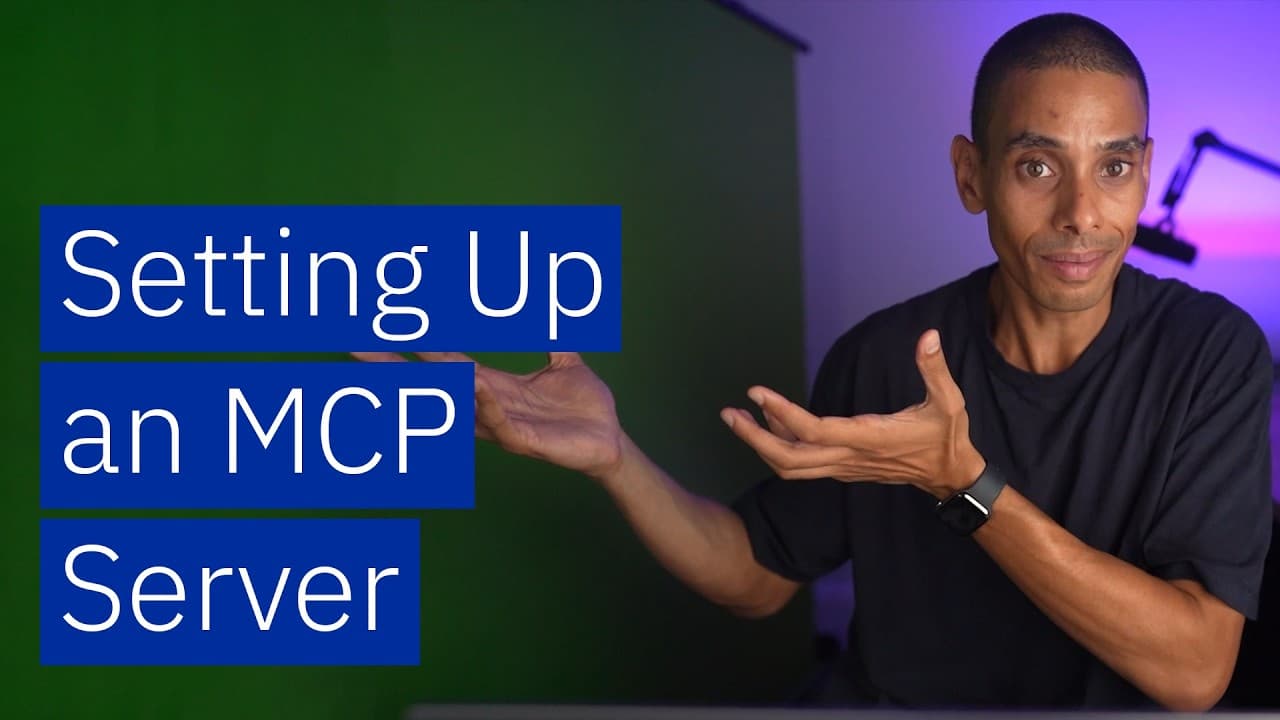
Build an MCP server by creating a Python project and virtual environment, installing the MCP CLI package and requests, then using FastMCP to create a server and expose functions as tools. The tutorial connects an employee-churn API to LLM agents and aims to complete the server in under 10 minutes. Read on for the setup sequence, MCP capabilities, transport options, testing, integration, and observability details.
Transcript
This is how to build an MCP server so you can connect your LLM agents into just about anything. The model context protocol was released by Anthropic in November, 2024. It addresses a lot of the issues that have been popping up around agents. How? Well, in order for agents to exist, they need tools, right? But every framework or app or client tends ... Read More
Key Insights
- MCP standardizes LLM interactions with tools, reducing repetitive integrations.
- Anthropic released the Model Context Protocol in November 2024 to address agent issues.
- Building an MCP server involves creating a virtual environment and installing dependencies.
- Fast MCP class is crucial for server setup and tool creation.
- Testing the server uses MCP Inspector to verify tool functionality.
- Transport types include STDIO for local files and SSE for client-server interactions.
- Integration with AI agents involves specifying server parameters and commands.
- Observability can be enhanced by importing logging to track tool calls.
Install to Summarize YouTube Videos and Get Transcripts
Explore YouTube Video Summarizer or Get YouTube Transcript Extractor
Questions & Answers
Q: How do you build an MCP server for LLM agents?
Create a project with uv init, enter its folder, and create and activate a virtual environment with uv venv. Install the MCP CLI package and requests, create server.py, import FastMCP, and instantiate the server. You can then use the mcp.tool decorator to wrap a function that calls an API.
Q: What is the Model Context Protocol?
The Model Context Protocol, or MCP, standardizes how LLMs communicate with tools. Anthropic released it in November 2024 to address problems arising because frameworks, applications, and clients declare tools in different ways.
Q: Why does MCP simplify AI integration?
Without a shared approach, developers may repeatedly create integrations whenever they want to use an AI capability in another framework, application, or client. MCP lets them define a tool server once and use it across different applications.
Q: Which dependencies are installed for the Python MCP server?
The tutorial installs the MCP CLI package and requests with uv add. The MCP package provides the Python SDK used to build the server, while requests is used to call the existing employee-churn API.
Q: What does FastMCP do in the server?
FastMCP is the central class used to create the MCP server. The tutorial imports it from mcp.server.fastmcp, instantiates a server called “churn and burn,” and uses mcp.tool to expose a function as a tool.
Q: What example API is connected to the MCP server?
The example uses a locally running machine-learning API built with FastAPI to predict employee churn. Its inputs include years at the company, satisfaction, position, manager status, and salary, with values represented on an ordinal scale from one to five.
Q: What capabilities can an MCP server provide?
The transcript identifies resources, prompts, and tools as capabilities that can be built into an MCP server. It also mentions sampling and transports, while the demonstrated implementation focuses on creating a tool that calls the employee-churn API.
Q: How are MCP servers tested, integrated, and monitored?
The page describes testing tools with MCP Inspector and integrating the server with AI agents by specifying server parameters and commands. It identifies STDIO for local-file interactions and SSE for client-server interactions, and says logging can track tool calls for observability.
Summary & Key Takeaways
-
The Model Context Protocol (MCP) helps standardize interactions between LLMs and tools, minimizing the need for repetitive integrations. By building an MCP server, users can define tool interactions once and apply them across various applications. This tutorial guides users through setting up an MCP server, testing it, and integrating it with AI agents.
-
Key steps in building an MCP server include creating a virtual environment, installing necessary dependencies, and using the Fast MCP class for server setup. Testing the server involves using the MCP Inspector to ensure tools function correctly. Transport types like STDIO and SSE are essential for different interaction scenarios.
-
Integrating the MCP server with AI agents requires specifying server parameters and commands. Observability can be enhanced by importing logging to track tool calls. The video demonstrates creating an MCP server in under 10 minutes, showcasing its potential for seamless AI integration and scalability.
Read in Other Languages (beta)
Share This Summary 📚
Summarize YouTube Videos and Get Video Transcripts with 1-Click
Try YouTube Summary with ChatGPT & Claude or YouTube Transcript Generator
Explore More Summaries from IBM Technology 📚

Summarize YouTube Videos and Get Video Transcripts with 1-Click
Try YouTube Summary with ChatGPT & Claude or YouTube Transcript Generator